Time Clock Configuration
Punch permissions, physical devices, break types, and how imported hours behave.
Timeclock settings
| Setting | Effect |
|---|---|
| Allow managers to add timeclock punches? | Direct, department, and division managers can add punches for their reports — for fixing missed punches without escalating to HR. |
| Allow employees to enroll in multiple clocks? | Lets a person use the digital clock and a hardware terminal simultaneously; off means one or the other. |
| Accept punches from outside the geofence? | "If enabled, a punch from outside an employee's division geofence is recorded and flagged with its distance from the fence. If disabled, it is refused." Off by default. Applies only to divisions that restrict punches by location — see Time Clock. |
| Decide clock in or clock out automatically? | "Ignore which button the employee pressed: clock them out if they're clocked in, otherwise clock them in." The button they actually pressed is still recorded, and reportable as Punch Type Pressed. |
| Repeat press window (seconds) | "A second press of the same button within this many seconds of the last punch is refused as a repeat, instead of switching between clock in and clock out." Defaults to 60 — the guard against a double-tap becoming an instant clock-out. |
| Show employees the Punches view on their own timeclock? | Lets employees switch their own history between the hours counted and the punches as pressed. Off by default, in which case they see only the counted hours. Anyone viewing another person's history can always switch. |
| Require approval of timeclock entries? | See the warning below. Off by default. |
Per-employee enrollment (digital and/or hardware) lives on the employee's profile and the create form — see Creating Employees. Location-based punch restrictions are configured per division — see Company & Organization.
Re-counting the past, deliberately
Two controls at the foot of the page exist for when you do want history re-counted:
| Control | What it does |
|---|---|
| Apply the Current Settings From a Date | "The settings in force now also apply to punches from the start of this date, and stored punch days are rebuilt from it." This is the deliberate restatement — use it when a rule was set wrongly and the affected period must be corrected. |
| Rebuild Stored Punch Days | "Each employee is rebuilt from the start of the month holding this date. Leave it empty to rebuild every date." Re-derives the stored hours from the punches without changing any rule — the repair tool if stored figures ever look out of step with the punch log. |
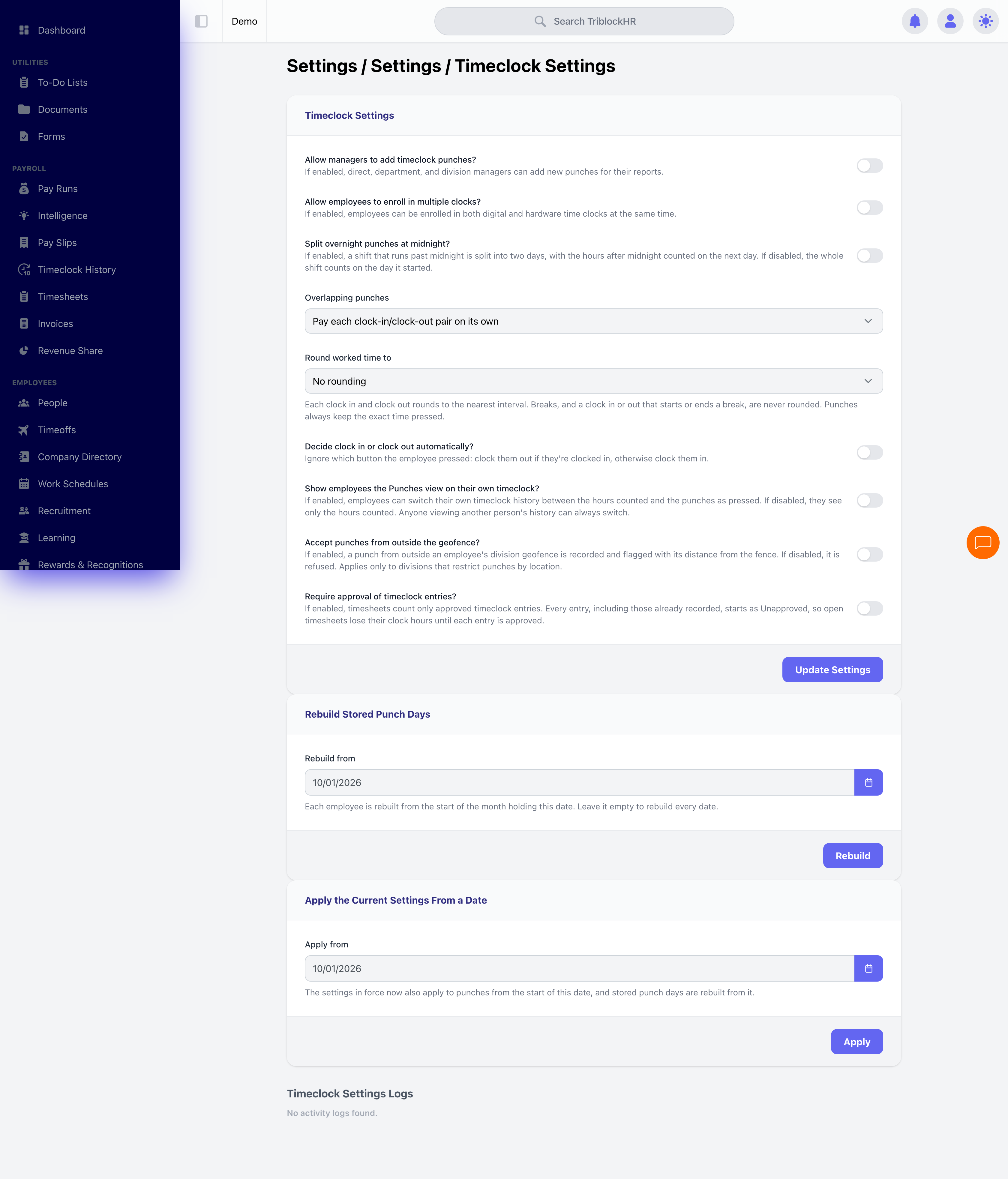
Timeclock settings
/settings/time-clock-settings, the whole Timeclock Settings section — the manager/multi-clock switches, Accept punches from outside the geofence?, Decide clock in or clock out automatically? with the repeat-press window, Show employees the Punches view…, Require approval of timeclock entries?, and the hour rules (Split overnight punches at midnight?, Overlapping punches, Round worked time to). A full-page capture is fine here — the page is the subject. Fabricated demo tenant only.
Save as: admin-guide__settings__timeclock-config__shot2.png
Approving timeclock entries
With Require approval of timeclock entries? on, every closed clock-in/clock-out pair carries a state — Unapproved, Approved or Rejected — and timesheets count only approved entries. It is the control for operations where worked time has to be signed off before it can be paid.
A closed pair made of two imported punches is approved automatically, so a file-based clock feed doesn't create approval work that nobody asked for.
Hour rules: how punches become counted hours
Three settings decide how raw punches turn into the hours a timesheet pays.
| Setting | Options | Default |
|---|---|---|
| Split overnight punches at midnight? | "If enabled, a shift that runs past midnight is split into two days, with the hours after midnight counted on the next day. If disabled, the whole shift counts on the day it started." | Off |
| Overlapping punches | Pay each clock-in/clock-out pair on its own or Merge overlapping pairs and pay the covered time once. | Pay each pair |
| Round worked time to | No rounding, or 5, 6, 10 or 15 minutes — with Exactly halfway (Round up / Round down) and Seconds (Keep the seconds when rounding / Drop the seconds before rounding). | No rounding |
All three default to the behaviour accounts had before these settings existed, so switching the new time clock on changes nobody's pay by itself.
Hardware clocks
Register each physical terminal with its Name and Serial Number; the index shows enrolled-user counts and each device's Last Online time — your first stop when "the clock isn't working" calls come in. Deactivate a device to take it out of service without losing its punch history. You can also manage which employees belong to a hardware clock's group — adding or removing them individually, as a subset, or in bulk.
Break types and punch edit reasons
Break types (Lunch, Short Break…) populate the Take a Break menu on the dashboard clock. Punch edit reasons are the standardized explanations required when someone corrects a punch — they keep the audit trail consistent and searchable instead of free-text.
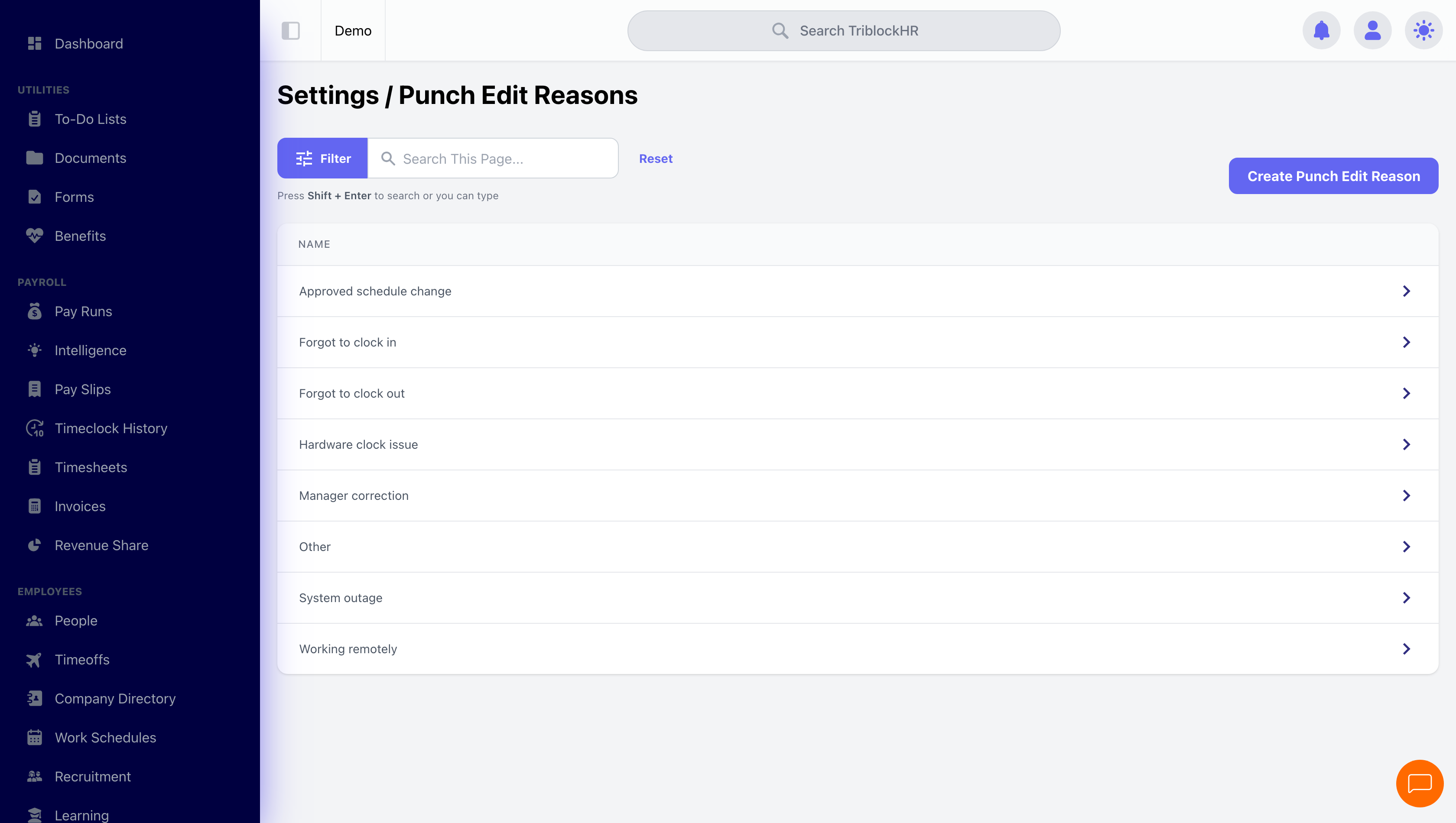
Punch edit reasons
/settings/time-clock-punch-reasons, showing the standard reasons plus Create Punch Edit Reason. (A separate Hardware Clocks shot could be added later from /settings/clocks.) App viewport only.
Save as: admin-guide__settings__timeclock-config__shot1.png
Import behavior
The timeclock import setting carries one consequential switch: Automatically approve timesheets? — imported hours skip timesheet review entirely and arrive approved. Which third-party system you import from is set in the account's integrations (see Importing Hours for the flow itself).