Payroll Configuration
The rules every pay run calculates against: overtime thresholds, pay codes, the allowance and deduction catalogs, and what lands on the payslip.
Payroll settings (per employment level)
Overtime rules are configured per employment level, which is why your levels need to exist first. Each level defines regular-hours thresholds (daily, weekly, bi-weekly, semi-monthly, monthly), whether overtime is calculated against the daily threshold, the period threshold, or both, the Default Overtime Pay Code applied to excess hours, and a time-off hours threshold that keeps leave days from pushing someone into overtime artificially. Hourly rates for salaried staff are derived from the weekly threshold by default (a custom calculation script is available for unusual arrangements — talk to support before using it).
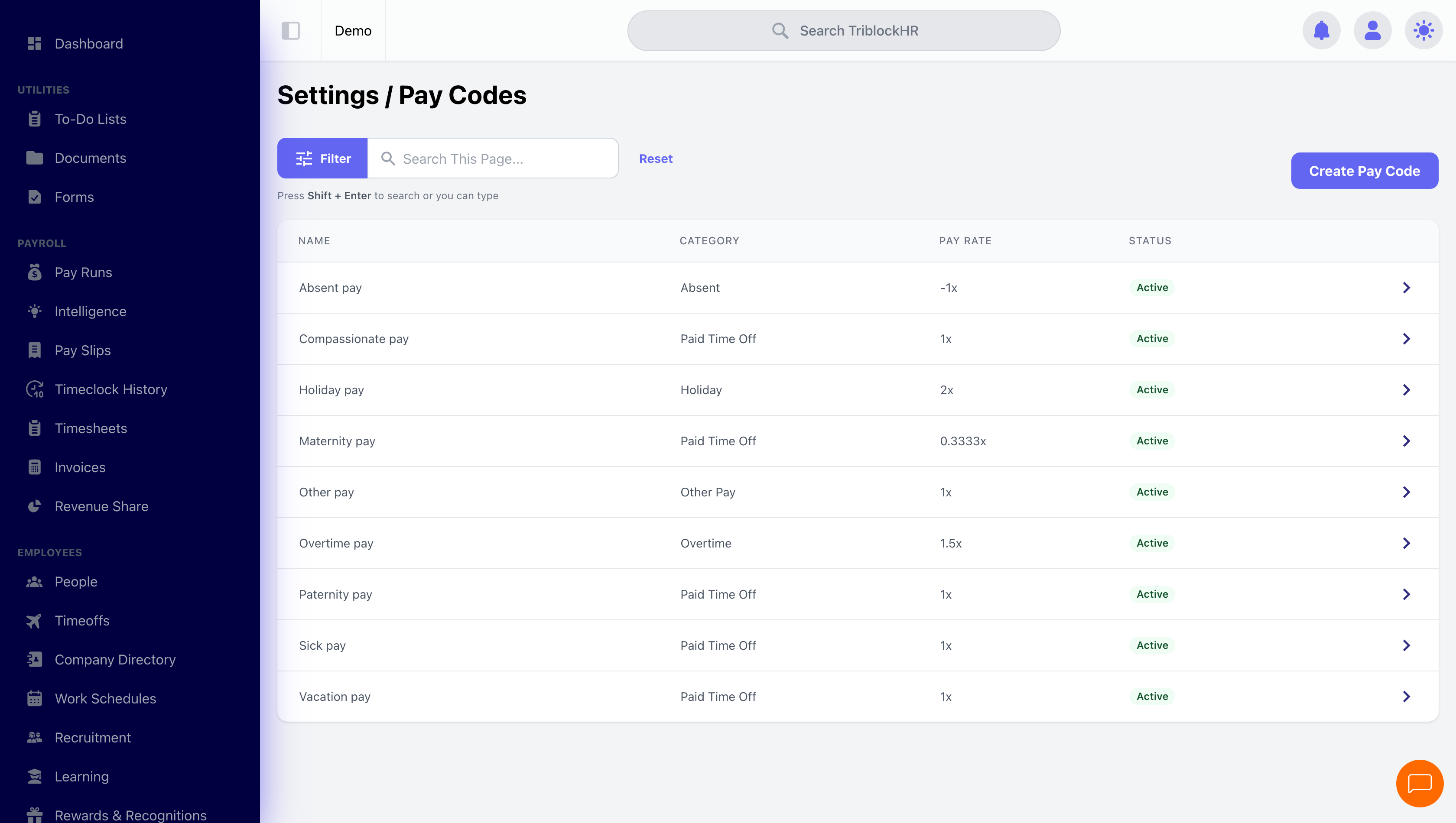
Pay codes
Every earning lands under a pay code: a Name, a Pay Rate multiplier (1.5 for time-and-a-half overtime, 2 for double-time holidays), a Category (regular, overtime, holiday…), an optional GL code for the accounting export, and per-tax switches deciding whether earnings under this code are taxable for each statutory item. Pay type policies sit on top: tenure-based rate rules ("after N days, this level earns X% on this code") for things like probationary rates.
Pay type distribution rules
Thresholds decide when overtime starts. Distribution rules decide which pay code each hour is paid under — the layer that turns a flat set of worked hours into regular, overtime, double-time and premium lines. They live in Settings → Payroll, alongside the overtime thresholds.
Each rule reads as a sentence: a condition, over a period, becomes a pay type.
| Condition | Meaning |
|---|---|
| All Hours | Every hour in the period. |
| First X Hours | The opening N hours. |
| Above Hours | Everything beyond N hours. |
| First X Days Worked | Hours falling on the first N days worked in the period. |
| Above Days Worked | Hours falling on days after the Nth day worked — the classic "seventh consecutive day is double time" rule. |
The period narrows where the count is kept: For Day, For Week, For Pay Period, For User Work Day, For Non User Work Day, For Holiday, or a named day of the week. A rule can also exclude particular pay types, so hours already paid as something else are not counted twice.
So "Days worked above 6 For Week will be considered Double Time" pays the seventh day of any week at double, and "First 8 hours For Day will be considered Regular" caps the regular line at eight hours a day.
Pay type distribution rules
Save as: admin-guide__settings__payroll-config__shot2.png
Allowance and deduction catalogs
These are the company-level definitions that employee-level assignments (see Employee Profiles) draw from. Both carry a name, category, description, and per-tax configuration including deductible rules (none, fixed amount, or percentage — per pay period or per year). Two switches matter most:
| Switch | Effect |
|---|---|
| Is this a standard allowance/deduction? | Auto-assigns it to every new employee from their start date (or probation end, if on probation). This is how "everyone gets the transport allowance" happens without anyone remembering to add it. |
| Internal Deduction? | Funds are withheld from the employee but stay in your company account — for staff loans and canteens, versus external deductions remitted to a vendor. |
| Should contribute to percentage deductions? | On an allowance: "this allowance is added to the base used for percentage deductions". Off by default, so an allowance does not inflate a percentage-based deduction unless you say it should. |
How an allowance is rated for NIB (Bahamas)
Beyond Should NIB be assessed?, a Bahamas allowance carries a NIB Rating Basis that decides how the contribution is worked out and where it lands on your filings:
| Basis | Effect |
|---|---|
| Regular Insurable Wage | The allowance is treated as ordinary insurable wage and reported as wage on statutory returns. |
| Gratuity Rate | The allowance is rated as gratuity and reported in its own box, separate from the employee's regular contribution. |
Payslip settings (per employment level)
Per level, choose whether payslips show annual salary, hourly wage, debt-to-service ratio, and current time-off balances. Common pattern: management sees everything, line staff see the essentials.
Salary scales, banks, and the accounting export
Salary scales define ranges with dollar or percentage increments, attachable to work titles for compensation guidance. Banks and branches hold the institutions and routing numbers behind employee accounts, vendors, and bank files. The accounting file configuration defines your GL export: file format, custom file naming, column mapping (including Sage-style headers), and which entries appear — it's powerful and fiddly, so set it up once with your accountant and leave it alone.
Configuring overtime end to end (5 min)
Save as: admin-guide__settings__payroll-config__vid1.mp4