Communications
What the system says, to whom, and through which channel — emails, notifications, announcements, and Slack.
Email templates
System emails (approvals, welcomes, reminders) are customizable per type: subject and body in a rich-text editor with autocompleting placeholders (employee name, department, dates — the variables panel shows what's available per type), CC/BCC lists, and default attachments sent with every email of that type (handbook with every welcome email, say — 10 MB per file). Send Test Email before saving; what looks right in the editor occasionally wraps badly in a real inbox.
Notifications: three layers
| Screen | Controls |
|---|---|
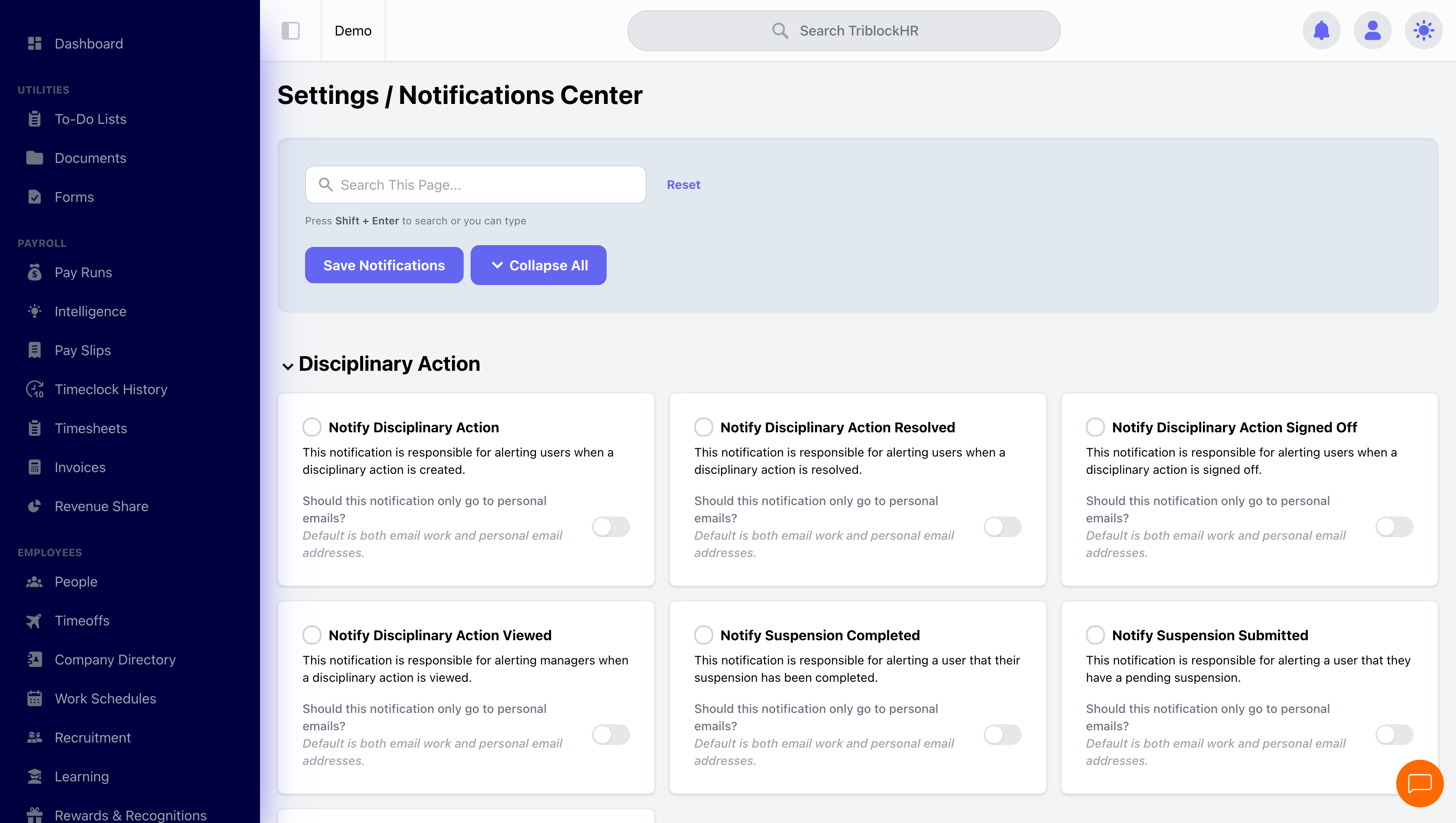
| Notifications Center | The master switchboard — every notification type, grouped by area, toggled on or off, plus a personal-email-only option per item. |
| Notification Reminders | Scheduled nudges: pick a reminder type (and status, e.g., pending time off), set how many days out, and the system chases automatically. |
| Notify Users | Who gets told about lifecycle events — onboarding, termination, division/department changes, disciplinary actions. Tick the people per event. |
Announcements
Announcements appear on employee dashboards, targeted by department, division, and employment level filters, with an optional attachment and a switch to also email everyone matching the filters. Send Test Email exists here too — use it.
Slack
Connecting a Slack app (with its OAuth tokens) adds Slack as a delivery channel: payslip notifications, shift updates, time-off alerts, and unscheduled clock-in warnings can all land in Slack alongside email and in-app. Setup requires creating an app in your Slack workspace — your TriblockHR implementation contact can walk you through the token generation.
Targeted announcements in 2 minutes
Save as: admin-guide__settings__communications__vid1.mp4