Time Clock
Digital punching from the dashboard, physical clock devices, location rules, and the punch history that backs it all.
The dashboard clock
Employees registered on the digital clock punch in and out from a widget on their dashboard. It shows a running timer, the last clock-out time, an optional note while clocked in, and a Take a Break control with your configured break types. Punches record the time, the method, and — where enabled — the location.
| On the widget | What it means |
|---|---|
| Today · Week · Period | Counted hours — worked plus paid break, exactly as the timesheet counts them. An open punch that started today keeps ticking into all three. |
| Week | Starts on your payroll's workweek start day, not always Monday. |
| Period | The current pay period. Shows "—" if the person isn't in exactly one payroll group. |
| N remaining | What's left of today's scheduled time. |
| The Today drawer | Opens on Hours or Punches — whichever the person last used. Employees only get the Punches choice if the account allows it. |
A clock-in left open from an earlier date still shows in Today, with View day opening the date it belongs to — so a forgotten clock-out surfaces instead of vanishing.
Team Clocks answers "who's in right now?" and covers everyone you may view, not only your direct reports. It loads after the rest of the page, so the dashboard isn't held up by it.
Location rules
Divisions can be geofenced. What happens then depends on one account setting, Accept punches from outside the geofence? in Time Clock Configuration:
| Situation | Setting off (the default) | Setting on |
|---|---|---|
| No location at all | The punch is refused either way. TriblockHR can't fence what it can't locate, so the employee must allow location access first. They see step-by-step prompts to enable it, plus the tip that a phone gives a more accurate position than a desktop. | |
| Location, but outside the fence | The punch is refused, and the employee is told how far outside they are — "Denied: You are currently … away from …". | The punch is recorded and flagged with its distance from the fence, and a Punch Outside Assigned Location notification goes to the HR Administrator and the person's manager. |
Break punches are fenced exactly like a clock-out. The check runs on the server, so it can't be bypassed from the browser. If a division has no geofence, location is recorded when available but never required.
Punch reports
Four reports read the punch record: Employee Punches, Late Punches, Employee Absences and Punch Attempts. All of them are also available as report-builder datasets.
| Report | What it shows |
|---|---|
| Employee Punches | The punches themselves, with the method each was made by. |
| Late Punches | Clock-ins after the scheduled start. |
| Employee Absences | Scheduled days with no punch. |
| Punch Attempts | Refused punches only — the attempts that did not become time. Where your account decides the punch kind automatically, it also records Punch Type Pressed, so you can see which button the employee actually pressed. |
Punch Attempts lists refused punches only. If you are looking for accepted punches, that is Employee Punches.
Physical clock devices
Hardware clocks (badge or biometric terminals) are registered in Settings with their device identifiers, and punches flow into the same history as dashboard punches — each entry keeps its method, so you can always tell how a punch was made. Hours can also arrive from third-party clock systems by file; that's covered in Importing Hours.
Punch methods now distinguish Mobile from Web; punches made before that distinction existed still read Digital Clock, so a history spanning the change shows all three.
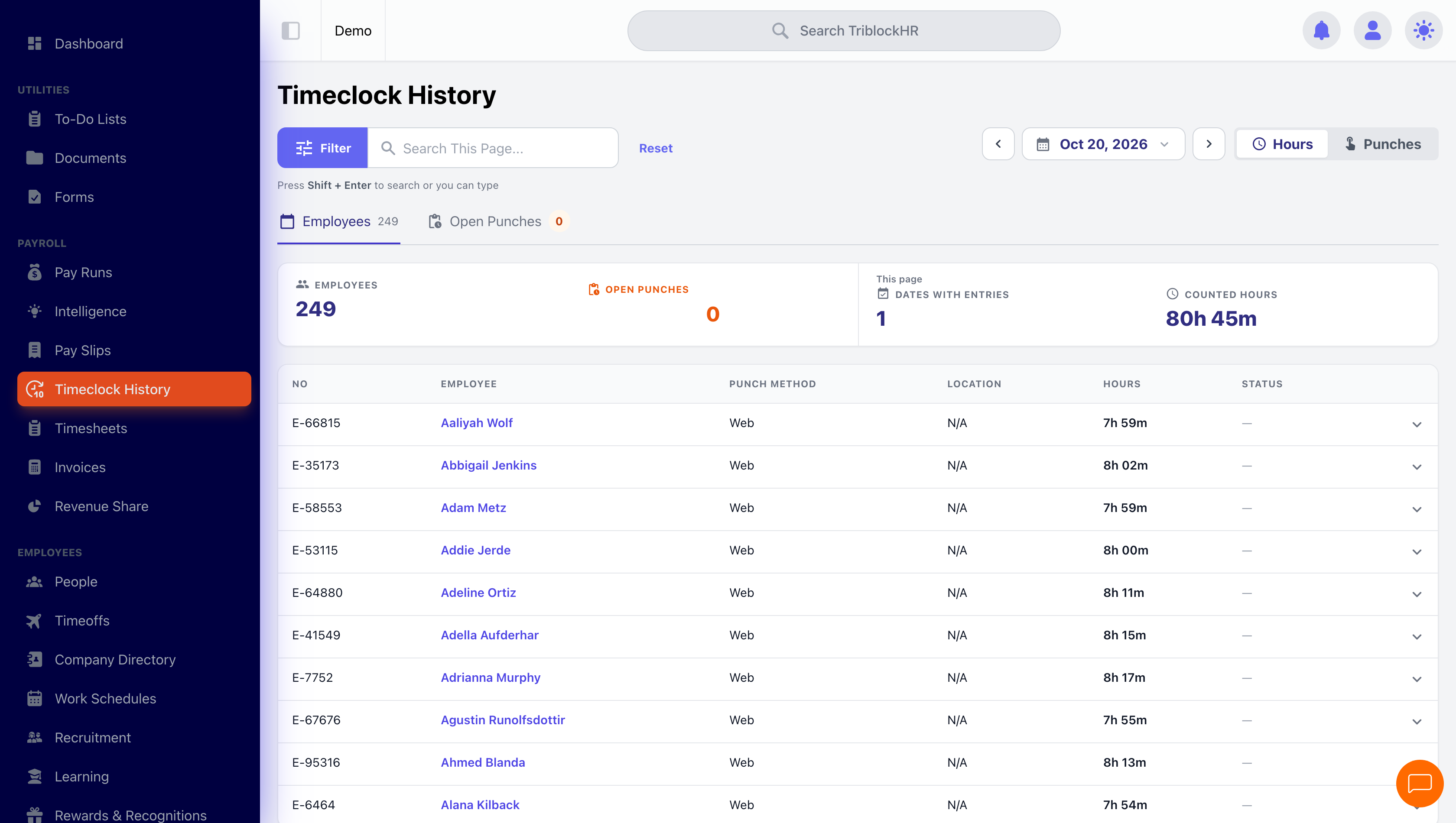
Punch history
The account's Timeclock History takes a date range rather than a single day, and pages ten at a time. It has two tabs:
- Employees — a row per person; expand one to see their dates, in Hours or Punches.
- Open Punches — each person's latest open clock-in, whatever its date. This is the screen that finds the clock-out somebody forgot three weeks ago.
A Geofence column and filter appear only when your account accepts out-of-fence punches — there is nothing to show when they are refused. An individual's history opens on the last pay period and offers a calendar.
Problems are named in plain words: forgot to clock out, clocked out with no clock in, break never ended. A problem appears on every date its pair is listed on but counts once in the totals, and an overnight pair shows on both dates when the midnight split is on.
Fixing punches
Managers with the right permission fix punches from the history screens, the manager dialogs, or the punch strip on a timesheet.
- Modify saves a whole pair at once, with one reason — and can move the clock-in to a different date.
- You can close a forgotten clock-out, or add a clock-in on its own.
- Overlaps are refused, with a message naming the pair they collide with. So is an add over an open clock-in, until that punch is closed, and so is a clock-in dated in the future.
- Times for an add are entered in America/Nassau; editing an existing punch keeps that punch's own time zone.
- Edit history is read by pair and opens inside the dialog. Automated clock-outs are logged as Automated Timeclock Clock Out rather than a generic system update, so the cause is legible later.
Your configured punch edit reasons keep these edits consistent and searchable.
How punches become hours
Punches are what the employee pressed. Hours are what the timesheet pays, after splitting at midnight, taking out breaks, and rounding. The two are shown separately and deliberately — when somebody queries their pay, the difference between the punch log and the counted hours is the explanation. Those three rules are account settings: see Hour rules.
Where your account requires it, each closed pair must also be approved before its hours count at all — see Approving timeclock entries.
Running the time clock day to day (3–4 min)
Save as: admin-guide__time__timeclock__vid1.mp4