Balances & Adjustments
How TriblockHR computes time-off balances, and how to correct them — one at a time or in bulk.
How a balance is computed
An employee's balance for a time-off type is the sum of four parts: the days they're entitled to (from their policy), plus any accrued amounts, minus time off used, plus or minus manual adjustments. The policy drives the entitlement:
- Service thresholds — entitlement steps up with tenure (for example: 5 days in year one, 10 days after a year, 15 after five). Thresholds are measured in months or years of service.
- Accrual — types can accrue gradually instead of granting the full allotment up front.
- Year start — balances reset on a calendar year or the employee's hire anniversary, per the type's configuration.
- Rollover — unused days either carry into the new year or reset, per type.
Type-level behaviors that change what employees see: some types don't track a balance at all, some allow going negative, and some hide the balance from the employee entirely (common for compassionate leave). Probation rules on the policy can block requests during an employee's first months.
The person's Time Off tab
Everything about one employee's leave lives on their record, under Time Off, in four tabs:
| Tab | What it holds |
|---|---|
| Overview | Their balances and a year map of when they were away. |
| Requests | Every request they have made, with Length, Requested by, Decided and Status — so a request an admin filed on their behalf is distinguishable from one they filed themselves, and you can see who settled it. |
| Entitlement | The audit-grade breakdown — see below. |
| Adjustments | Their own adjustment history, with Add days, Subtract days and Reset to in place. |
Three buttons sit above the tabs: Adjust balance (make one here and now), Balance Adjustments (the account-wide list), and Book time off for <first name> — filing a request on somebody's behalf.
If one of their requests is waiting on you, a band across the top of the tab says so — "Paid vacation leave request waiting on you", with the dates, the hours and how long it has been sitting — offering Approve, Deny and Open request, so you can decide without leaving the page. Approving asks you to confirm, and there is no undo. Which requests appear there comes from the approval queue itself, not from their status: "pending" means undecided, not that you are the one it is waiting for.
The entitlement breakdown
The Entitlement tab is what you open when somebody disputes a number. One row per leave type, with a leave-year switcher offering the last few years:
| Column | Meaning |
|---|---|
| Leave year | Which window this row measures. The leave year belongs to the type, not the page — a type running on the calendar year and one running on the employee's anniversary describe different windows for the same person, and an account can run both. |
| Brought forward | What rolled in from the previous year, for types that roll over. |
| Earned | Entitlement granted or accrued so far. |
| Adjustments | The net of manual corrections. |
| Taken | Leave already in the past. |
| Booked | Leave approved or pending but still ahead. Split from Taken by the day rather than by the request, so leave straddling today divides where it actually falls. |
| Remaining | What is left to book. |
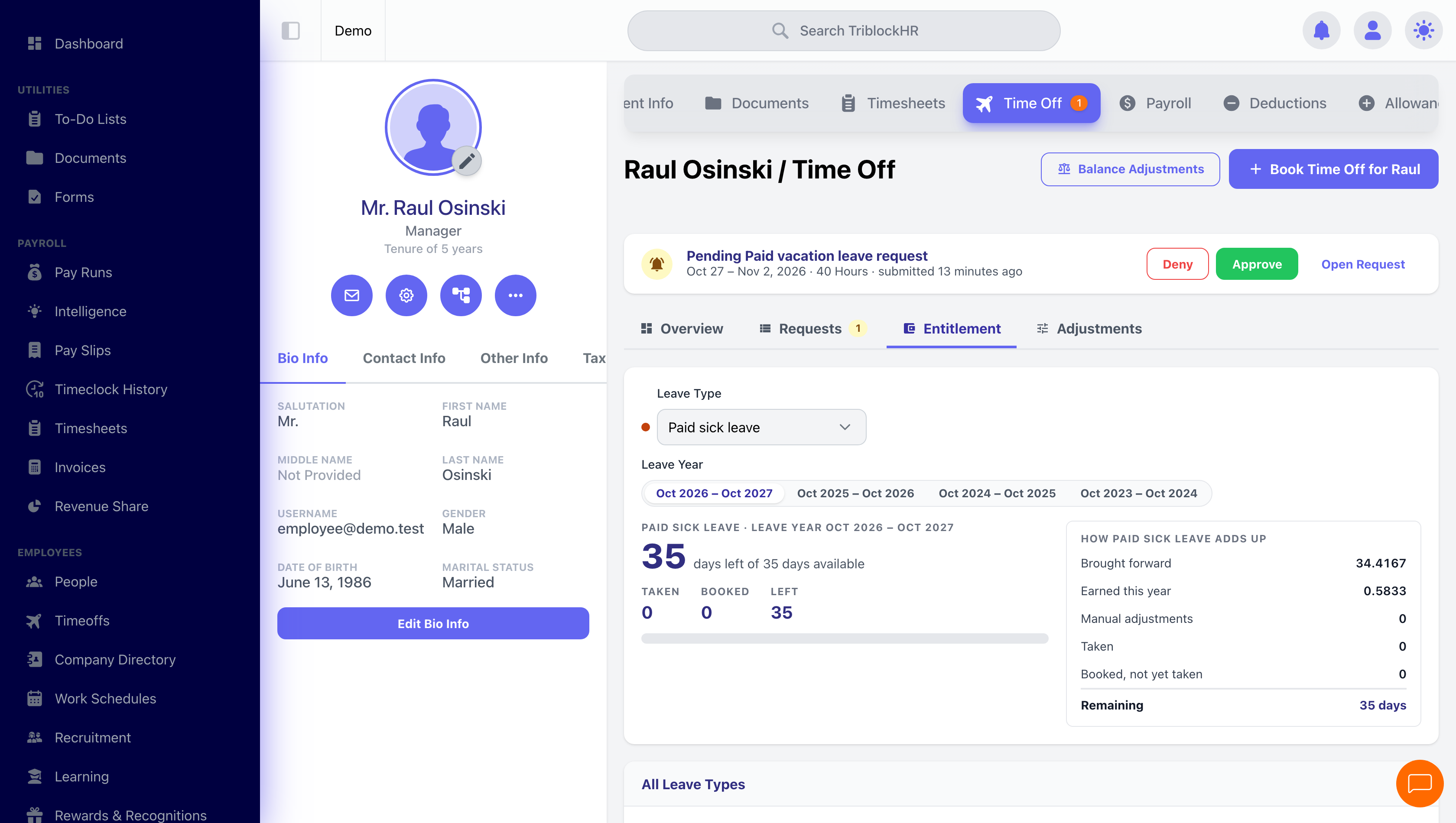
The entitlement breakdown
Save as: admin-guide__time__balances__shot2.png
Manual adjustments
When a balance is wrong — migration gaps, a negotiated extra week, a correction — fix it with an adjustment rather than editing history:
- From Timeoffs, open Balance Adjustments (or open them from the employee's profile) and click Create Adjustment.
- Pick the employee and Time Off Type.
- Set the Effective Date — the balance changes from that date forward.
- Choose the Adjustment Type: Add, Subtract, or Reset Balance (sets the balance to an exact figure).
- Enter the Amount of Days and a Reason For Adjustment — the reason is required and shows in the audit log.
Adjustments are listed with their creator and can be edited or deleted later (system-created adjustments are read-only). Every adjustment keeps its own change log.
The adjustments list is a list of people
The screen says so itself, under its own title: "Grouped by employee. Every credit and debit is signed and dated." Balance Adjustments pages by employee, not by adjustment — one card per person, expandable to their entries, with a net figure and counts of credits, debits and resets. That is deliberate: a group's net has to cover every adjustment that person has, and a page of adjustments could cut somebody's group in half, showing them twice with two different nets and neither one real.
Deleted adjustments are counted too, so a group can tell you that its history includes entries that have since been removed. Import balances in the corner is the bulk route, below.
Adjustments grouped by employee
/time-off-balance-adjustments showing several employee cards, with one expanded to reveal its entries. The point of the shot is the net figure and the credit / debit / reset counts on the card header, so seed one employee with a mix — two adds, one subtract and one reset — so the "resets aren't in the net" behaviour is visible on screen. App viewport only, 1520px wide. Attempted 2026-09-07 and discarded: the route renders correctly but the demo seed has zero balance adjustments, so it captured only "No balance adjustments match what you are looking for." This one is purely seeder work — no interaction needed once the rows exist.
Save as: admin-guide__time__balances__shot3.png
Bulk balance import
For migrations and year-start corrections, import balances for many employees at once. The screen walks three steps:
- Select employees and time-off types. Filter by department, division, employment level, policy, and more. Only employees with an active time-off policy appear.
- Download the template. One row per employee, one column per selected type — pre-filled with current balances so you edit rather than retype.
- Upload the completed file with an Effective Date and a Reason. Then Preview Import.
The preview shows how many adjustments, employees, and types are affected — nothing applies until you click Apply Import. If the file has errors, the import is rejected whole: "The import was not processed because the file contains errors. No balances were changed."
Bulk-importing balances at migration (4 min)
Save as: admin-guide__time__balances__vid1.mp4
Where employees see their balance
Balances show as rings on the employee's own Timeoffs screen, again as they fill in a request, and on their payslip (unless the type hides its balance). A balance already has pending as well as approved leave taken off it — which is the single most common source of "my balance is wrong": it changed at submission, not at approval.
If an employee disputes a number, work down the Entitlement tab first, then the adjustment log, then the request history. Between them they reconstruct how the balance got where it is.