Time Off Requests
The full lifecycle: the coverage board, what an approver is shown before they decide, denials that can be counted, and the two-step cancellation of approved leave.
The coverage board
Timeoffs opens on a board rather than a list, because the question an approver actually has is "can we spare them?" rather than "what came in?". It has three parts:
| Part | What it answers |
|---|---|
| The decision band | Across the top: "1 request needs your decision — approve or deny them from the queue on the right", with three counters — how many are out today of your headcount, how many are awaiting you, and how many are away in the month on screen. |
| The main panel | Three views, each at its own address so you can link or bookmark one: Calendar (a month of Who's Out, each day counting how many are away and naming any public holiday), Timeline (the same range as one scrolling row per person), and Requests (the filterable table). An old /timeoffs link lands on the calendar. Your filters and search apply to all three, not just the table. Clicking a calendar day opens a peek listing who is away, and a legend runs underneath — a colour per leave type, plus Pending and Public holiday. |
| The right-hand rail | Your balances as rings — remaining against the entitlement, "as of today" — then Awaiting your approval with Approve / Deny / View details on each row, then Your upcoming time off. Each panel scrolls on its own, so reading the queue never means scrolling a month of calendar first. |
The board counts pending as well as approved leave — pending days are outlined rather than filled. An approver deciding on next Tuesday needs to see what is already provisionally booked for it, not only what has been signed off. The panel states its own scope: "2 of 278 people have leave booked in September 2026. Showing only the people you have permission to see."
With nothing waiting on you the queue says so — "Nothing needs your decision" — rather than showing an empty table. Employees who approve nothing get the same board framed around their own leave instead.
Needs Attention lists up to eight requests with their hours and status, and tells you it is "Showing X of N". View All deliberately lists only what waits on you, so the link and its count agree.
Lengths read in hours on the board ("40 hours"), and leave-type lists follow your account's configured display order rather than alphabetical.
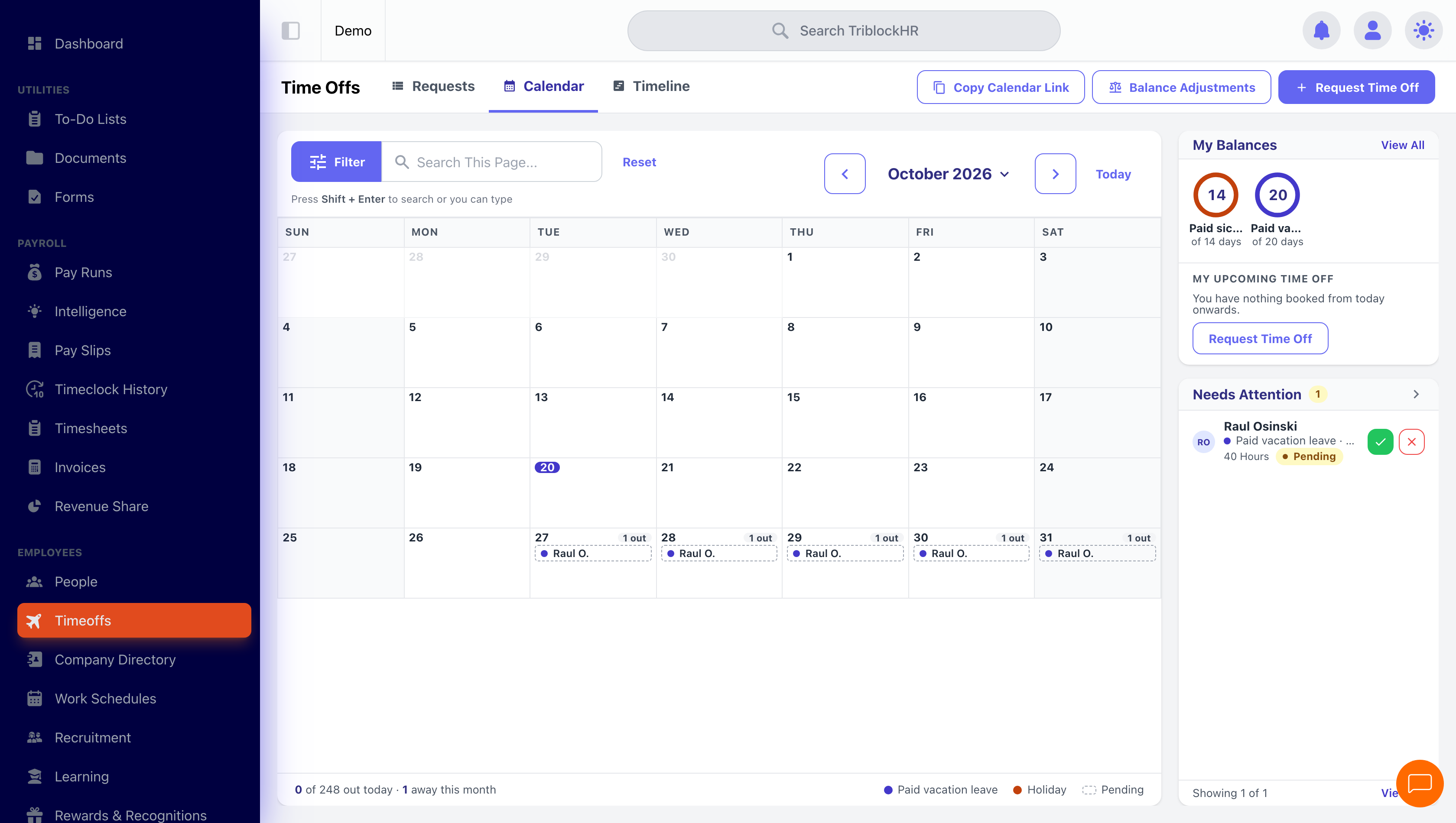
The coverage board
/timeoffs with the board side by side — balance rings, the Who's Out calendar, and the right-hand rail showing Awaiting your approval. App viewport only, 1520px wide. Captured 2026-09-07, replacing the pre-September flat-table shot. Worth improving on the next reseed: the current seed has only one pending request and two people away all month, so every day reads "1 out" and no public holiday falls inside the month — a seed with several pending requests across different people, and a month containing a holiday, would show the coverage story the page is describing.
Save as: admin-guide__time__time-off__shot1.png
Filtering all requests
The Requests tab carries two rows of controls. Quick filters — All, Pending, Approved, Denied, Mine — and an employment filter bar: Department, Work Title, Employment Level, Division. The employment filters narrow the calendar and the headcount as well as the table, so "2 of 6 people away" stays a true statement about the slice you are looking at rather than about the whole company.
Copy calendar link hands you a signed subscription URL to paste into Google Calendar or Apple Calendar. It is personal to you and shows what you are permitted to see — treat it as a credential, not a share link.
Request statuses
| Status | Meaning |
|---|---|
| Pending | Submitted, awaiting a decision. Already deducted from the balance the screens show. |
| Approved | Granted. Days are on the timesheet; balance is committed. |
| Denied | Rejected, with a recorded reason and — usually — a reason code. |
| Cancel Requested | Employee asked to cancel an approved request; awaiting sign-off. |
| Cancelled | Cancellation signed off. Timesheet entries removed, balance restored. |
The request form
A request (created by the employee, or by an admin on their behalf with Request Time Off) is a three-step wizard on its own page: Type & dates, Details, Review. Continue validates only the step you are on, and only the last step can submit — with Send request, or Send for extra approval where the request goes over balance.
| Field | Behavior |
|---|---|
| Type | Grouped by the category the type belongs to and searchable (Search leave types). The type's configuration drives everything below. |
| All Day | Yes: pick a range on a calendar — click the start, click the end. No: a single Date plus Hours, from 15 minutes up to 8 hours. |
| Days selected | For multi-day requests, work-schedule days are pre-selected automatically (when the type uses work schedules); individual days can be unticked. Weekends and payable holidays are already excluded from the count. |
| Supporting Document | Required when the type demands it (e.g., sick notes). Accepts images, Word documents, and PDFs. Checked on the Details step rather than at submit, so nobody gets through Review only to be refused. |
| Note for your approver | Optional — anything they should know about cover. |
| Payment advance | Shown for types configured for lump-sum payment — pays the leave out in advance rather than period by period. |
| Back pay | Admin-only, for types that allow back-dating — treats past-dated leave as catch-up pay. |
| Payment in lieu | Admin-only — pays out the leave at the ordinary rate and hides it from the time-off calendar. |
Two rails sit beside the wizard. The policy rail quotes the chosen type's own policy lines and the notice it asks for, headed with the type's name. The balance outcome panel says what the request does to the balance and how payroll will treat the days — "Payroll treats these days as paid at full rate", "…as unpaid, so that period's gross pay drops", or "Whether these days are paid is confirmed at approval", depending on the type's pay treatment.
Blackout dates are enforced at selection time: if the type follows blackout dates, an overlapping range is refused with the dates named.
Asking for more days than the balance holds
What happens depends entirely on the type's configuration — see Time-Off Configuration:
- Balance to go negative not allowed — the request is refused at submit.
- Negative allowed, Allow, paid in full — the default. The request goes through, every day is paid, and the balance goes negative. Nothing is split, nothing is flagged.
- Negative allowed, Block the request — refused after all. This is the deliberate way to say "the setting is permissive but this case is not".
- Negative allowed, Allow, unpaid, with extra approval — accepted, and the request records how it divides: the days the balance covered, and the days beyond it. The Review step reads "3 days deducted · 2 days beyond your Vacation balance" and the button becomes Send for extra approval.
Editing a request
An edit is measured against the balance only on a leave type that allows a negative balance and is set to block or split the overage — so editing cannot be used to get around that choice. On every other type an edit saves as it always did. A zero-hour edit is refused on every type.
Unpaid time off can be edited in any status. Leave that has already been paid is a different matter — see cancelling below.
What an approver sees before deciding
Opening a request no longer shows just the dates and a balance. A strip across the top gives Type, Dates, Length and — the new one — Balance after, the figure that actually answers "can they afford this?". Beside it an Impact panel carries the findings: every row is something that could make the decision go the other way, each with a verdict shown as a tick (clear), a warning (something to weigh) or a neutral dot (cannot be computed).
| Row | What it says |
|---|---|
| Coverage | "Nobody else is away", or "4 other people are away in these dates" with "At worst 5 of 22 are off on the same day, counting this request." The two figures measure different things and each line says which. |
| Notice | Working days of notice given, against what the type asks for — "7 working days of notice, as asked" or "Only 2 working days". Counted in working days, not calendar days, so a Friday request for a Monday start is one day of notice. |
| Balance | "Balance stays healthy" or "This takes the balance negative", with both numbers: what is left with the request standing, and what you would restore by denying it. |
| Supporting document | Only shown for types that require one — attached, or conspicuously not. |
| Payroll | "These days have missed their payroll" — paid leave filed after the run that should have carried it went out, with back pay off. Approving as it stands pays nothing. |
| Retrospective | Leave already in the past with back pay off, so nothing tells payroll to reach back for it. |
| Advance | A lump sum asked for on a type that is not set up to pay one. |
| Conflicts | Back-dating on a type that forbids it; over balance on a type that does not permit it; blackout days inside the range; public holidays in the range (not a warning — it is why the day count looks low); and the requester's own overlapping leave, which would book them off twice. |
Beside it, Also away lists who else is off on those dates, and the approval trail shows the life of the request: its submission, every status change, and every workflow stage approved along the way — each naming the person who acted and when.
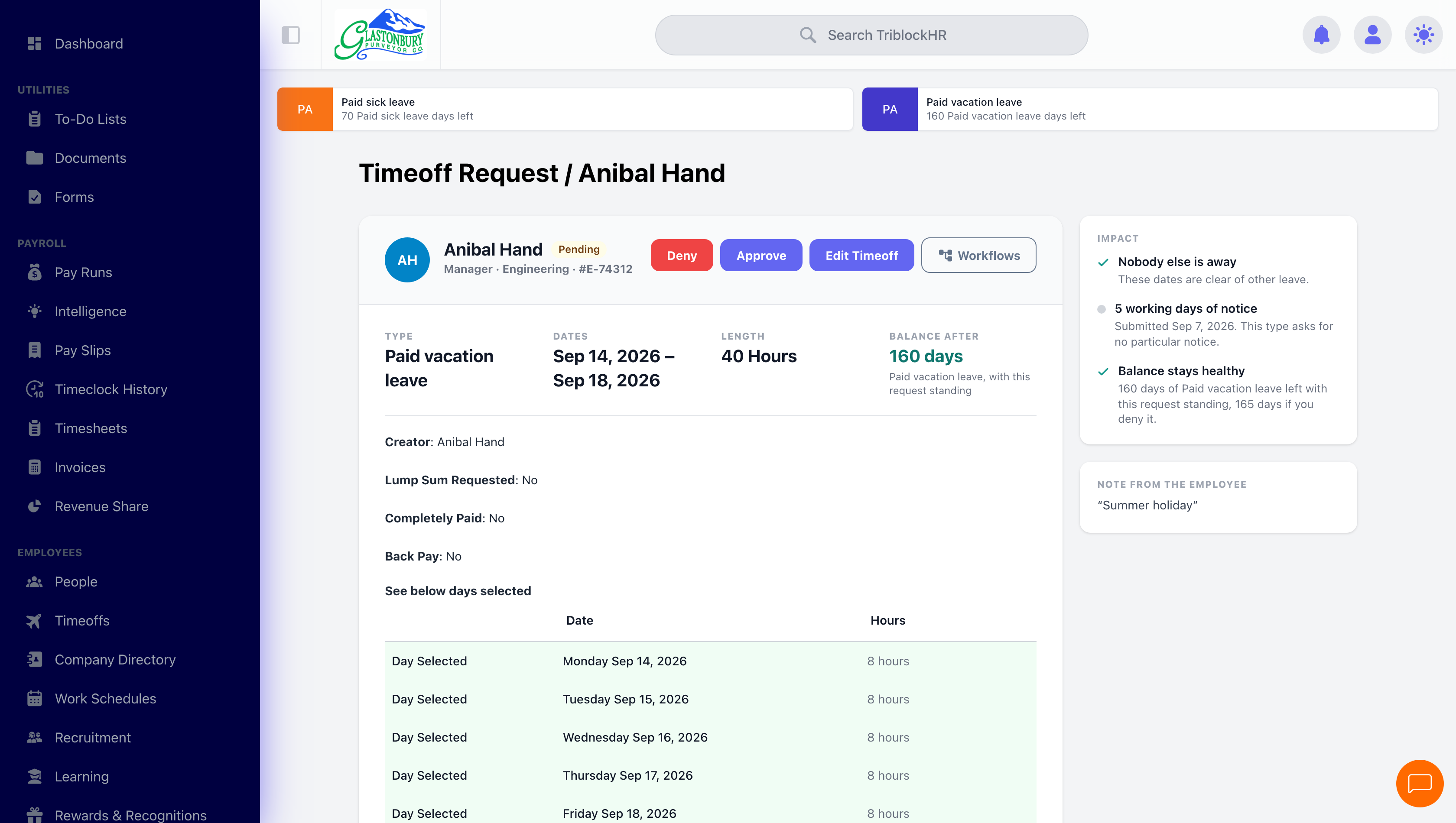
Approval impact on a request
/timeoffs/{id}, with the Impact panel as the subject. Captured 2026-09-07. Worth re-taking: the seeded request is all-clear, so the panel shows two ticks and one neutral dot and no warning row at all — which undersells the feature. A better shot needs a request that trips several at once: 2 working days of notice on a type asking for 5, dates overlapping colleagues' approved leave, and a public holiday inside the range. The approval trail also sits below the fold here and should be in frame.
Save as: admin-guide__time__time-off__shot2.png
Approving and denying
Pending requests show Approve and Deny to anyone with time-off handling rights, plus Edit Timeoff. You can decide from three places: the queue on the board, the request itself, and the person's own Time Off tab.
Approving asks you to confirm
Approve opens a confirmation dialog, the same as Deny and Sign Off. Confirm and it is sent; the decision is recorded, the employee notified and any automations run.
Denials that can be counted
Denying still requires words — a Deny Reason the employee reads, quoted verbatim in the notification. On top of that you can pick a reason code, which is what makes denials reportable:
| Code | Suggested wording |
|---|---|
| Coverage | "We would not have enough cover on these dates." |
| Notice too short | "This does not give us enough notice for these dates." |
| Blackout period | "These dates fall inside a blackout period." |
| Balance too low | "You do not have enough balance left for these dates." |
The deny screen is Deny Timeoff Request, with Deny request and Keep pending as its two exits. Picking a code drops its suggested wording into the box — but only when the box is empty or still holds another untouched suggestion. Once you have written your own words, picking a different chip changes the code and leaves your text alone. The code is optional, and denials made without one are recorded as unclassified rather than as "other".
Approving does real work downstream
- The days are written onto the employee's open timesheets for the covered period (marked as time-off lines, so they can't be casually edited).
- The employee is notified.
- The balance commits — which, per the note above, usually means the figure does not move.
Who sees which button
The server works this out per viewer, per request, from the same rules that accept or refuse the action — so a button you can see is one that will work. A handling role below means administrator, HR admin, payroll admin, HR clerk, or an employee holding handle_timeoffs.
| Button | Shown when |
|---|---|
| Approve | Pending, handling role, owner visible, and the workflow accepts an approval from you now (or no workflow is pending). |
| Deny | Pending, handling role, owner visible, nobody else's stage is open, and the workflow accepts a failure from you. |
| Cancel Request | Pending, and you are the owner or hold a handling role. |
| Request to Cancel | Approved, not yet paid, and you are the owner or hold a handling role. |
| Sign Off | Cancel requested, not paid, and you hold a handling role. Owners cannot sign off their own cancellation without one. |
| Edit Time Off | Not paid, and you pass the update rules. Editing is refused on a terminated person's request, and on a request whose leave type is masked from you. |
| Delete Time Off | Denied or cancelled, and you may use the delete route — HR and payroll administrators can clear these out. |
| Logs | Administrators, HR and payroll administrators, and anyone with direct reports. |
Cancelling approved time off
Plans change. A pending request can simply be cancelled by its owner. An approved request takes two steps:
- The employee (or admin) opens the request and clicks Request to Cancel, providing a Cancel Reason. Status moves to Cancel Requested.
- An approver opens the request and clicks Sign Off. Status moves to Cancelled, the timesheet entries are removed automatically, and the balance is restored.
Approved time off that has already been fully paid can no longer be cancelled this way — the Request to Cancel button disappears. Handle corrections through payroll instead. A cancellation waiting on you appears in the queue alongside requests, and the held-approve window applies to signing one off too.
Approve, deny, and the cancel flow (4–5 min)
Save as: admin-guide__time__time-off__vid1.mp4
Reading approval impact before you decide (3–4 min)
Save as: admin-guide__time__time-off__vid2.mp4
Privacy: what other people can see
The board and the person's Time Off tab both answer to your account's calendar privacy setting (Time-Off Configuration):
- Private — only people you may already see appear at all.
- Semi-Private — everyone appears, but somebody else's leave type reads as Out of Office to anybody who is not an Administrator or HR Administrator. Their note and their attachment are withheld with it, because "surgery follow-up" or a file named after a clinic discloses the same thing the type name would. Dates, duration and the person remain. Search on a masked page deliberately does not match leave types, or typing a type in would answer the question the mask exists to refuse.
- Public — everything is visible.
Two rules sit on top of the account setting. Nobody is masked from their own record — reading your own leave is not a disclosure. And on Who's Out, an employee never sees a colleague's leave type at any privacy level, including Public: why somebody is away is as often medical or bereavement as it is a holiday. The person tab is the exception, because it answers to a supervisor who has been given that person to look after.
Where a panel is missing because of masking, the page says so rather than rendering blank — an absent balance would read as "this person holds none", which is a different and wrong statement about them.
Audit trail
Every request keeps a log (Timeoff Logs on the request view) of who did what and when — submissions, edits, decisions, and cancellations. The approval trail above it is the readable summary of the same record, and unlike the paginated log it always shows the request's beginning.