Importing Hours
Bringing worked hours in from a third-party clock system — upload, verify, approve, and they become timesheets.
Supported sources
Your company's timeclock type is configured in company settings; the Import Hours screen adapts to it. TriblockHR understands exports from TimeForce, uAttend, TimeMoto, Deputy, TimeClock Plus, Aspire, and Landscape Management Network, plus a generic Excel template (download it from the import screen) and an automated SFTP pickup for Myers middleware (Auto Import Time searches the drive for new files for the pay period).
The import flow
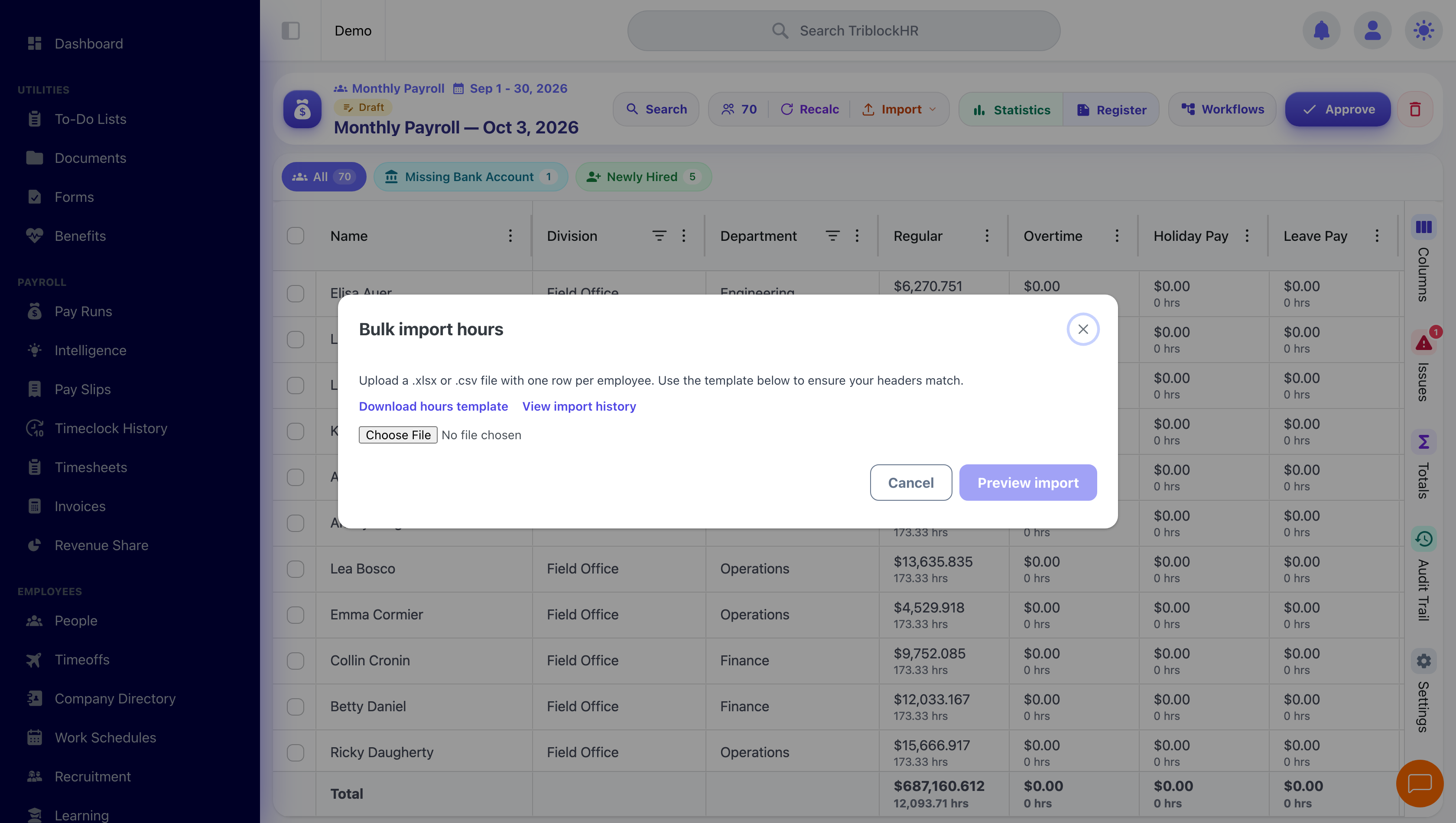
- On Import Hours, upload your file (.xlsx, .xls, or .csv) — or run the auto-import if your setup uses it. The batch appears in the history table as Pending.
- Open the pending batch to reach the Verify Hours screen. Hours are grouped per employee with their totals by pay type; expand a row to see the day-by-day detail.
- Check the exceptions panel — it counts employees with missed punches. Timesheets containing missed punches will not auto-approve; they'll need manual review after import.
- Click Approve Hours to accept the batch (or Cancel Import to discard it — you'll be asked to confirm either way).
- The batch becomes Processed and the hours turn into imported timesheets, which then follow the normal timesheet review path into payroll.
🖼 Image placeholder
Verify Hours screen with exceptions
Screenshot of the verification table with one employee row expanded showing daily detail, and the exceptions accordion open showing "2 Exceptions" with missed punches highlighted. Annotate the missed-punch column.
Save as: admin-guide__time__hours-import__shot1.png
Employees missing from the file stay missing
The import only creates entries for employees it can match. Anyone in the file who can't be matched — and anyone absent from the file — has to be added manually on a timesheet. Reconcile your headcount against the import's employee count before approving.
▶ Video placeholder
From clock export to timesheets (3–4 min)
Screen recording: download the Excel template, upload a filled file containing one missed punch, open Verify Hours, expand the affected employee, explain why that timesheet won't auto-approve, approve the batch, then show the resulting imported timesheets list.
Save as: admin-guide__time__hours-import__vid1.mp4