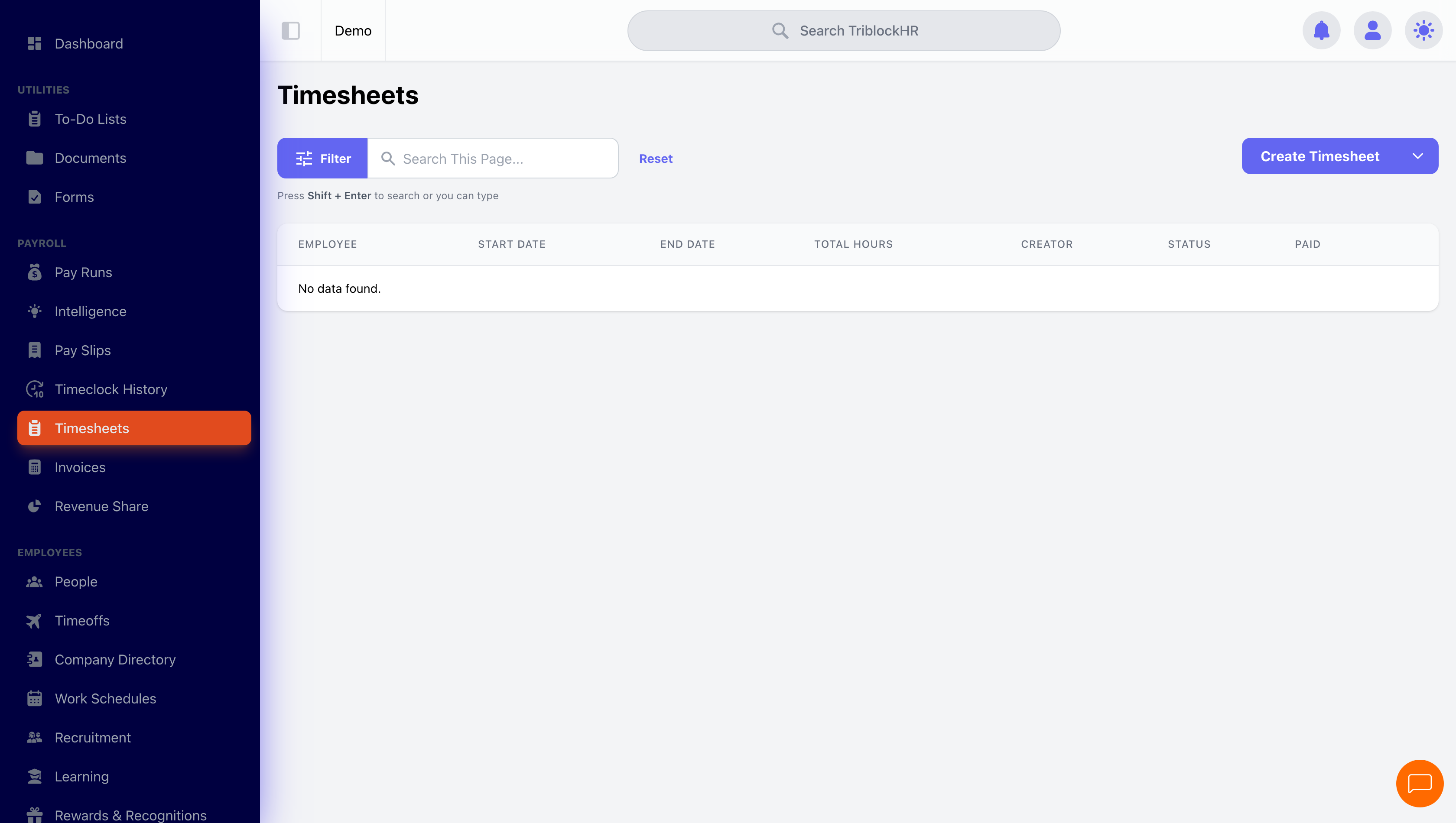
Timesheets
Timesheets are how worked hours and time off become pay for hourly employees.
Timesheet statuses
| Status | Meaning |
|---|---|
| Draft | Being worked on. Editable. |
| Pending Approval | Submitted, awaiting sign-off. |
| Approved | Finalized and locked. Cannot be edited. |
| Denied | Rejected. Never included in payroll. |
Timesheets and time off — the part everyone gets wrong (4–5 min)
Save as: admin-guide__payroll__timesheets__vid1.mp4
Creating and editing a timesheet
- On the Timesheets screen, click Create Timesheet, or open an existing one and click Edit.
- On the Entries tab, add a line per day: date, pay type, and hours. Regular hours, overtime, and holiday hours each go in under their own pay type.
- To bring approved time off into the timesheet, click Select Time Off Days and pick the days. Each becomes an entry paid at the time-off type's configured pay type.
- Time off that falls outside the timesheet's pay period shows on the Out Of Period tab, where it can be added separately.
- Click Save.
A timesheet can be deleted with the Delete button in any status — Draft, Pending Approval, Approved, or Denied — as long as it isn't locked into an approved or published pay run. Once it belongs to one, recall the run to draft first.
On a time-off entry the pay type is locked to the one the leave type is configured to pay under, and time-off pay types don't appear in the picker for ordinary worked-hours lines — so a day of leave can't accidentally be entered as regular pay, or vice versa. Timesheet entries also can't be deleted while you're only viewing a timesheet; open it for editing first.
Doing it in bulk
Instead of one at a time, you can create timesheets for a whole payroll group at once: pick the group, preview the generated entries (hours are validated up front), and save them together. Submitted timesheets can likewise be approved or denied in bulk from the same flow.
How timesheets feed a pay run
When a pay run calculates, it pulls in each hourly employee's timesheet for the pay period, and each entry becomes earnings under its pay type (regular, overtime, holiday, time off, and so on). Two rules to know:
- Denied timesheets are excluded. Draft and pending timesheets are still picked up — the pay run does not wait for timesheet approval. If your process requires approved-only hours, approve or deny timesheets before creating the run.
- A timesheet already paid by an approved run is excluded from new runs. This is what prevents double payment if you create a second run covering the same period.
Marking a timesheet as already paid by hand
Sometimes hours were paid outside TriblockHR — during a migration, or by a predecessor system mid-period — and you need the timesheet on record without payroll paying it again. Mark as Already Paid on the timesheet's actions menu does exactly that.
Marking it, in the system's own words, "stops it being edited, deleted or picked up by a payroll, and time offs will no longer be added to it automatically. Any unsaved changes will be discarded." A marked timesheet shows its paid source as manual rather than naming a pay run, so you can always tell the two apart.
| Rule | Detail |
|---|---|
| What you can mark | Any timesheet that is not Denied and has not already been paid by a run. |
| Who can mark it | Anyone who can edit other people's timesheets. You cannot mark your own unless you hold an admin role. |
| Undoing it | Unmark as Already Paid makes it editable and payable again — but only while the employee has no other open timesheet, and never if a real pay run has since paid it. |
Editing after a pay run exists
| Situation | What happens |
|---|---|
| Timesheet edited while the run is in Draft | The run recalculates automatically with the new hours. |
| Run is Approved or Published | The run is locked. Recall it to draft first, then edit the timesheet and recalculate. |
| New timesheet created after the run was created | Not picked up automatically — recalculate the run to include it. |