Payroll Groups
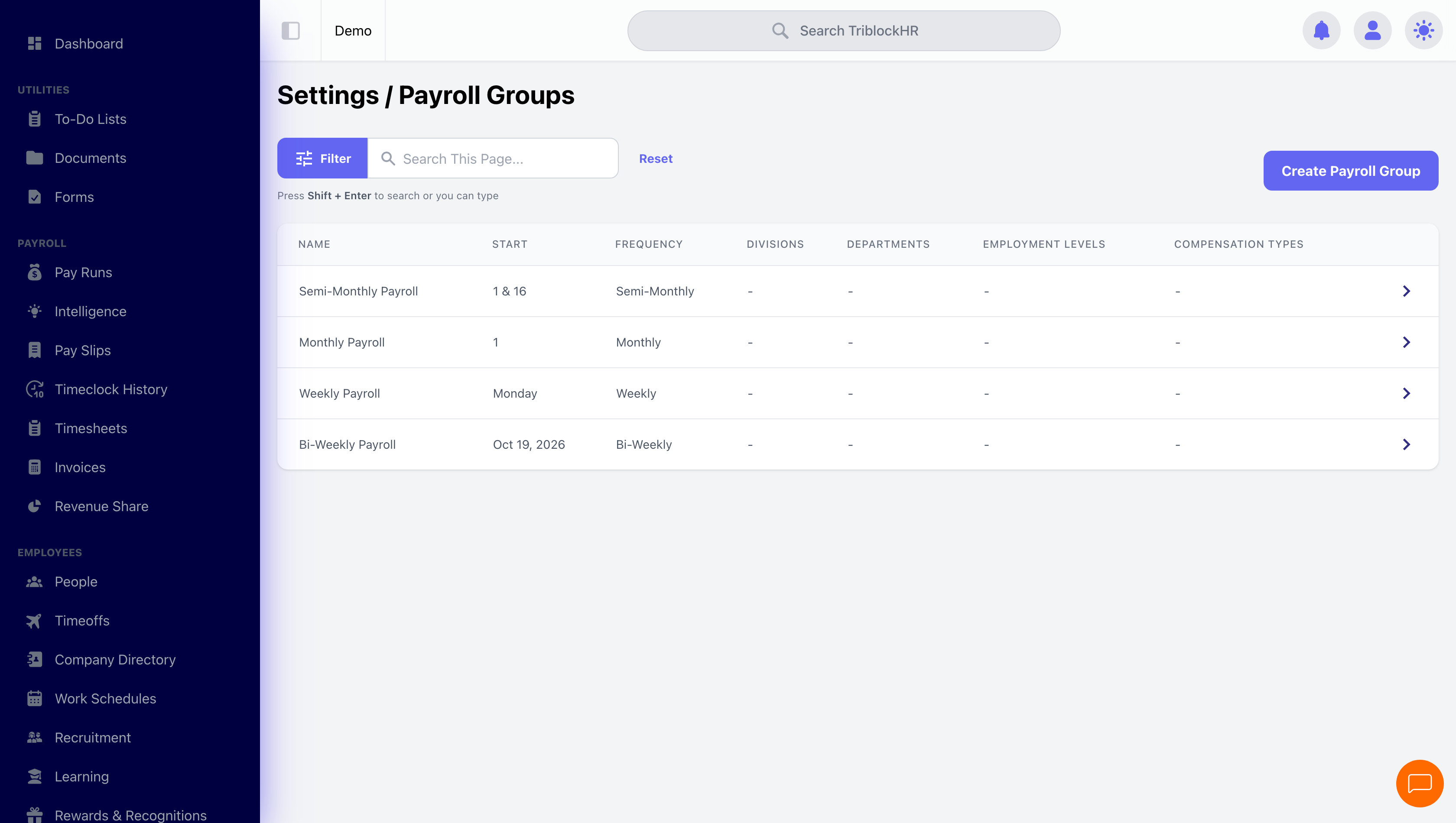
A payroll group defines who gets paid together and on what schedule. Every pay run starts from one.
Why groups?
Most companies don't pay everyone the same way. Weekly-paid hourly staff, monthly-paid salaried staff, and commissioned workers each need their own rhythm. A payroll group captures one of those rhythms: a pay frequency, a schedule, and filters that decide who belongs.
If your whole company is paid monthly, one group is all you need.
Setting up a payroll group (3–4 min)
Save as: admin-guide__payroll__payroll-groups__vid1.mp4
Creating a payroll group
- Go to Payroll Groups and click Create Payroll Group.
- Give it a Name (required) and an optional Description. Name it for the people in it — "Weekly Hourly Staff", "Monthly Salaried".
- Choose the Payroll Frequency and its schedule (see table below).
- Set the membership filters: Divisions, Departments, Employment Levels, and Compensation Types. Employees matching the filters belong to the group. Leave a filter empty to not restrict by it.
- Set the default pay date: Days From Pay Period End plus whether that's Before or After the period end. Turn on Use Business Days to count Monday–Friday only.
- Choose the First Period Of The Month (required). This decides which of the month's pay periods counts as the first one — and that is what allowances, deductions and loans are scheduled against.
- Click Create Payroll Group.
Which period of the month a deduction lands in
An allowance, deduction or loan repayment can be limited to certain periods of the month — Periods of the Month on the item itself, ticking Period 1 through Period 5. Leave it empty and the item applies in every period; tick Period 1 and a monthly deduction comes out once, in the month's first run.
That only works if the group agrees on which run is the first one. On a weekly or bi-weekly group a period routinely straddles a month boundary — it starts in January and ends in February — and whether that run counts as January's last or February's first is a genuine choice. First Period Of The Month makes it explicitly:
| Setting | The month's first period is… |
|---|---|
| First period that starts in the month | The first period whose start date falls in the month, even if it ends in the next one. |
| First period that ends in the month | The first period whose end date falls in the month — so a period beginning late in the previous month can be this month's Period 1. |
| First period with majority days in the month | The first period with more of its days in this month than the previous one. |
| First period with all days in the month | The first period lying entirely inside the month — the strictest reading. |
Every later period is then numbered by counting forward from that one, which is what Period 2, Period 3 and the rest refer to on an allowance or deduction. A monthly group has a single period per month, so its every run is Period 1 and the setting makes no practical difference there.
Frequencies and their schedules
| Frequency | You'll set | Example |
|---|---|---|
| Weekly | Start Day Of Week | Every Monday-to-Sunday week |
| Bi-weekly | Start Date (anchors the 14-day cycle) | Every two weeks from June 1 |
| Monthly | Start Day Of Month | 1st to end of month |
| Semi-monthly | First Start Day Of Month and Second Start Day Of Month | 1st–15th and 16th–end |
Conflicting groups
Two groups whose settings overlap can both claim the same employee for the same period, which is how somebody ends up paid twice or missed entirely. The groups list now carries a Conflicts column showing how many other groups each one collides with, and opening a group warns you — with links straight to the groups it conflicts with, so you can compare them side by side.
How employees land in a group
Membership is filter-based, not a manual list. When you create a pay run from a group, TriblockHR resolves the filters at that moment and shows you the coverage count. That means:
- New hires who match the filters are picked up automatically on the next run.
- An employee who moves departments may move groups — check the coverage panel when something looks off.
- An employee matching two groups' filters can appear in both; the one-run-per-period rule (see Pay Runs) prevents double payment.
Deleting a group
A payroll group you no longer need can be deleted from the Payroll Groups screen. A group that's already been used by a pay run can't be removed — its history depends on it; leave it in place instead.