Pay Runs
Creating a pay run, reviewing employee pay, and moving it through approval to published payslips.
Create, review, approve, publish — full walkthrough (6–8 min)
Save as: admin-guide__payroll__pay-runs__vid1.mp4
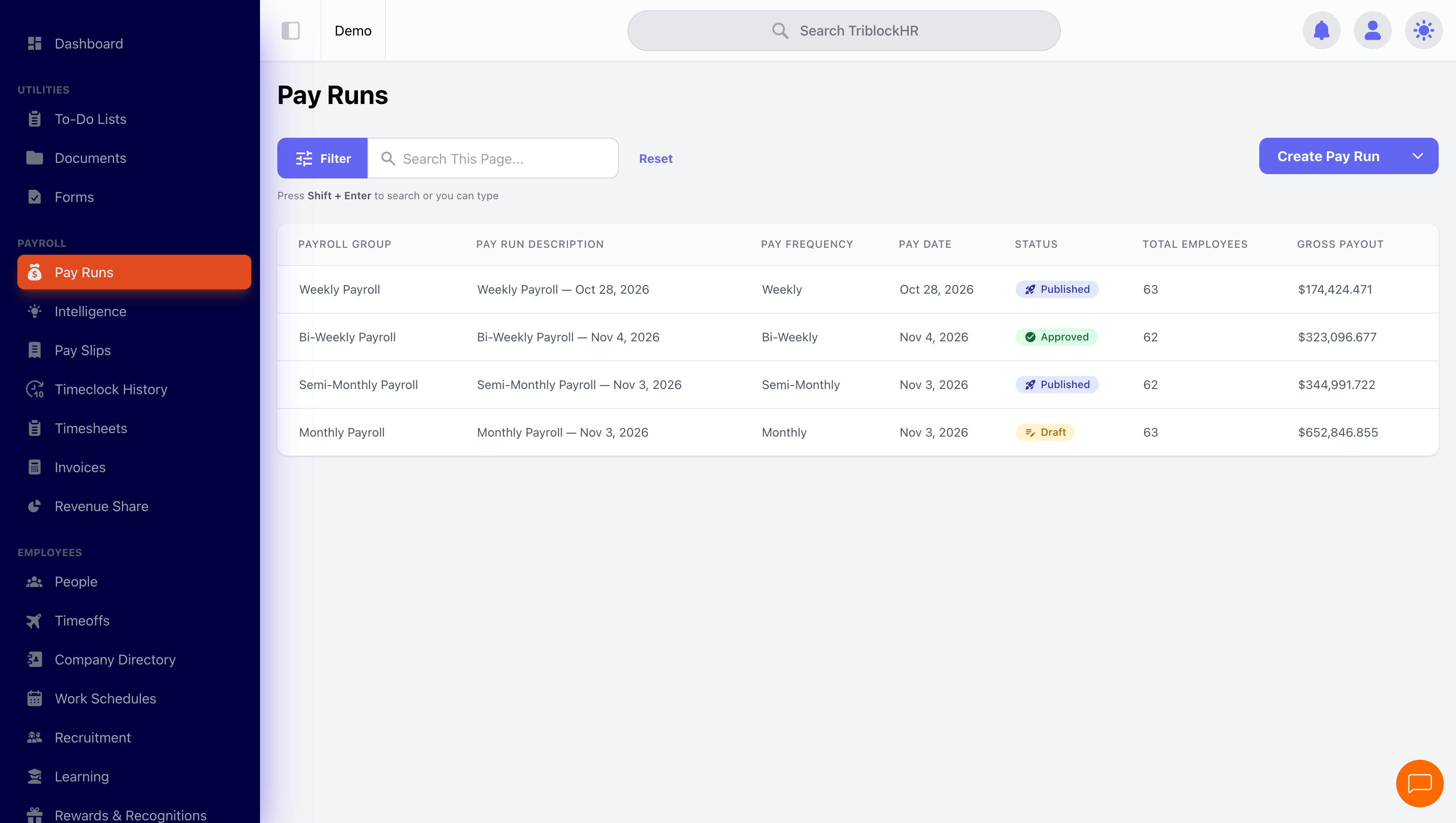
The pay run lifecycle
Every pay run moves through a fixed set of statuses. The status controls what you can do:
| Status | What it means | Available actions |
|---|---|---|
| Draft | Open for editing. Recalculates automatically as you make changes. | Approve, Cancel |
| Pending Approval | Submitted and waiting on an approver. | Approve, Deny |
| Approved | Locked. No edits to employees, amounts, or imports. | Publish, Recall |
| Published | Payslips are out and year-to-date totals are recorded. | Resend Payslips |
Creating a pay run
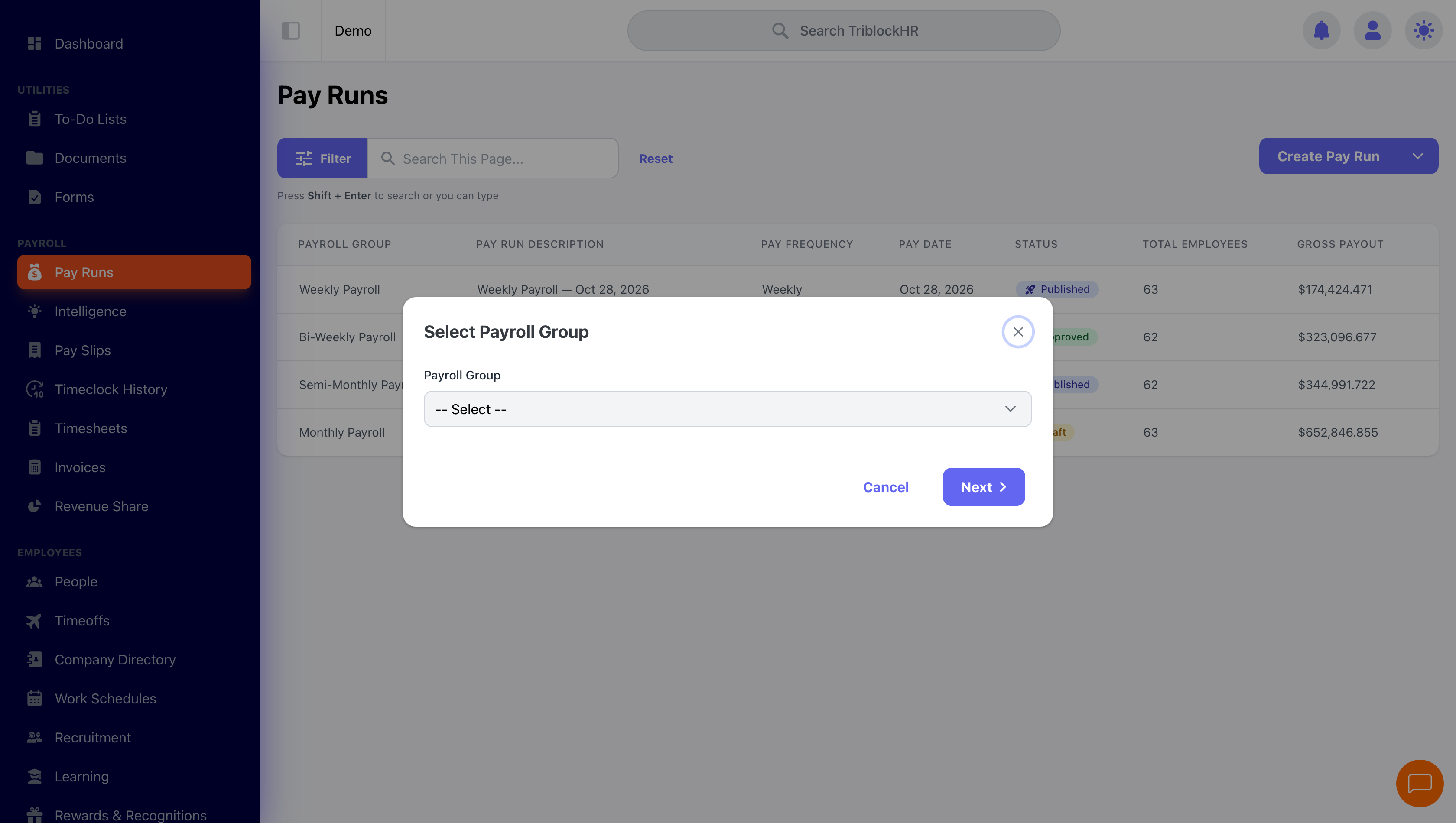
- On the Pay Runs screen, click Create Pay Run and choose Create On Cycle. (For bonuses and corrections, see Off-Cycle Pay Runs.)
- Select the Payroll Group and click Next.
- Fill in the details: an optional Payroll Title and Description, the Pay Period, and the Pay Date.
- Narrow who's included, if needed, with the Departments, Divisions, Employment Levels, and Worker Type filters. Leave them at -- All -- to include everyone in the group.
- Check the coverage panel. It shows how many employees are included in this payroll, how many are excluded because they're already paid for this period, and how many are excluded because they're in another unpublished pay run.
- Click Create Pay Run. TriblockHR calculates everyone's pay immediately and opens the run.
What gets calculated, in what order
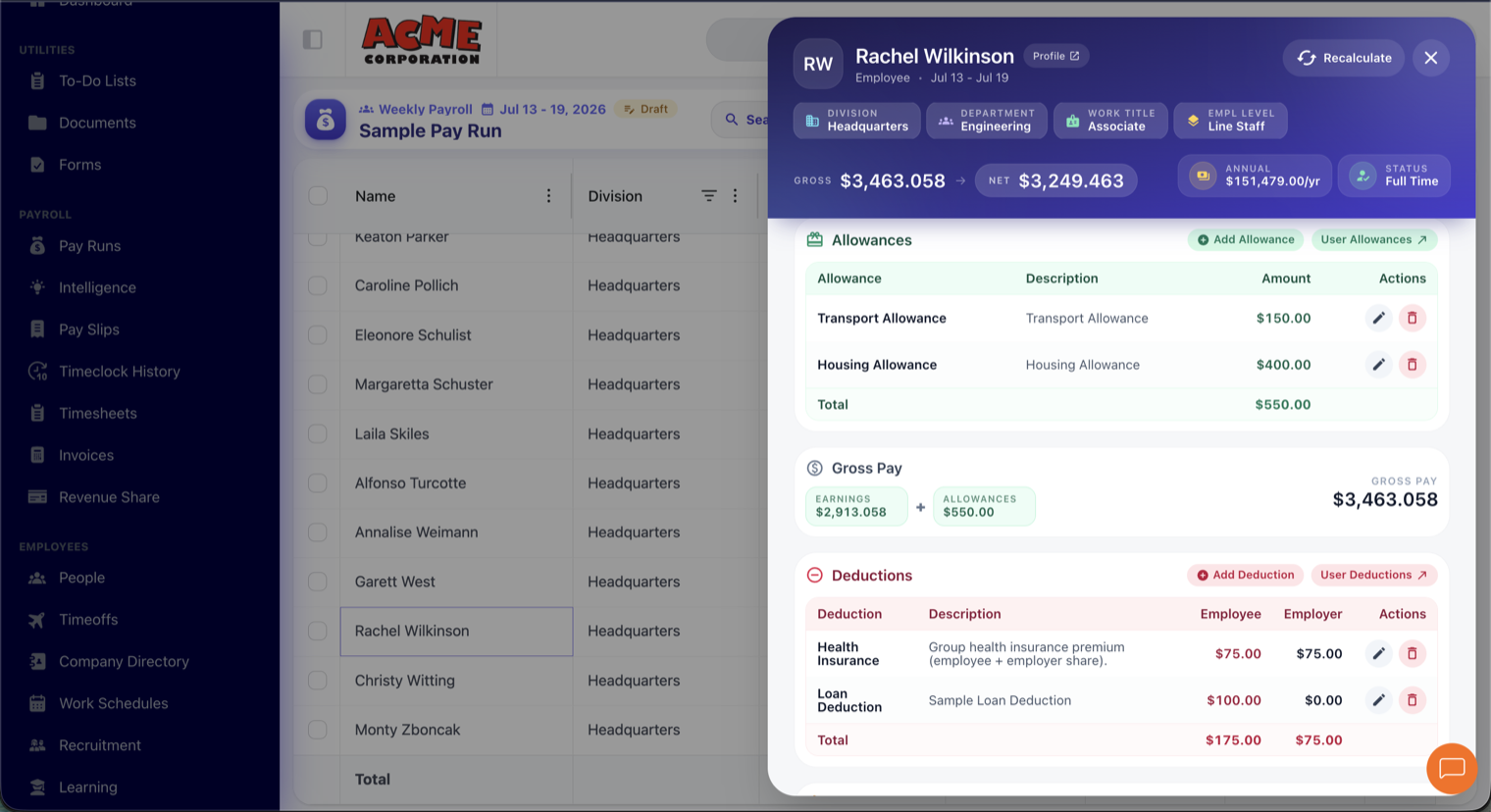
When a run calculates (at creation, and again whenever you change something), TriblockHR works through each employee in this order:
- Hours and earnings — regular, overtime, holiday, time-off, absent, and other hours from timesheets (hourly staff) or salary (salaried staff). See Timesheets for how time becomes pay.
- Allowances — the employee's standing allowances, plus any you've added to this run.
- Gross pay — earnings plus allowances.
- Statutory deductions — calculated by your country's tax engine, with the correct rates, brackets, and annual caps.
- Other deductions — the employee's standing deductions and loan repayments.
- Net pay — gross minus taxes minus deductions.
- Bank distribution — net pay split across the employee's bank accounts.
- Flags — anything suspicious (negative net pay, missing tax IDs) is flagged for your attention.
Reviewing and adjusting employees in a run
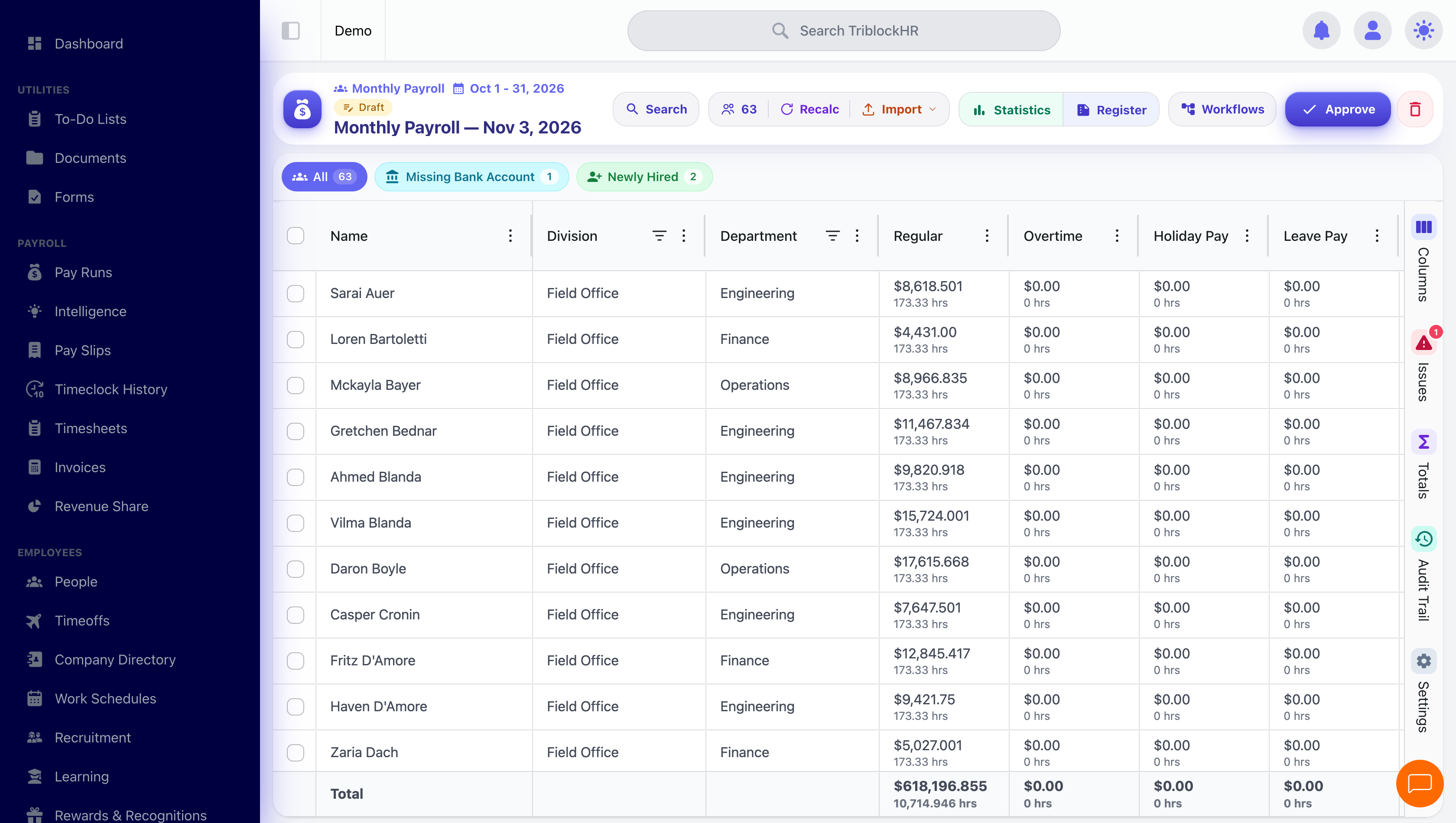
The pay run screen lists every employee with their hours, gross, allowances, deductions, taxes, and net pay. If your access is restricted to certain employment levels, you'll only see and edit the employees within them (plus your own direct reports). From here you can:
| Action | How |
|---|---|
| See an employee's full breakdown | Right-click the row → Show Payroll User Details. Shows earnings, allowances, deductions, taxes, bank distribution, calculation summary, and any issues. |
| Add an allowance or deduction for this run only | Right-click → Add Allowance or Add Deduction. This affects this run, not the employee's standing setup. |
| Edit hours | Edit the hours cell directly to adjust time entries for this run. |
| Change who's included | Click the Employees tile → Select Employees. Search, filter, and tick or untick people, then Apply. |
| Remove employees | Right-click → Delete From Payroll, or select several rows and use the bulk action. |
| Recalculate | The Recalc button recalculates the whole run, or right-click for selected employees. |
| Bulk-import amounts | The Import menu accepts allowance, deduction, and hours files. See Imports. |
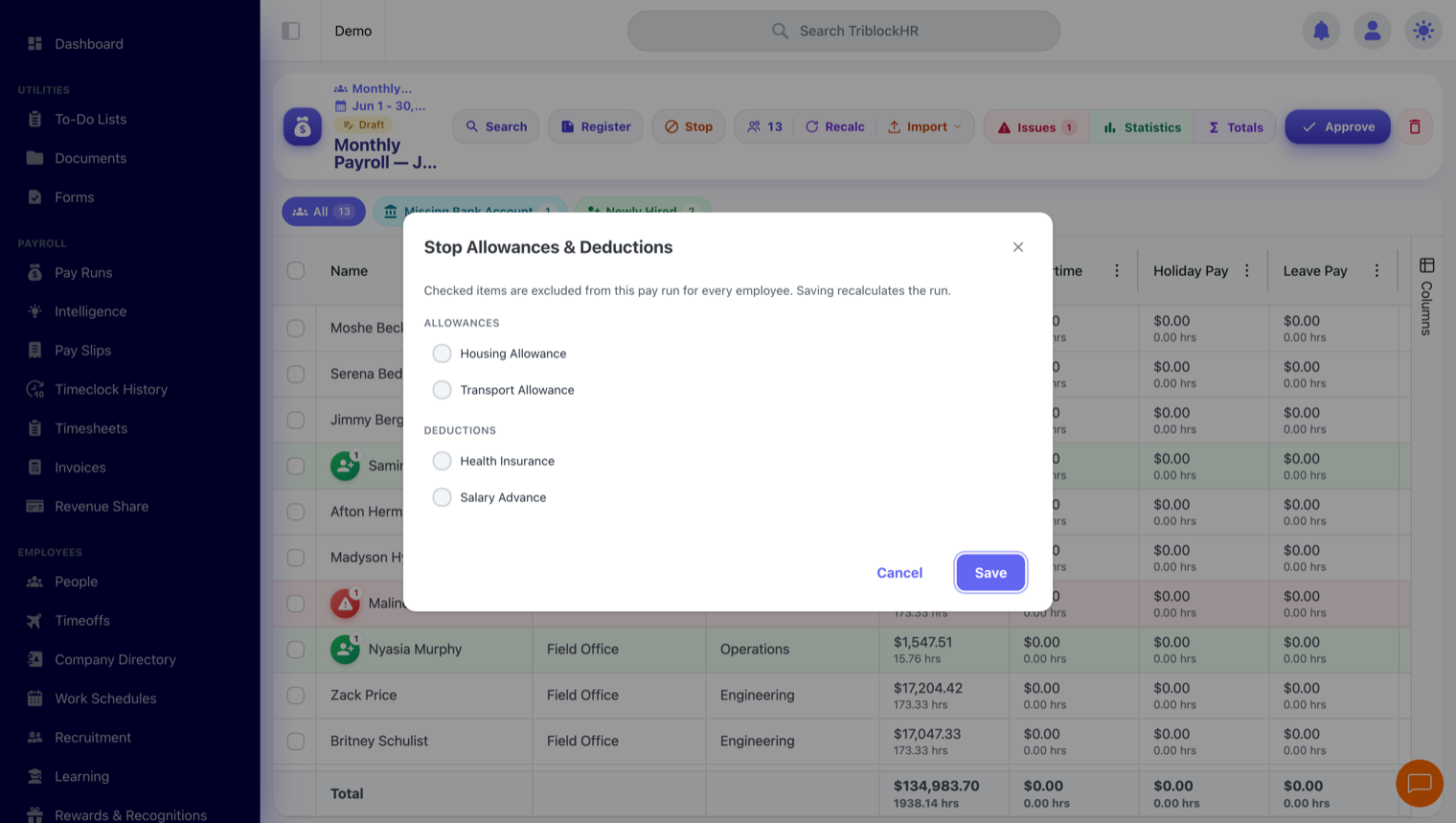
| Stop an allowance or deduction for this run | The Stop tile opens the Stop Allowances & Deductions dialog, where you exclude specific allowances or deductions from this run, for every employee at once. Checked items are dropped and the run recalculates. Available on draft regular runs only (not off-cycle, and not after approval); it doesn't change anyone's standing setup or any future run. |
| Download a detailed payroll register | The Register tile downloads a detailed Payroll Register (Excel) for the run — per-employee hours and pay by category, allowances, deductions, employee and employer NIB, gross, and net. |
Grouping the employees list, and keeping your layout
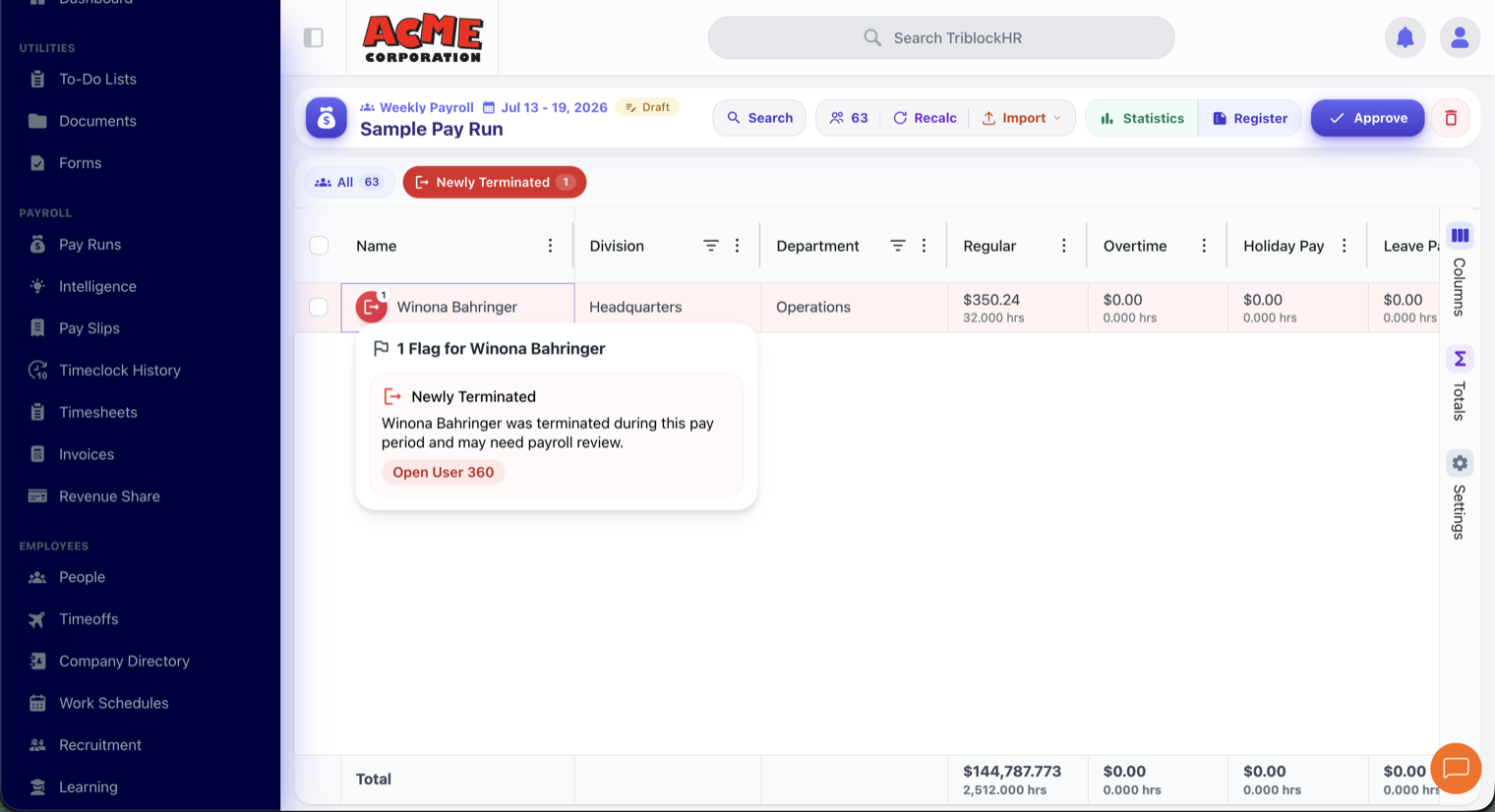
The employees list on a run is a full grid. Drag a column — department, division, work title, pay frequency — into the grouping area and the rows collapse under it, with every money and hours column summed as a subtotal per group. It is the quickest way to answer "what does Operations cost this run?" without exporting anything.
Your layout is remembered per person: which columns are hidden, how wide they are, which are pinned, and what you grouped by all come back next time you open a run. It is your view, not the account's — changing it does not affect anyone else, and a colleague opening the same run sees their own arrangement.
The audit trail
Every pay run keeps an Audit Trail — a record of what changed inside it, who changed it, and when. Open it from the tool panels on the run's top bar. It's append-only, paginated, and filterable by employee, so you can answer "why is this person's pay different from yesterday?" without guessing.
It records the changes that move the numbers:
| Entry | What it captures |
|---|---|
| Employees Changed | People added to or removed from the run. |
| Earnings Changed | Edited hours or earnings on an employee. |
| Allowance Changed / Deduction Changed | An allowance or deduction added, edited, or removed for this run. |
| Allowances / Deductions Stopped | Items excluded from the run through the Stop dialog. |
| Bulk Import | Hours, allowances, or deductions brought in by file. |
| External Change | Something changed outside the run that affected it — a salary change or a new loan, for example. |
| Calculated Total | A recalculation, including which computed line moved — not just the new total. |
The same history appears per person: open Show Payroll User Details for an employee and their own audit-trail card lists just their changes.
Approving
Click Approve when the numbers are right. TriblockHR will not let a run be approved while:
- any employee has an error-level flag (open the Issues panel to see what's wrong), or
- a calculation is still running or has failed — wait for it to finish or recalculate.
Once approved, the run is locked. To make changes, click Recall — this returns the run to Draft with all data intact, so you can fix the issue and approve again.
Publishing
Click Publish on an approved run to finish payroll. Publishing:
- makes payslips available to every employee in the run,
- sends payslip notifications,
- records year-to-date totals for earnings, allowances, deductions, and taxes, and
- snapshots time-off balances as of this run.
On a published run, Resend Payslips re-sends payslips to all employees in the run — including those who already received them. You'll be asked to confirm.
Cancelling a run
Cancel permanently deletes a draft run and everything in it. The confirmation says it plainly: "This will delete the pay run and all associated data. This action cannot be reversed." An approved run can't be cancelled directly — recall it to draft first.