Pre-Run Review & Payroll Intelligence
A second pair of eyes before you approve: variance against past runs, change tracking, and data hygiene checks.
Two screens, one idea
| Screen | Scope | When to use it |
|---|---|---|
| Pre-Run Review | Your active pay run | Right before approving — catch surprises in this specific run. |
| Payroll Intelligence | Across runs, any date range | Periodic health checks — trends, recurring issues, audit trail. |
You only see the people you can see
Payroll Intelligence respects employment-level access: if your account is restricted to certain employment levels, every widget — variance, headcount, salary changes, the audit feed — counts only those employees. Two admins with different scopes will see different totals on the same run, and a widget with nothing in scope reports no data rather than showing figures you are not entitled to.
Both are informational. As Pre-Run Review puts it: "This screen is informational. It does not block approval. Use the findings here, then return to the payroll to approve."
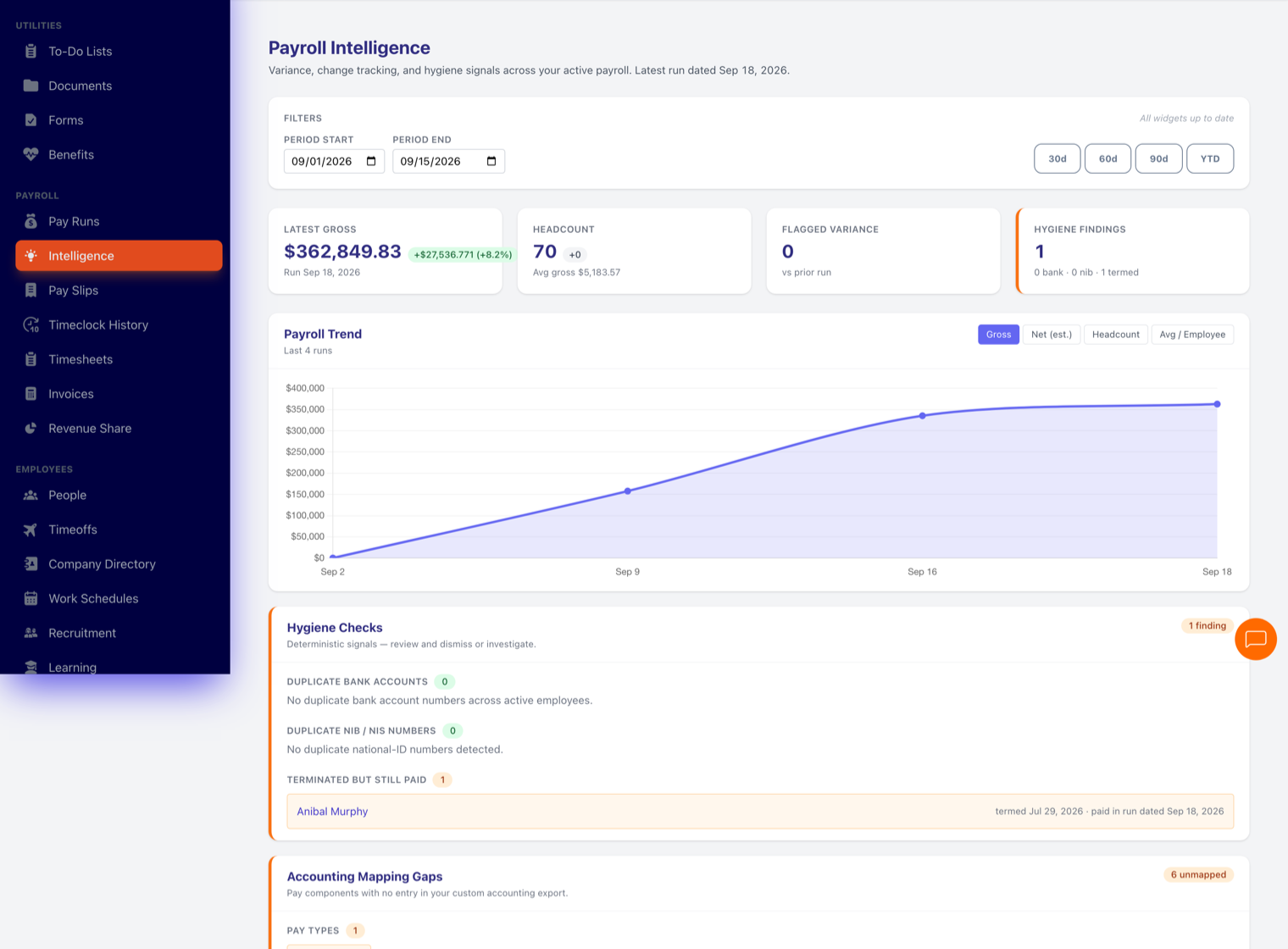
What you'll see
| Widget | What it tells you |
|---|---|
| KPI strip | Headline metrics for the run or period at a glance. |
| Payroll trend | The last 12 runs charted, so a spike stands out immediately. |
| Hygiene checks | Data quality warnings — the things that quietly produce wrong pay. |
| Accounting Mapping Gaps | Pay components — pay types, allowances, deductions, taxes, and loans — with no entry in your custom accounting export, so nothing slips through the general-ledger mapping. Only shown if your account uses a custom accounting file; fix gaps in Custom Accounting File Configuration. |
| Variance | Employee-by-employee comparison against the previous run, by dollar amount and percentage. Adjustable thresholds so you only see what's worth looking at. |
| Headcount delta | Who joined or left the payroll since last run. |
| Salary changes | Compensation adjustments that took effect this period. |
| New loans | Loans created since the last run that will start deducting. |
| Tax breakdown | (Pre-Run Review only) statutory amounts for the active run. |
| Audit feed | A change log of who changed what, and when. |
🖼 Image placeholder
Accounting Mapping Gaps
This shot is a crop, not a capture — do not add it to the auto set. Take a fresh full-page capture of
/payroll/intelligence/dashboard, resample to 1520px wide (sips --resampleWidth 1520), then crop to the Accounting Mapping Gaps widget including its heading. Verify the offset every time — the dashboard's height moves as widgets change, and an earlier attempt lost the heading. Requires an account set to a custom accounting file with at least one pay component deliberately left unmapped, so the widget shows its orange "N unmapped" chips rather than an all-clear.
Save as: admin-guide__payroll__pre-run-review__shot2.png
▶ Video placeholder
The 5-minute pre-approval check (4–5 min)
Screen recording following the routine below on a demo run: scan variance, explain one flagged employee (a raise), clear one hygiene warning (add a missing tax ID on the profile), confirm headcount, return and approve. Narrate the "can I explain every variance?" discipline — that's the habit this video teaches.
Save as: admin-guide__payroll__pre-run-review__vid1.mp4
A practical pre-approval routine
- Open Pre-Run Review from your draft pay run.
- Scan the variance widget. For each employee over your threshold, you should be able to say why — new hire, raise, overtime month, unpaid leave. If you can't, investigate before approving.
- Check hygiene warnings and clear what you can (missing tax IDs, missing bank accounts).
- Confirm the headcount delta matches what you expect — every starter and leaver accounted for.
- Glance at new loans and salary changes — these are the usual cause of "why is my pay different?" questions later.
- Click Back to Pay Run and approve.
Tune the thresholds
The variance widget has dollar and percentage threshold sliders. Set them so a normal run shows a handful of explainable rows, not a wall of noise. The right threshold depends on your pay frequency and workforce size.