Roles & Permissions
Who can do what inside your account — and how to scope a person to just the people they should see.
How access works
Access is controlled by two layers:
- Role — sets a person's broad area of responsibility (full system access, payroll, HR, or self-service). Every user has exactly one.
- Permission toggles — individual switches an administrator turns on for specific users to grant focused authority (approve timesheets, act as a hiring manager, and so on). Optional, and can be added or removed at any time.
The defaults below reflect the standard TriblockHR configuration; your account may be customized.
The seven roles
| Role | What they can do |
|---|---|
| System Administrator | Full access to the entire account — configure modules, manage users, view and edit any record, and assign roles and toggles. Usually the account owner or IT lead. |
| HR Administrator | Full access to HR: employees, recruitment, performance, learning, time-off policies, work schedules, and reporting. Can edit employee records and salary. |
| HR Clerk (View Only) | Read-only access to HR records and reports — for support staff who need visibility without editing. Unless granted specific toggles below. |
| Payroll Administrator | Full access to payroll: pay slips, deductions, gratuity, statutory filings, and accounting integrations. Can edit salary and payroll-relevant records. |
| Payroll Clerk (View Only) | Read-only access to payroll records and reports — for finance support who need visibility without running or editing payroll. Unless granted specific toggles below. |
| Employee | Self-service: view their own profile, submit timesheets and time-off requests, view pay slips, complete forms, and take part in performance and learning. Managers are Employees with extra toggles — see below. |
| No Access | The account exists but the person can't sign in. Keeps the record (history, payroll runs, documents) for a leaver or a record-only entry. |
Permission toggles
On top of the role, switch these on per person. They're how an ordinary Employee becomes a manager, and how a clerk gets a specific editing right. The label shown is the exact one in the app.
| Toggle | Allows the user to… |
|---|---|
| Salary | View and modify another employee's salary. |
| Employee Data | View and modify employee profile information. |
| Timesheets | Approve or reject submitted timesheets. |
| Time Off | Approve or reject time-off requests. |
| Hiring Manager | Be designated the hiring manager on an open position and act on candidates. |
| Shift Manager | Be designated the shift manager on a work schedule. |
| Department Manager | Be designated a department manager and view other employees in the same department. |
| Division Manager | Be designated a division manager and view other employees in the same division. |
| Training Manager | Be designated a training manager — create learning courses and view user progress. |
Not every toggle is offered for every role — the app only shows the ones that make sense for the role you're editing. (Full System Administrators additionally have the gender pay-equity report; it isn't a per-user toggle.)
Effective access by role
What each role can do by default, and where a toggle is needed:
| Toggle | System Admin | HR Admin | HR Clerk | Payroll Admin | Payroll Clerk | Employee |
|---|---|---|---|---|---|---|
| Edit salary | ✓ | + | + | + | — | — |
| Edit employee data | ✓ | + | — | + | — | + |
| Approve timesheets | ✓ | ✓ | + | ✓ | + | + |
| Approve time off | ✓ | ✓ | + | ✓ | + | + |
| Hiring manager | ✓ | ✓ | + | + | + | + |
| Shift manager | ✓ | ✓ | + | ✓ | + | + |
| Department manager | ✓ | ✓ | — | ✓ | — | + |
| Division manager | ✓ | ✓ | — | ✓ | — | + |
| Training manager | ✓ | ✓ | — | — | — | + |
✓ Always — built into the role, no toggle needed. + Toggle available — an administrator can switch it on for specific users in this role. — Not available for this role.
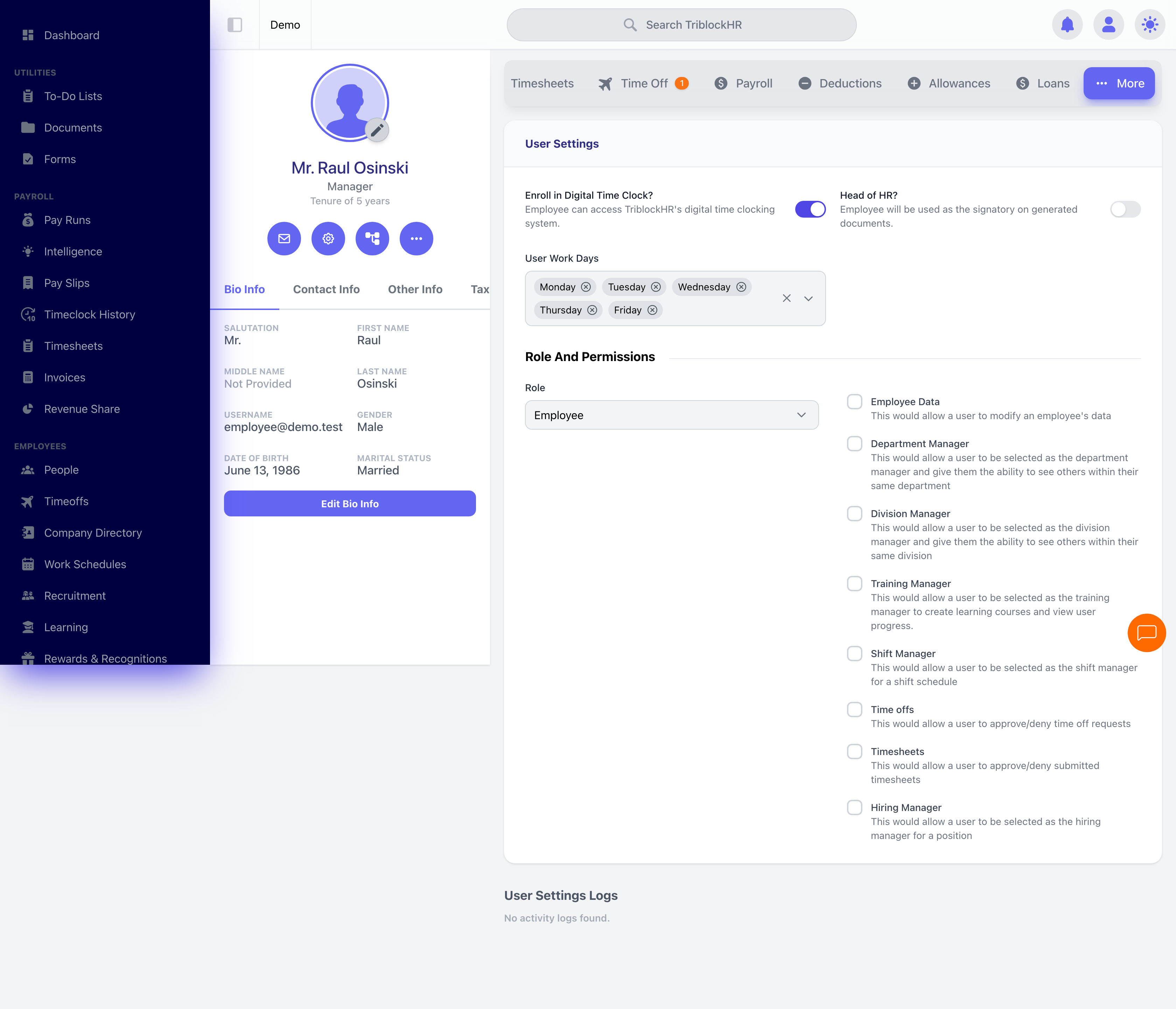
Managers aren't a separate role
There's no "Manager" role. A manager is an Employee who has the relevant toggles and sits above other people in the reporting line — the reporting line (set on each person's employment record) defines their direct reports, and toggles like Timesheets / Time Off let them approve for those reports. The Manager Guide covers the day-to-day side.
Restricting access to a specific group
Often a manager, HR clerk, or payroll admin should only see and act on a specific group of employees — not the whole company. TriblockHR enforces this through five mechanisms that work together: a user can see another user if any mechanism applies.
| Mechanism | How it works | Applies to |
|---|---|---|
| Manager hierarchy | A user set as another's manager — directly or higher up the reporting chain — can view their reports automatically. No toggle needed. | Anyone with reports |
| Employment-level access | HR/Payroll admins and clerks can be restricted to specific employment levels (e.g. only managers, or only line staff); they then see and act only on users at those levels. With none assigned, they see everyone. | HR Admin, HR Clerk, Payroll Admin, Payroll Clerk |
| Department Manager toggle | An employee with the toggle sees other employees in their own department — not other departments. | Employee |
| Division Manager toggle | An employee with the toggle sees other employees in their own division — not other divisions. | Employee |
| Self | Everyone can always see and manage their own profile, timesheets, time-off requests, pay slips, and documents. | All users |
Mechanisms layer, they don't override. An HR Clerk restricted to the "Manager" employment level who is also set as the direct manager of a "Line Staff" employee still sees that employee — through the manager-hierarchy path. An Employee with the Department Manager toggle sees their department peers whether or not they have direct reports.
Recommended setup
- Use employment-level access to scope HR and Payroll staff to the population they support.
- Use the Department / Division Manager toggles to give frontline managers visibility into their team without administrative privileges.
- Rely on the manager hierarchy for direct-supervisor relationships — it's automatic and needs no separate configuration.
Common questions
Can one person hold more than one role?
Each account has one role. If someone needs to act in two capacities (say, an HR Administrator who also runs payroll), assign the higher-access role and use toggles to fine-tune authority.
Can the roles be customized?
The seven roles are the standard set; toggles give flexibility within each. For a different access pattern, contact your TriblockHR account manager.
Who can change a person's role or toggles?
Only System Administrators and HR Administrators. New employees always start as Employee or No Access; other roles are assigned afterward on the person's settings. You can't set yourself or a subordinate as your own manager, and every change is logged (see Data, Privacy & Audit).
What happens when an employee leaves?
Switch their role to No Access. They can no longer sign in, but their historical records — timesheets, pay slips, documents, performance history — stay intact.
Making an employee a manager (3 min)
Save as: admin-guide__access__roles__vid1.mp4