Importing Hours, Allowances & Deductions
When the data lives in a spreadsheet — commission schedules, hours from another system, one-off deductions — import it instead of typing it.
What can be imported into a pay run
| Import type | Typical use |
|---|---|
| Allowances | Commissions, tips, one-time bonuses applied per employee |
| Deductions | One-off deductions — uniform charges, recoveries |
| Hours | Hours exported from a third-party time system |
Imports apply to the open pay run and are available while it's in Draft or Pending Approval. Once a run is approved, the import menu disappears — recall the run first if you still need to import.
Importing hours from a spreadsheet (3–4 min)
Save as: admin-guide__payroll__imports__vid1.mp4
Running an import
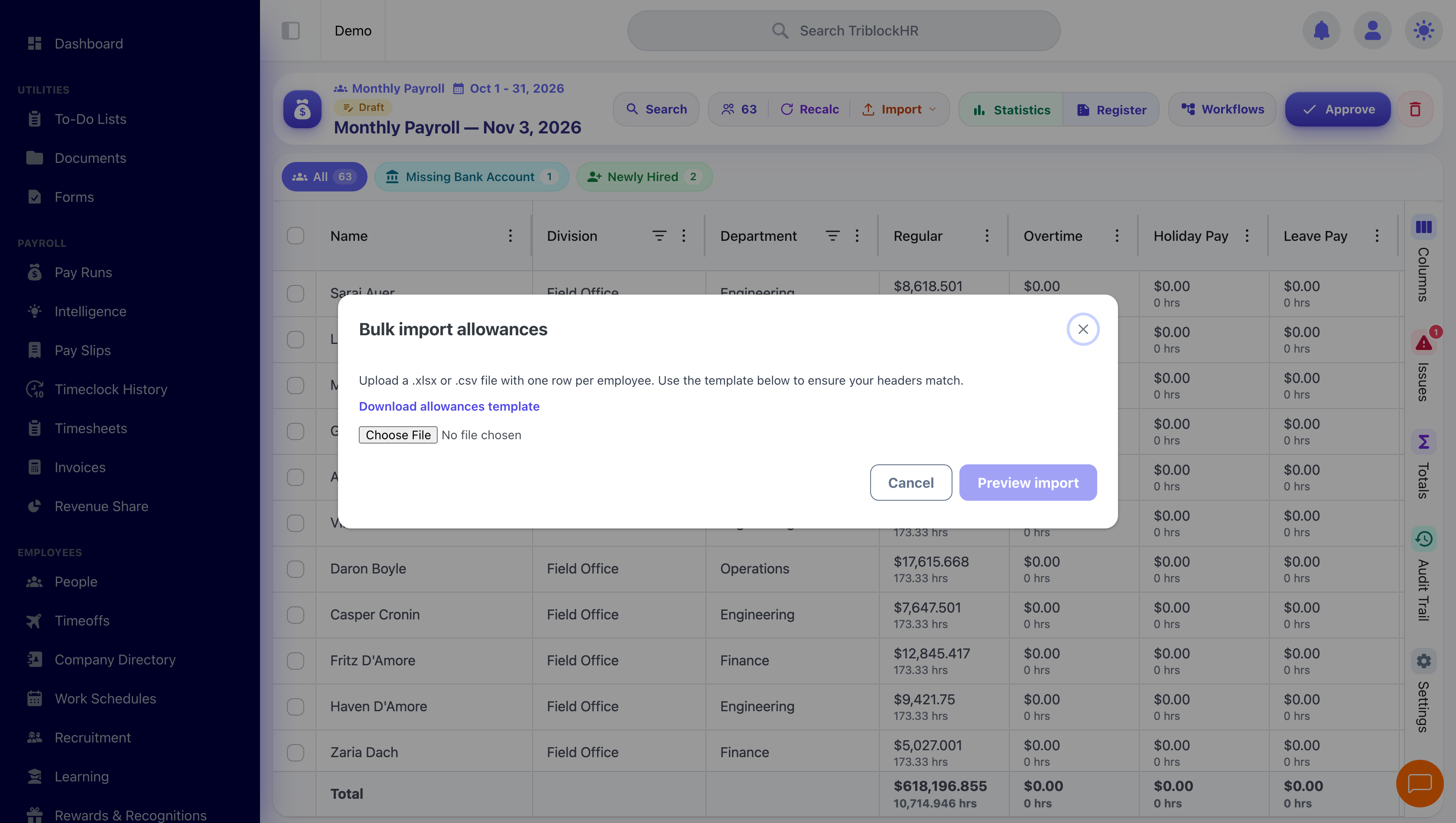
- In the pay run, open the Import menu and choose Allowances, Deductions, or Hours.
- Click Download template and fill it in — one row per employee, headers exactly as the template has them. Both .xlsx and .csv work.
- Choose your file and click Preview import. Nothing is applied yet.
- Review the preview. You'll see a count of valid rows and a count of errors. Row-level errors list the row number, the employee, and what's wrong.
- If there are errors, fix the file and re-upload — or proceed and the error rows are skipped while valid rows apply.
- Click Apply. The run recalculates with the imported amounts.
Imported hours add up — and can be rolled back
Imported hours are additive: they're added on top of whatever the employee already has for the period rather than replacing it. Import the same file twice and you'll double the hours, so treat a second upload as a top-up, not a correction.
Each upload is kept as its own import batch. If a batch was wrong, you don't have to unpick rows by hand or rebuild the timesheet — roll that batch back and only its hours come off, leaving earlier imports and manually entered hours untouched. The run recalculates afterwards.
Common import errors
| Error | Usual cause |
|---|---|
| Employee not matched | The identifier in your file doesn't match an employee in the run — check spelling/ID, and confirm the person is actually included in this pay run. |
| File-level parse error | Headers don't match the template, or the file is in an unexpected format. Re-download the template and paste your data into it. |
| Invalid amount/hours value | Text in a numeric column, negative values, or formatted numbers (currency symbols, thousands separators). Use plain numbers. |