Profiles & Employment History
The profile holds who someone is; employment history holds every change to what they do and earn — and payroll reads from it by effective date.
Around the profile
A profile opens with the employee's photo, title, tenure, and condition badges (Not Yet Onboarded, Is On Probation, Is Suspended, On Contract, Is Terminated). Personal data is grouped into tabs — Bio Info, Contact Info, Other Info, Tax Info — each with its own edit button, plus a Logs tab recording every change with old value, new value, and who made it. Further tabs link the employee's records across the system: bank accounts, allowances, deductions, loans, time offs, timesheets, payroll, documents, disciplinary actions, skills, and goals.
Who can edit a profile
Admins and anyone with the employee-data permission can edit. Employees can edit their own personal details when self-editing is enabled for your account — and if you've configured a profile-update approval workflow, their changes (and optionally admin changes) go to Pending until approved, with old and new values shown side by side to the approver. Without a workflow, edits save directly.
Employment history: how changes work
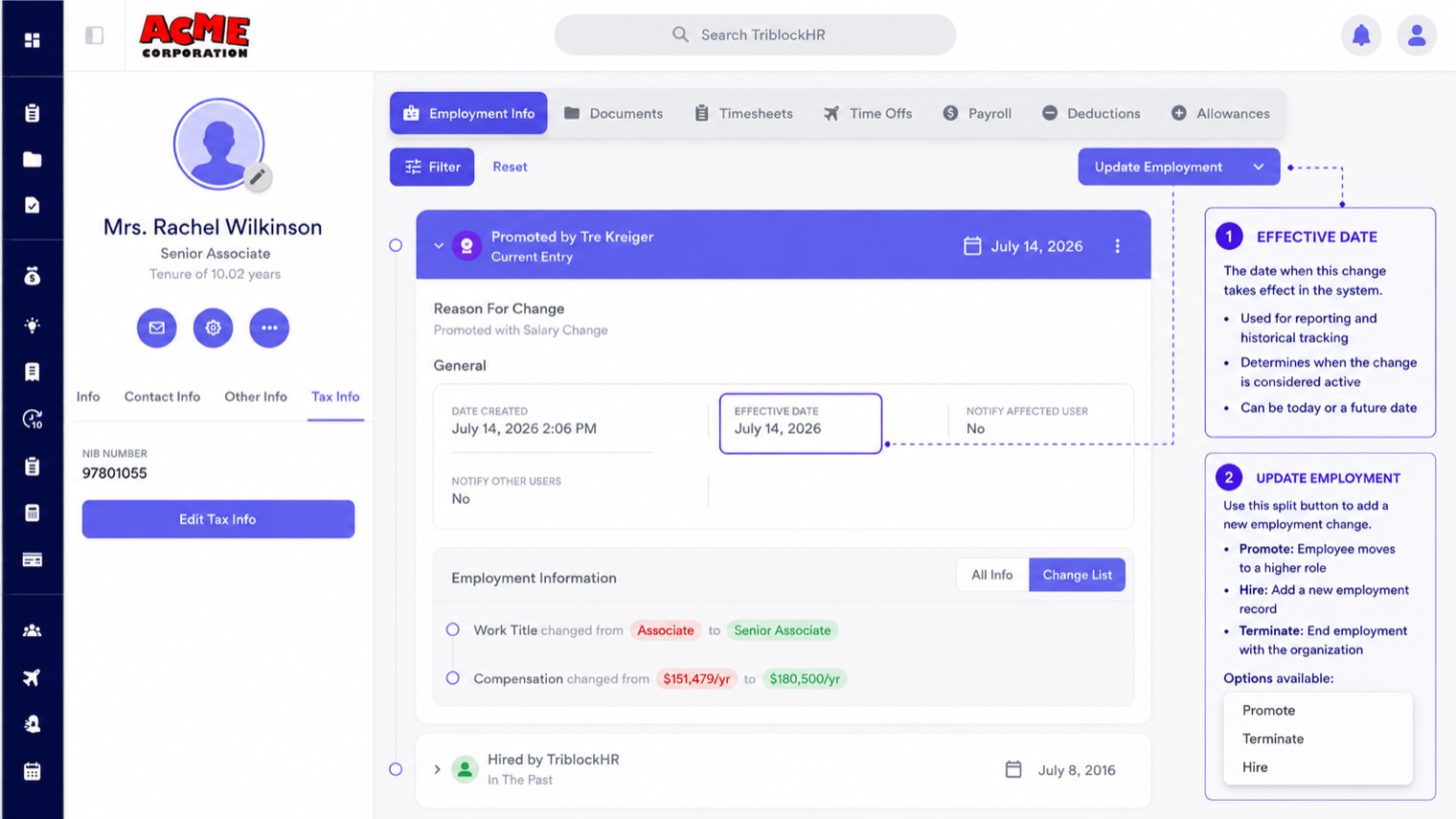
Employment history is a timeline, not a form you overwrite. Every change — promotion, raise, transfer, termination — adds a new entry with an effective date; nothing is edited in place. This is what makes payroll retroactively correct: a pay run reads the entry that was effective during its pay period, so a raise effective mid-month pays correctly even if you recorded it late.
From the Employment History tab, Update Employment offers the change types: Promote, Hire (rehire), Terminate, or a general update. Each captures the effective date plus the full employment picture — title, compensation, pay frequency, level, classification, department, division, manager.
Hiring someone into another company
If your organization runs more than one company in TriblockHR, one person can be employed in several of them at once — a finance manager who works across two entities, for example. The Hire change type asks for the Effective Date and a Companies selection, and you can name more than one.
You then complete one employment form per company — title, level, department, division, manager, pay — because those answers rarely match across entities. The whole set is saved as a unit: if any company can't be hired into, none of them are. You won't get a half-finished hire where one entity has them and another doesn't.
- Open the person's Employment History tab and choose Hire.
- Set the Effective Date and tick every company they're joining.
- Fill in the employment form for each company in turn.
- Save. Every company's employment is created together, or none is.
Their work email and work phone carry across from their existing employment so you aren't retyping contact details, but everything that describes the job is answered per company.
Two limits are worth knowing before you start:
- A re-hire can't ride along with new ones. If the person already works in one of the companies you picked, that one is a re-hire against their existing record and has to be done on its own — the app says so rather than guessing: "Someone already employed in a company has to be re-hired there on their own."
- Setting starting pay doesn't require the Salary permission. Whoever completes a hire into a new company can enter compensation for that employment, because a hire can't be completed without it. This doesn't reveal what the person earns elsewhere — the field starts empty rather than pre-filled, and existing salaries stay masked everywhere else. See Data Privacy & Visibility.
Once someone is employed in more than one company, their profile follows the company you have selected rather than merging the two employments — the title, manager and department you see all describe that one company's job. Switch company and the same person's profile reads differently, which is correct: they hold a different job there.
Probation and suspension
Probation is a flag with an optional automatic end date — when it passes, the system closes the probation with a new entry on its own. Suspension is heavier: it blocks login, removes the person from payroll and the time clock, and reverses automatically at the suspension end date.
Termination
Terminating runs through the Terminate change type with a termination reason and effective date, and handles the offboarding chain: you nominate a new manager for the person's direct reports (and replacements if they managed a department or division), login is blocked, they're removed from the time clock and notification groups, and payroll includes them one last time for final pay if the termination falls inside an open period. The record itself is preserved — payslips, history, and reports remain available, and the person can be rehired later with a fresh hire entry.
Promotions and terminations done right (5 min)
Save as: admin-guide__people__employment__vid1.mp4