Bulk Updates
Change one thing for fifty people at once — reorganizations, policy rollouts, mass reassignments.
When to reach for it
A department renamed, a division reorganized under a new manager, everyone on a site moved to a new time-off policy, a batch of staff enrolled in the time clock. Anything you'd otherwise do profile by profile, fifty times.
Running a bulk update
- From People, open View Bulk Updates and click Create Bulk Update.
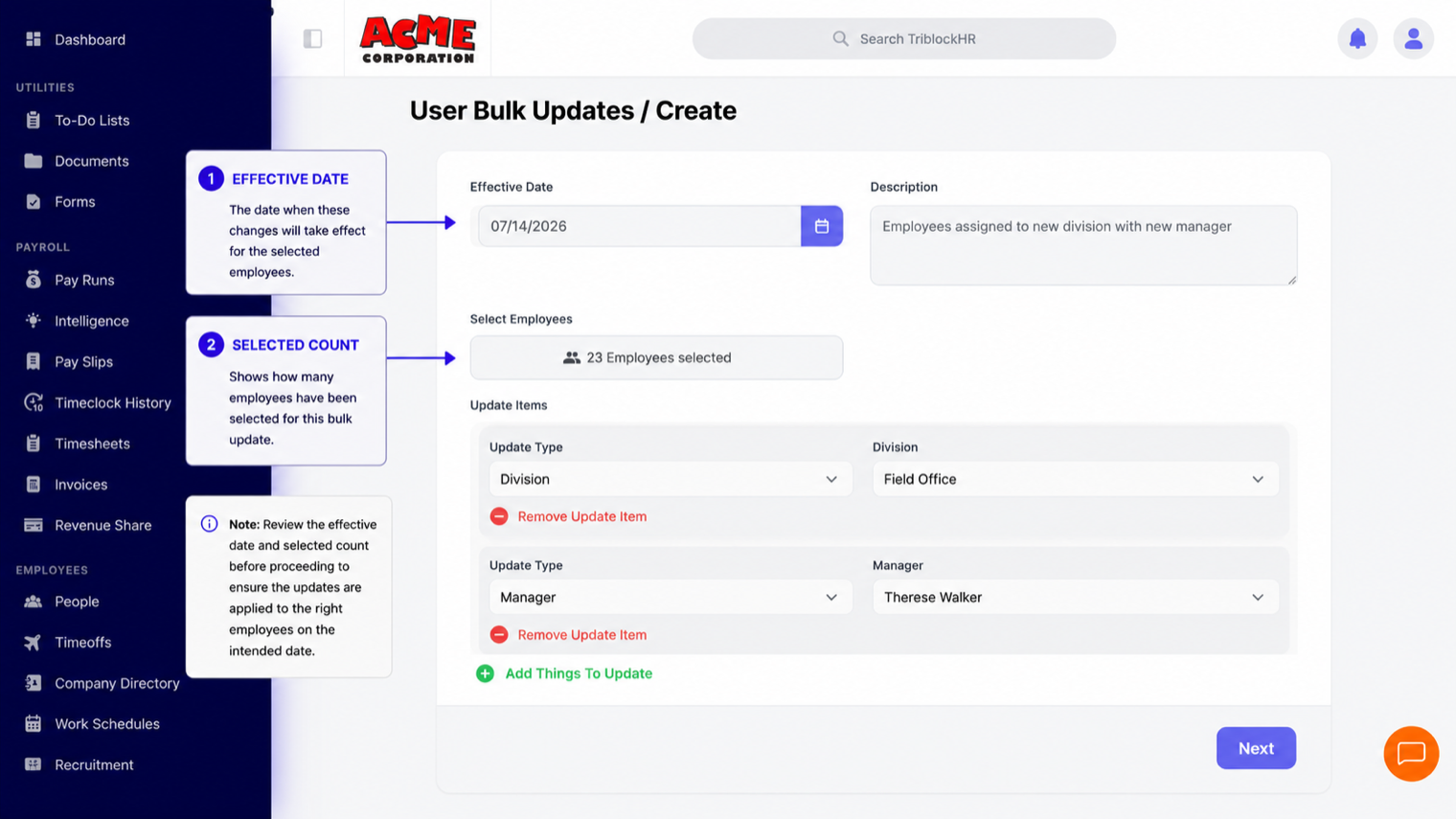
- Set the Effective Date (today or later) and a Description that will make sense in six months.
- Select the employees — the picker filters by department, division, level, status, title, manager, policy, compensation type, Pay Frequency, probation/suspension/contract flags, location, and more, so "everyone in Freeport on hourly pay" is a couple of clicks.
- Add the updates to apply: attribute and new value, one row per change. Supported attributes include department, division, employment level, status, work title, manager, time-off policy, compensation, Pay Frequency, role, time-clock eligibility, and location fields.
- Review and apply. The update is tracked with its status — Pending, Completed, or Cancelled — its creator, and the affected-employee count.
Compensation changes write employment history
Bulk changes to compensation or employment fields create employment history entries for every affected person, effective on the date you set — exactly as if you'd done each one by hand. Get the effective date right: it's what payroll will read. See Employment History for how effective dates drive pay.
▶ Video placeholder
Reorganizing a department in one move (3 min)
Screen recording: move a whole department under a new division and manager via bulk update — filter, select, add the two update rows, apply, then open one affected profile to show the change and its history entry.
Save as: admin-guide__people__bulk-update__vid1.mp4