Approving Time Off & Timesheets
The two requests that land on a manager most. Where they show up, how to decide, and what your approval sets in motion.
Where requests reach you
Pending approvals surface in three places: the Action Items widget on your dashboard, a notification (in-app, email, and Slack if your company uses it), and — for leave specifically — the Awaiting your approval queue at the top of the Timeoffs board. With nothing waiting, the queue says "Your queue is clear for now" rather than showing you an empty table.
You can also decide a request from the employee's own record: open their Time Off tab and a band across the top says "Vacation request waiting on you", with the dates, the hours and how long it has been sitting. Approve or deny it there without leaving the page.
Approving time off
- Open the request from the queue, Action Items, or the notification.
- Read the impact rows. The request screen is built around what could change your mind — how many other people are away and how bad the worst single day is; how much notice you actually got against what this leave type asks for; what the balance looks like with the request standing and what denying it would give back; whether a required document arrived; and any conflicts, like blackout days in the range or leave the same person already has booked over the same dates.
- Click Approve or Deny. If your company routes time off through a workflow, these appear only when it is your turn in the chain — no buttons means somebody ahead of you hasn't acted yet. A Workflows button shows where the request has got to.
Approving asks you to confirm, the same as denying or signing off a cancellation. There is no undo: once you confirm, the decision is recorded and the employee is notified. If you approve something by mistake, you cancel the leave rather than reversing the approval.
Denying asks for a reason in your own words, which the employee reads verbatim. You can also tag it with a code — Coverage, Notice too short, Blackout period, Balance too low — which drops suggested wording in for you. Once you have written your own words, changing the code won't overwrite them.
Your approval does real work downstream: the days flow onto the employee's timesheet and into their pay automatically. You don't touch payroll — approving the leave is all that's needed for it to be paid. The full chain is in Pulling Time Off Into a Payroll Run.
Planning cover before it becomes a decision
The Timeoffs board shows a month of who is away as a calendar or a timeline, counting pending as well as approved leave — so you can see what is provisionally booked, not just what has been signed off. Filter it by Department, Work Title, Employment Level or Division, and the headcount narrows with it, so "2 of 6 away" stays a true statement about your team rather than the whole company. Copy calendar link subscribes your own calendar app to it.
Depending on your company's privacy setting you may see colleagues' leave as Out of Office rather than by type. That's the setting, not a permission problem — you still get the dates, which is what cover planning needs.
Approving timesheets
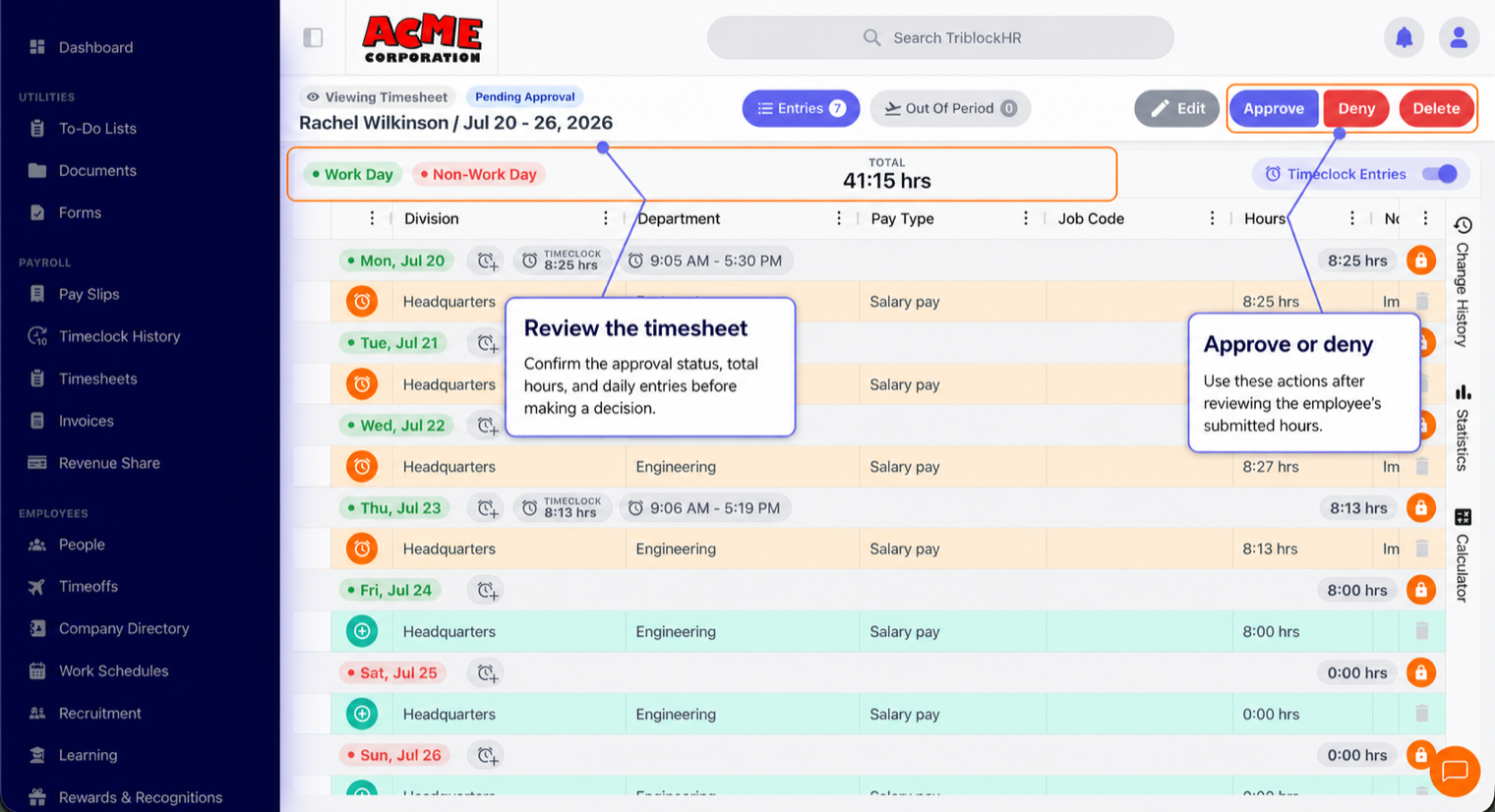
- Open the timesheet — from Action Items, or the Timesheets screen filtered to your team.
- Review the entries: hours by day, overtime under its own line, time-off days where leave was taken. The total hours sit at the bottom.
- Approve, or Deny to send it back for correction. You can edit a timesheet before approving if you have timesheet-handling rights and something's plainly wrong.
Two rules worth knowing: you can't approve your own timesheet (that's an admin-only exception), and once a timesheet is approved or its pay period is locked, it can't be changed without an admin reopening it. So review before you approve.
A manager's approval queue (3–4 min)
Save as: manager-guide__approvals__vid1.mp4