Learning
TriblockHR has two learning modules, and they are not run side by side. Switching on the LMS replaces the original catalogue.
Which module am I using?
Look at your sidebar. Learning (LMS) — with Dashboard, Browse Cohorts, Manage Cohorts, Manage Templates and Manage Trainers — is the current module, and the one the rest of this section documents. A plain Learning section with just Browse Courses and My Courses is the original catalogue.
| Original catalogue | Learning (LMS) | |
|---|---|---|
| Shape | A self-serve library. Anyone enrols themselves and works at their own pace. | A taught course: a template you write once, run as a dated cohort with a trainer and a class. |
| Dates | None. | Start and end dates; assignment due dates. |
| Enrolment | Self-serve only. | Open, approved, or administrator-assigned. |
| Marking | Quizzes retry until correct; nothing is graded. | Graded assignments and quizzes, with a pass mark. |
| Status | Deprecated. | Current. |
Start at Course Templates & Trainers, then Running a Cohort. The rest of this page documents the original catalogue, for accounts still on it.
The legacy course archive
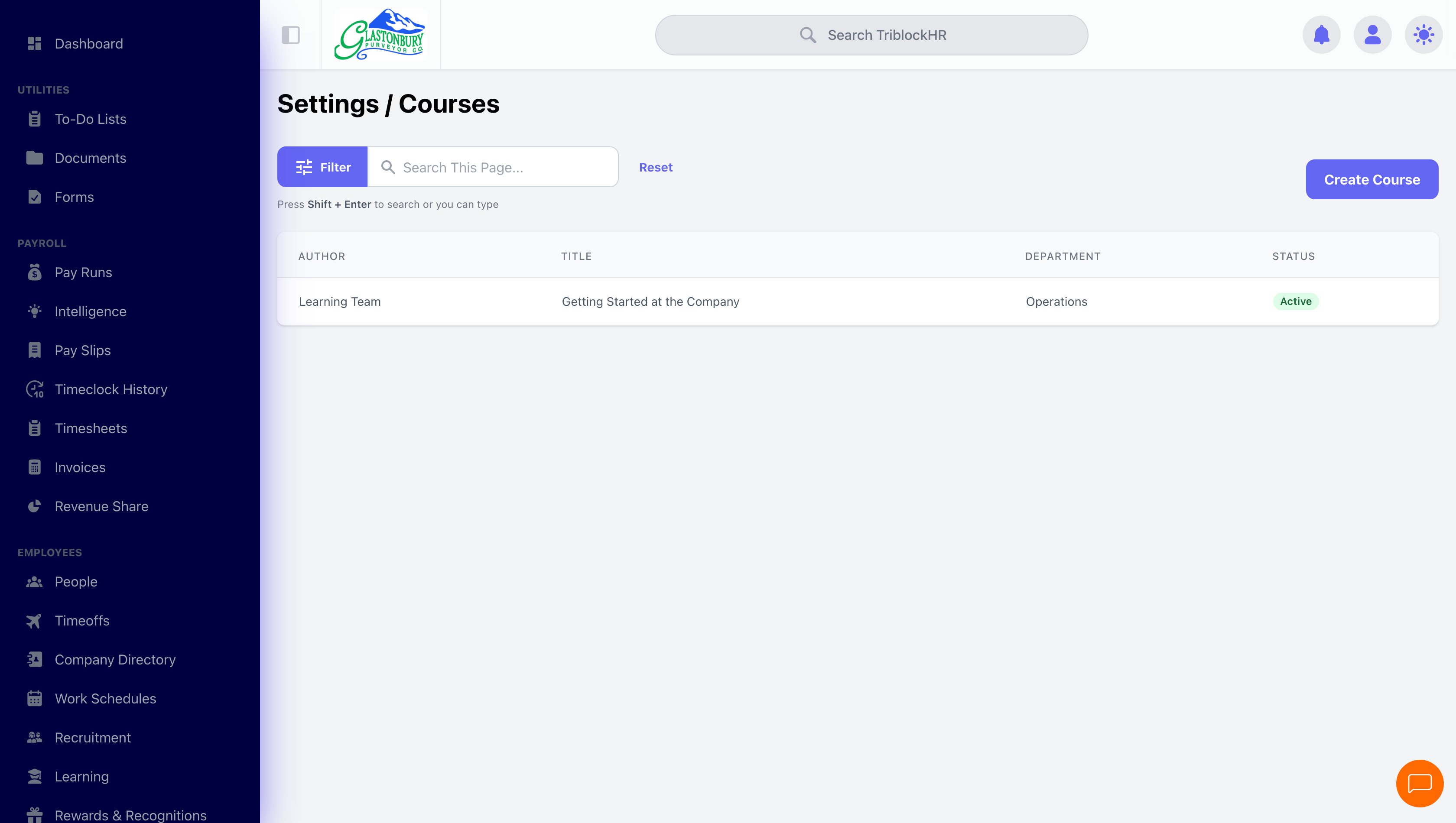
After the LMS is switched on, what people took in the old catalogue stays readable under Settings → Learning Management → Courses (Legacy) → View learner progress, on a page headed Legacy Courses.
It is read-only — the course, who took it, and how far they got — kept as the record that the training happened. The legacy module's own "view courses" and "create a course" links disappear from Settings at the same time, so nothing new can be added to it. New learning happens in cohorts.
Building a course (original catalogue)
From Browse Courses → Create Course (or Settings → Learning), the wizard runs four steps:
- General Information — Title, Author, optional department, topics, a cover image, the description, and Enable Course? which controls whether the course appears in the catalog at all.
- Add Skills — pick skills from your skills bank with a level (1.0–5.0). These are awarded automatically on completion, which makes the skills on employee profiles mean something.
- Create Content — drag-orderable sections, each holding lessons (rich text articles, embedded video, downloadable attachments) and quizzes (single-answer multiple choice — learners retry until correct). A quiz needs at least two choices and a marked correct answer.
- Preview — the full outline with section/lesson/quiz counts, then Create Course.
Courses are Active or Inactive — deactivating pulls a course from the catalog without touching anyone's history.
How completion works
Learners enroll from the catalog, work through content in order or not, tick lessons complete, and pass quizzes by answering correctly (wrong answers show the correct one and offer Try Again? — quizzes here teach rather than gate). When every item is done the course completes itself: a PDF certificate is generated and emailed, the course's skills land on the employee's profile at their configured levels, and the completion page becomes a permanent verification record.
Tracking progress
The User Progress view (permission-gated) lists each course with its student count; click through for per-student detail: progress percentage, Finished / In Progress status, content completed ("5/8"), last access time, and the last item completed. Stalled learners are easy to spot by the last-accessed column.
Course to certificate (5–6 min)
Save as: admin-guide__learning__index__vid1.mp4