Your Shifts
Where to see your schedule and what the markers mean.
Finding your shifts
Published schedules show in the My Shifts widget on your dashboard. Each schedule lists its date range and shift manager; the one covering today carries a Current badge. Expand a schedule to see each shift's date, time, and location.
You'll be notified — in-app, by email, and on Slack if your company uses it — whenever a new schedule is published with you on it.
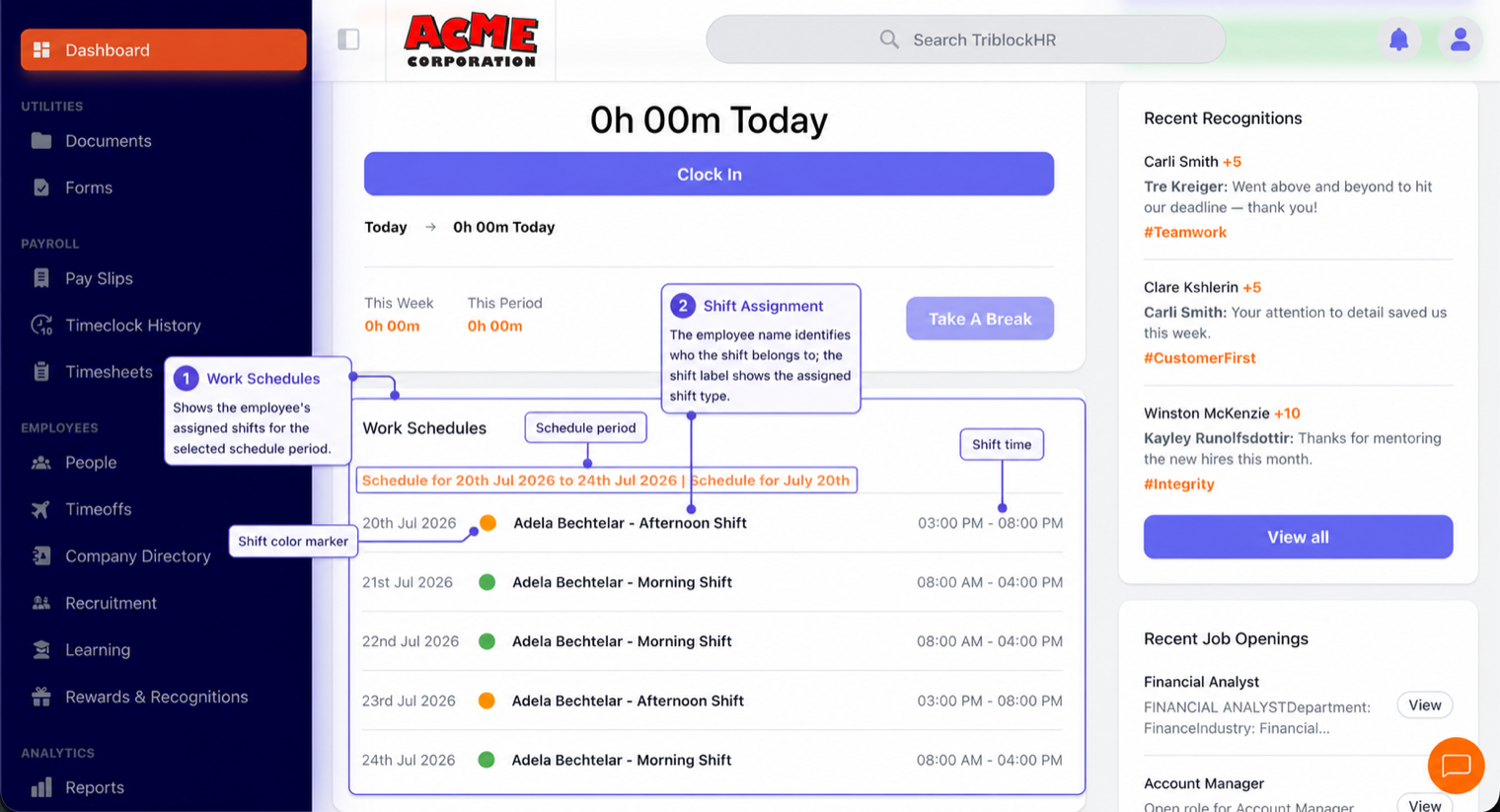
Shifts and the clock
Your scheduled times matter to the time clock. Depending on your company's settings, clocking in very early or late may notify your manager, and staying clocked in well past your shift end may clock you out automatically. If your hours regularly differ from your schedule, talk to your shift manager so the schedule reflects reality.
Need to change a shift?
Talk to your shift manager — they can reassign the shift on the schedule. If you'll be absent, request the time off through Timeoffs so it's approved and on the record rather than a surprise.
Reading your schedule (90 seconds)
Save as: employee-guide__time__shifts__vid1.mp4