Requesting Time Off
How to request leave, check your balance, and cancel plans that changed.
Your time-off screen
Open Timeoffs from your menu. It shows three things: your balance rings — one per leave type, showing what you have earned, what you already have booked, and what is left; a calendar of who is away, so you can see whether the week you want is already thin; and your own requests, newest first.
You will see that colleagues are away, and the dates they are away, but not why. That is deliberate — the reason someone is off is their business. How much of the company appears depends on your employer's privacy setting: it may be everyone, or only the people you already have visibility of.
Copy calendar link gives you a link you can paste into Google Calendar or Apple Calendar to see your leave alongside everything else in your week. It is personal to you, so don't forward it.
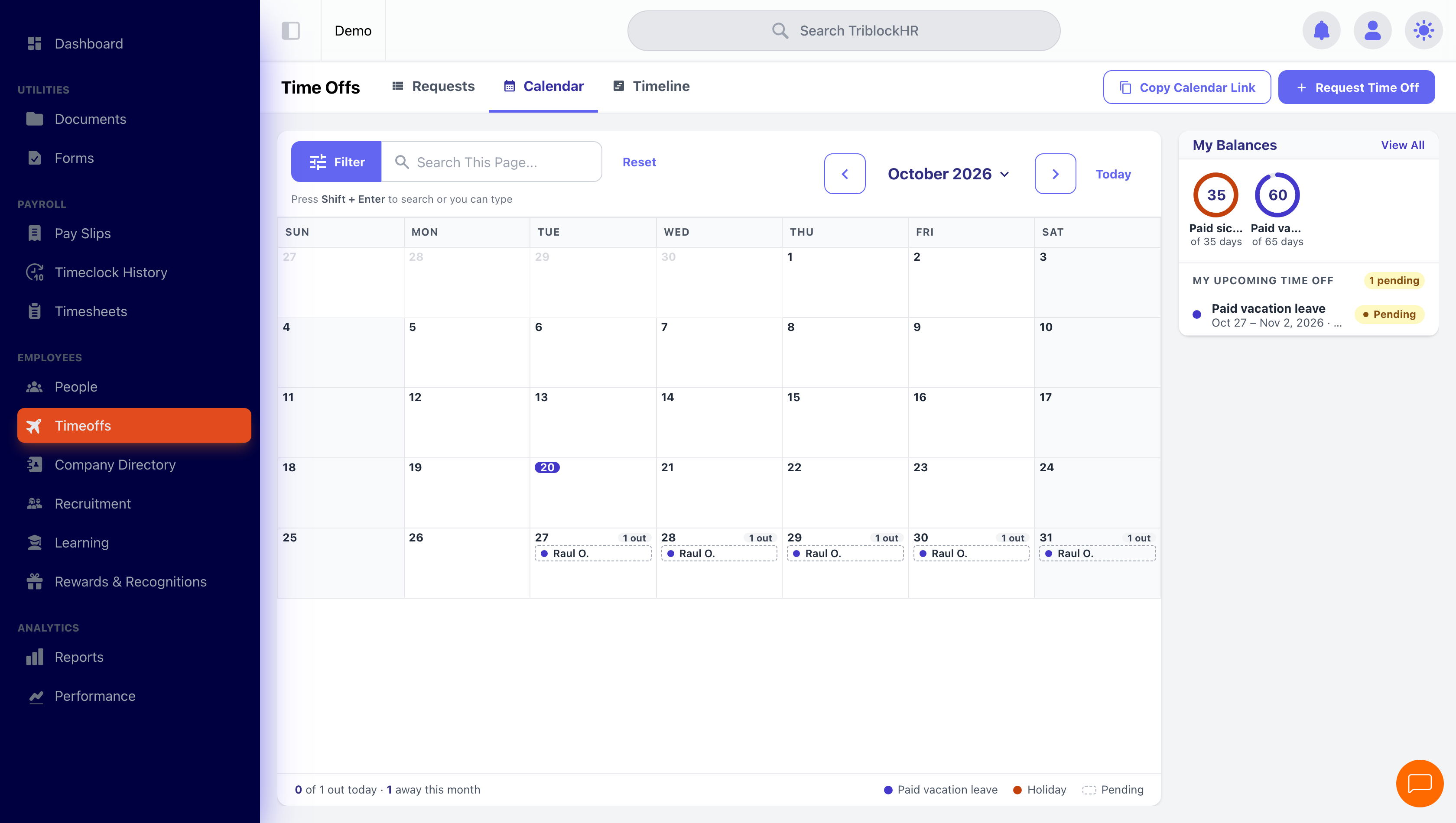
An employee's time-off screen
/timeoffs showing balance rings, the Who's Out calendar, and their own pending request. The point of the shot is that an employee sees rings and a calendar and no approval queue. Captured 2026-09-07, replacing the pre-September list-view shot. One gap: the demo account's privacy is set so this employee can see only themselves ("1 of 1 people"), so the shot does not demonstrate a colleague's leave masked as "Out of Office". Set the account to Semi-Private and give the employee a visible colleague on those dates to show that.
Save as: employee-guide__time__index__shot1.png
Making a request
Click Request Time Off. It opens as its own page in three steps, and you can go Back at any point without losing what you have typed.
- Type & dates. Pick the kind of leave — the list is grouped and you can search it. For full days, leave All Day on and click your start and end dates on the calendar. For part of a day, turn it off and pick one Date plus the Hours you need (15 minutes up to 8 hours). Your scheduled work days are pre-selected and weekends and public holidays are already left out; untick any day you don't want to use.
- Details. Attach a supporting document if the form asks for one — sick leave usually does, and photos and PDFs both work. Add a Note for your approver if there's anything they should know about cover while you're away.
- Review. Read the summary, then Send request.
Two panels sit beside the form as you fill it in. One quotes your company's policy for that type of leave — how much notice it asks for, and any rules your HR team has written down. The other tells you what the request does to your balance and how it will be paid: paid at full rate, unpaid so that period's pay drops, or "confirmed at approval" if your company decides that case by case.
Your request shows as Pending until your manager decides. You'll be notified when it's Approved or Denied — denials include the reason your approver wrote.
Checking your balance
The rings on your Timeoffs screen are the quick answer; your payslip carries the figures too, broken down by leave type. A balance already has your pending and approved leave taken off it — so it is what you have left to book, not what you started the year with. Some leave types don't show a balance at all; that's your company's policy for that type, not an error.
For the full picture — what you were brought forward, what you have earned so far, any adjustments, what you have taken and what is still booked ahead — ask your HR team to show you the Entitlement tab on your record.
If a date won't select when you're requesting, it's likely a company blackout period for that leave type — ask your HR team about blackout dates.
Asking for more days than you have
Most leave types stop you at your balance, and the request is simply refused. Some types let you go over, and then one of two things happens depending on how your company has set that type up: the request is refused anyway, or it goes through with the extra days marked as beyond your balance — the button will read Send for extra approval and the summary will tell you how many days are covered and how many aren't. If you're not sure which applies to you, ask HR before you book flights.
Changing your mind
A Pending request can be cancelled directly with Cancel Request. An Approved request needs sign-off: open it, click Request to Cancel, give a reason, and your request shows as Cancel Requested until your manager signs off. Once cancelled, the days return to your balance.
Leave that has already been paid out can't be cancelled this way — the button won't be there. Speak to HR or payroll instead.
Requesting time off (2 min)
Save as: employee-guide__time__index__vid1.mp4
Common questions
My request was approved — will I be paid for it?
Yes, approved paid leave flows into your timesheet and your pay automatically. If a payslip looks short, see Your Pay.
Why hasn't my balance changed now my leave is approved?
Because it changed when you submitted. A pending request is already taken off the figure you see, so approving it moves nothing — and if it were denied, the days would come back.
Who approves my request?
Your manager, or whoever your company has configured in its approval chain. Open the request and its trail shows every step so far and who it is currently waiting on.
Why does a colleague's leave just say "Out of Office"?
Your company has chosen not to share what kind of leave people are taking. You'll see that they're away and when, which is what you need for planning cover.