Notifications
Where TriblockHR tells you something needs your attention — the bell, your inbox, and beyond.
The notification bell
The bell in the top bar is your in-app feed. A coloured dot means something's unread. Open it and each item shows who it's from, what happened, and how long ago. Click one to jump straight to the thing it's about — a time-off decision, a timesheet, a request waiting on you. You can mark items read, or use Clear All to empty the list. The bell keeps the last few days; older items drop off on their own, so treat it as a recent-activity feed rather than a permanent archive.
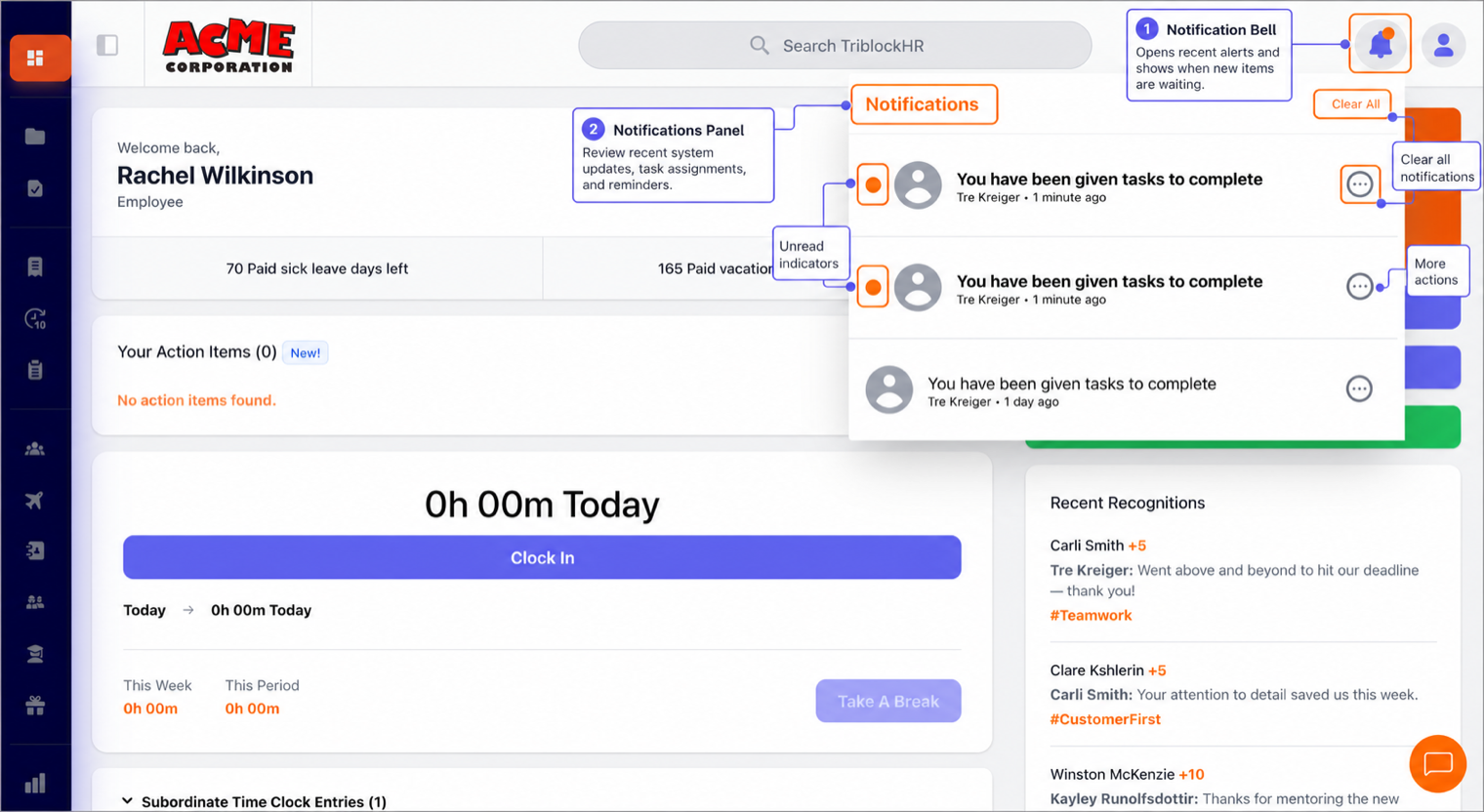
How you're notified
The same event can reach you on more than one channel:
| Channel | What it's for |
|---|---|
| The bell | In-app, for recent activity while you're signed in. |
| The main channel. Goes to your work and personal email, unless your company has set a notification to use your personal email only. | |
| Slack | Only if your company has connected Slack — then some alerts land there too. |
| Phone (push) | If you use the mobile app. Today this is mainly the alert that a new payslip is available. |
What sets one off
The common ones you'll see:
- A time-off request approved, denied, or cancelled
- A timesheet approved or sent back
- A new payslip published
- Something waiting for your approval (if you manage a team)
- Recognition or a reward, a birthday or work anniversary
- A document to sign or a questionnaire to complete
- A company announcement
Announcements
Company announcements show on your dashboard and may also be emailed to you, depending on how they were sent. They're targeted — you'll only see the ones meant for your department, division, or level.
Can I change what I get?
Not individually — TriblockHR doesn't have per-person notification settings. Which notifications are switched on, and who receives each one, is controlled centrally by your HR or admin team. If you're getting too many, too few, or none at all, that's the team to ask. (Admins: this is the Communications settings.)
Using the notification bell (90 sec)
Save as: employee-guide__notifications__index__vid1.mp4