Using the Mobile App
Clock in, check your pay, and request time off from your phone with the Triblock mobile app.
If your company uses it
The mobile app is optional and set up per company. If you're not sure whether yours uses it, or where to download it, ask your HR team — they'll point you to the right place.
Getting signed in
The app uses a quick, passwordless sign-in. There are two ways in:
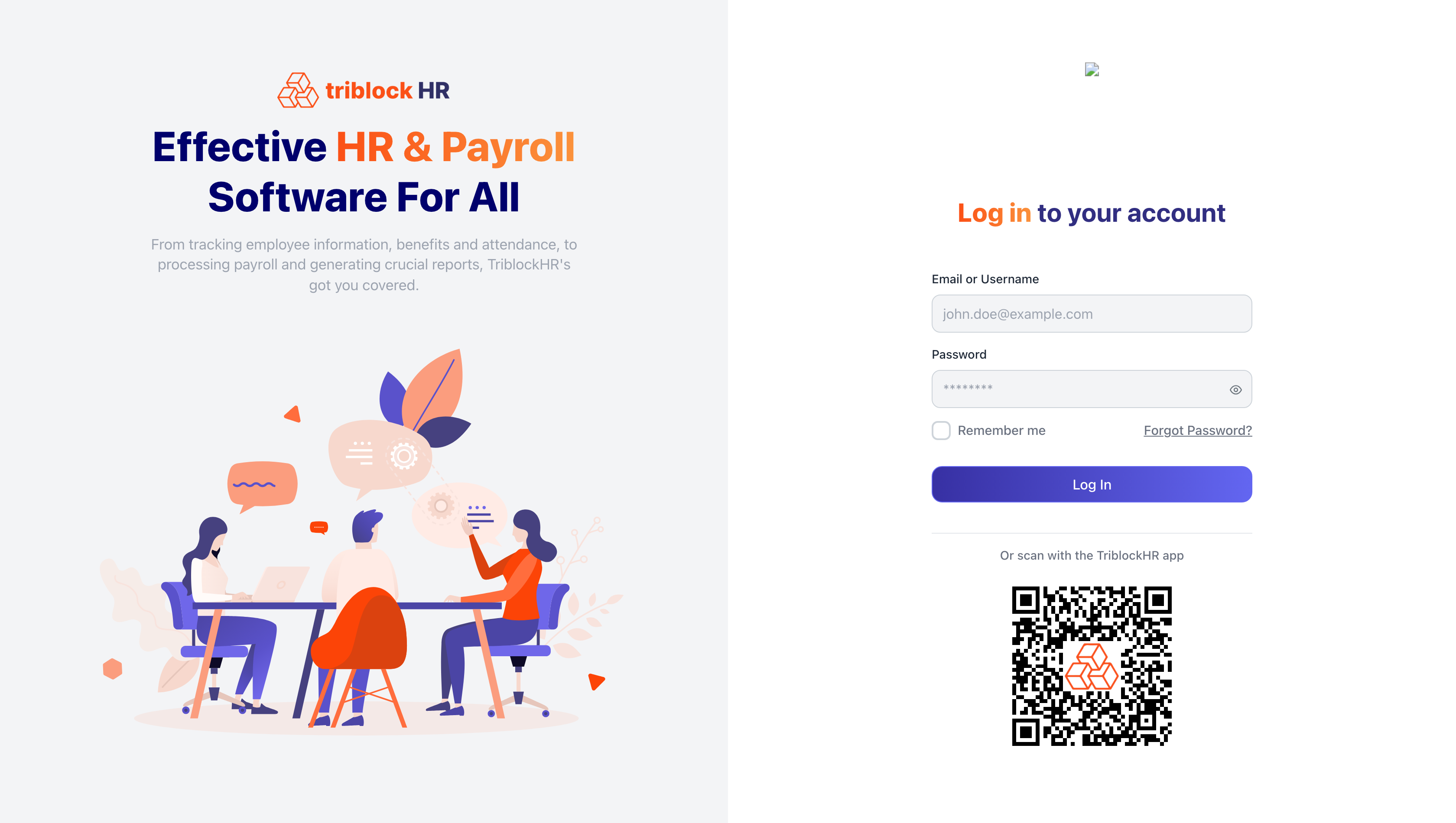
- Scan the QR code. On a computer, open the TriblockHR login screen — under Or scan with the Triblock mobile app there's a QR code. Scan it with the app and you're connected.
- Email link or code. In the app, enter your email and request a login link. You'll get an email titled Your Mobile Login Link — tap Open in App (the link lasts 24 hours), or type the 6-digit code from the email into the app (the code lasts 10 minutes).
What you can do
- Clock in and out — including from your phone's location, where your company requires it.
- See your pay — view your latest and past payslips, and your timesheets.
- Check your schedule — your current and upcoming shifts.
- Request time off — submit a request and check your balances.
- Approve for your team — if you're a manager, approve or deny your reports' time-off requests.
- Your profile & documents — view your details, documents, and company announcements.
Notifications on your phone
The app can send push notifications. Today the main one is a heads-up that a new payslip is available — "Your payslip for the period … is available." Other alerts (time-off decisions, approvals) still come through email and the in-app bell. If you're not getting push notifications, check that you allowed them when the app first asked, in your phone's settings.
If you can't sign in on mobile
- Login link expired? The emailed link lasts 24 hours — request a new one from the app.
- Code not working? The 6-digit code lasts 10 minutes, and too many wrong tries will retire it. Request a fresh one.
- No email arriving? It goes to the email address on your account. If that's wrong, your HR team can fix it.
The same sign-in basics for the web are in Signing In & Your Password, and more fixes are in Troubleshooting & FAQ.
▶ Video placeholder
Pairing and clocking in on mobile (2 min)
Screen recording on a demo device: scan the QR from the web login to connect the app, then clock in from the app's home screen and view the latest payslip. Use a seeded demo account — no real names, pay, or NIB numbers.
Save as: employee-guide__mobile__index__vid1.mp4