Signing In & Your Password
How to log in, what to do when you can't, and how passwords work in TriblockHR.
Signing in
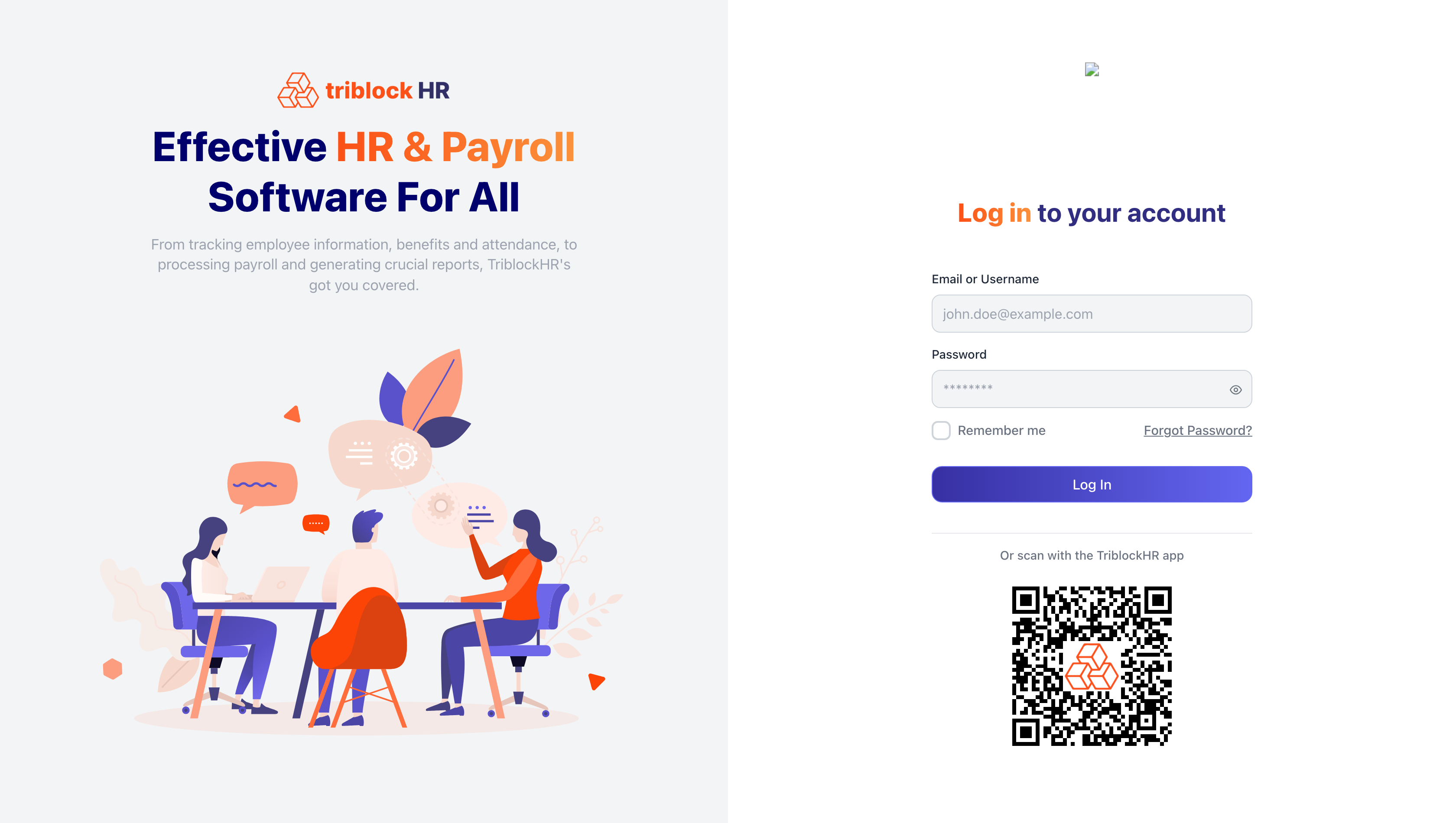
Go to your company's TriblockHR web address (your HR team will have shared it), enter your Email or Username and Password, and select Log In. Tick Remember me on your own device to stay signed in longer; leave it off on a shared or public computer.
Signing in with Microsoft or Active Directory
If your company has set it up, you'll also see a Log In With Microsoft or Log In With Active Directory button. Use that with your work account instead of a separate TriblockHR password. If you don't see these buttons, your company hasn't enabled them — sign in with your email and password as usual.
The mobile app
The login screen shows a QR code under Or scan with the Triblock mobile app. In the app you can request a one-time login link, which sends a 6-digit code to confirm it's you. The code is short-lived — request a fresh one if it expires or you mistype it a few times.
Resetting your password
There's no separate "change password" screen once you're signed in — to set a new password, use the reset flow:
- On the login screen, select Forgot Password?
- Enter your Email Address and select Send Password Reset Email.
- Open the email and follow the link. It's only valid for 60 minutes — if it's expired, just request another.
- Enter your new password twice and select Reset Your Password.
Password requirements
Your password must:
- Be at least 8 characters
- Mix upper- and lower-case letters
- Include at least one symbol (such as
! @ # $ %)
The app puts it this way: "Use at least 8 characters, mixed cased, with at least 1 symbol. Don't use a password from another site, or something too obvious like your pet's name."
Why you're occasionally asked to reset
Passwords expire periodically (about once a year). When yours does, TriblockHR signs you out and emails you a reset link — set a new password and you're back in. This is routine, not a sign anything's wrong with your account.
If you can't sign in
| What's happening | What to do |
|---|---|
| You never got your welcome email | Ask your HR team to resend it. New accounts only get the welcome email once they've been formally hired in the system. |
| Your reset or login link won't work | It's expired (reset links last 60 minutes). Request a new one from Forgot Password? |
| The mobile code stopped working | Too many wrong tries burns the code. Request a fresh login link from the app. |
| "Email or password is incorrect" | Check whether you're using your email or your username, and try a password reset if you're unsure of the password. |
| You signed in but have no access | Your account may be set to No Access (for example, after leaving). Your HR team controls this. |
Resetting your password (90 sec)
Save as: employee-guide__account__index__vid1.mp4