Applicants & the Pipeline
From application to hire: the phase pipeline, the AI-assisted candidate view, and bulk communication.
The pipeline
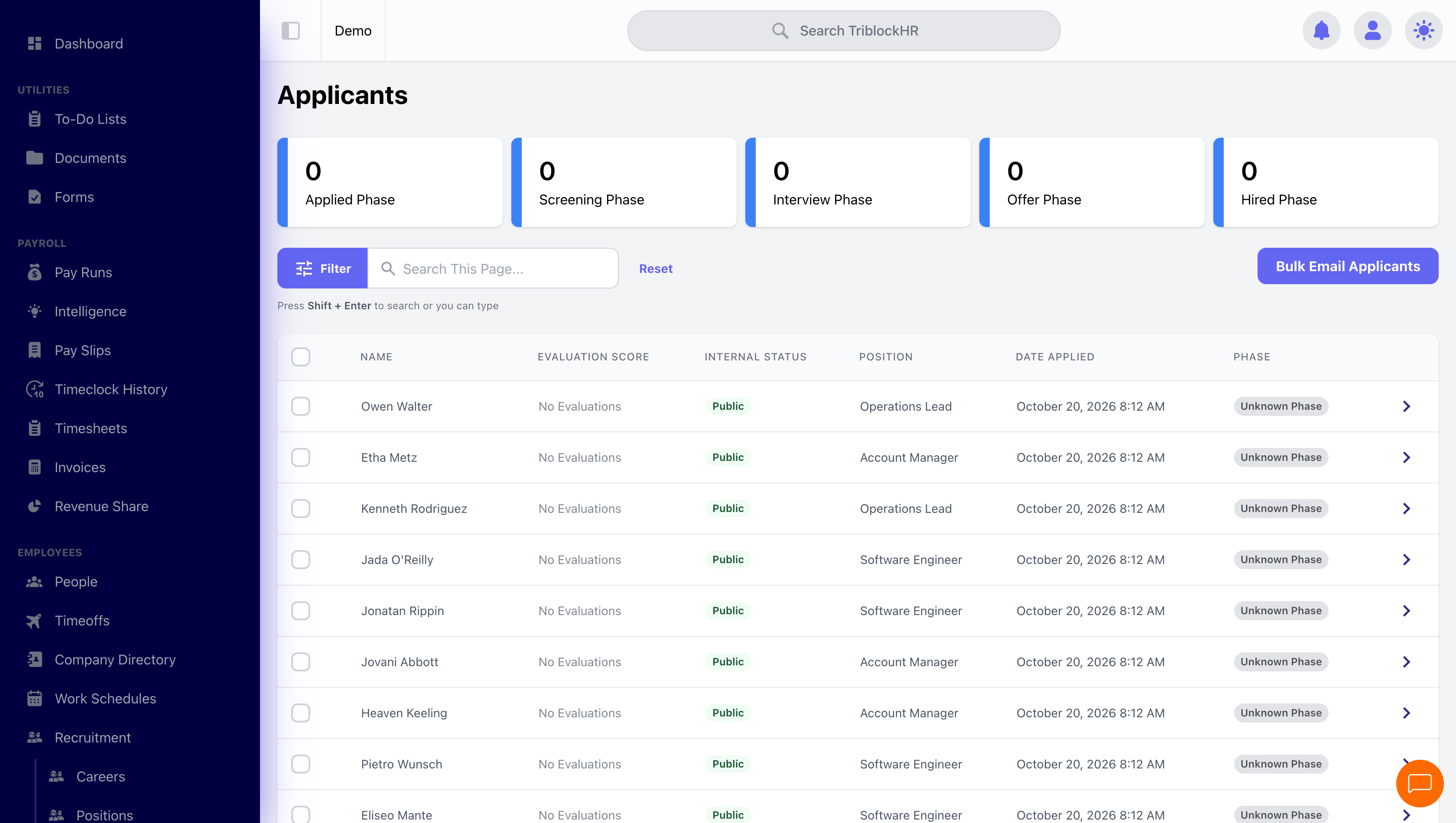
The Applicants screen opens with the phase grid — colored counters for each stage (Applied, Screening, Interview, Offer, Hired, Rejected, Withdrawn); click phases to filter. Moving candidates is the everyday verb: Update Phase on one applicant, or tick several and move them together. Each move can fire the phase's configured email (or use Update Phase & Customize Applicant Email to write it on the spot), notifies the hiring managers, and lands in the applicant's history timeline.
Reading a candidate
The applicant detail page assembles everything: contact details, the AI Resume Analysis (match score, skills found, education versus expectations, extracted job titles), the candidate's profile (cover letter, experience, education, resume download), and their custom-question answers with automatic correct/incorrect marks where you defined expected answers. Below that, the collaboration layer: hiring-manager evaluation scores (averaged into an overall percentage), threaded comments, and the full history timeline of phases, emails, and questionnaires. Arrow buttons page through candidates ("Applicant 3 of 24") so screening a stack doesn't mean returning to the list each time.
For a ranked view, See Top Applicants sorts the position's candidates by the blended score you weighted on the position — resume match plus evaluations.
Communicating
Email candidates one at a time from their detail page or in bulk from the list — Bulk Email Applicants with filters for position, phase, and education level. Templates pre-fill subject and body, and placeholders ({{first_name}}, {{position_name}}) personalize each send. The classy use: a proper rejection email to every Rejected candidate at the end of a search, two minutes' work with a template.
From hired to employee
When a candidate reaches a phase configured with Offer To Create User For Applicant (typically Hired), TriblockHR offers to create their employee record with the application's details carried over. From there it's the normal onboarding path — bank account, welcome email, first payroll.
A hire, end to end (6 min)
Save as: admin-guide__recruitment__applicants__vid1.mp4