Form Templates & Submissions
Fillable PDF forms with approval workflows: build the template once, send it out, watch it route through sign-offs, and file the result on the employee's record.
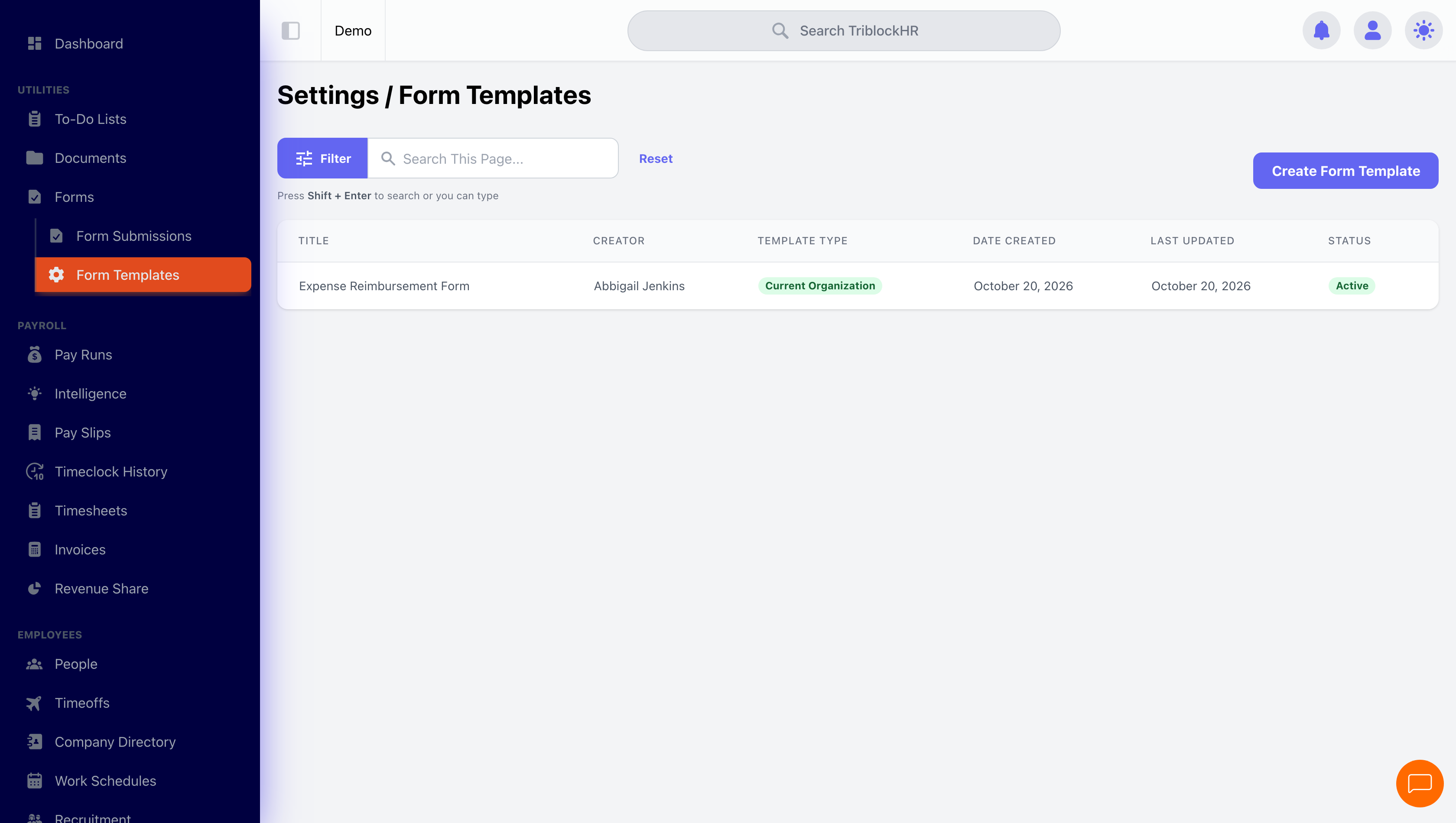
Building a template
A form template starts from a real PDF — your existing contract, government form, or policy document. The builder (Settings → Form Templates) walks four tabs:
- Upload Document — the PDF itself.
- Details & Workflow — title, status, and the approval chain: stages approved by named users, a role, the department manager, or the direct manager, in order.
- Template Builder — place and configure the fillable fields on the PDF visually, and map auto-fill fields to employee data (name, department, and so on) so the form arrives pre-populated.
- Version History — every edit creates a version; you can preview old versions, revert, and see which live submissions are linked to which version.
Sending and tracking submissions
From Form Submissions, create a submission against a template for an employee (with an optional due date and notes). The index tracks everything: your involvement (owner, approver, or neither), the current workflow stage, due dates, and status — Pending, Approved, Rejected, Reset, or Cancelled. Rejected forms go back to the owner, who can reset and resubmit; archived and deleted submissions stay filterable and restorable.
The employee fills the PDF in the browser — required-field tracking, draft saving with Save for Now, supporting-document uploads — and submission sends it into the workflow, where each stage's approver gets approve/reject buttons and a comment thread. If an approver leaves mid-flight, reassignment and workflow-recovery tools unstick the stage.
Public forms
The same machinery works without a login: create a public form submission from a template or fresh PDF and share the link (optionally passcode-protected) — vendor forms, client intake, anything outside your staff. Responses land in the same admin view with the same workflow options.
After approval
A completed form can be filed to the employee's personal documents in one action, putting the signed PDF on their permanent record. For the rare case where a finished PDF needs correcting, Repair PDF (tightly permissioned) lets an admin edit the live document — a reason is required, a backup is taken automatically, and the repair lands in an audit trail.
A form's full journey (6 min)
Save as: admin-guide__forms__index__vid1.mp4