Employee Documents
Per-person document files — contracts, IDs, warning letters — with read receipts, sign-off, and a bulk uploader for the filing-cabinet migration.
The personal file
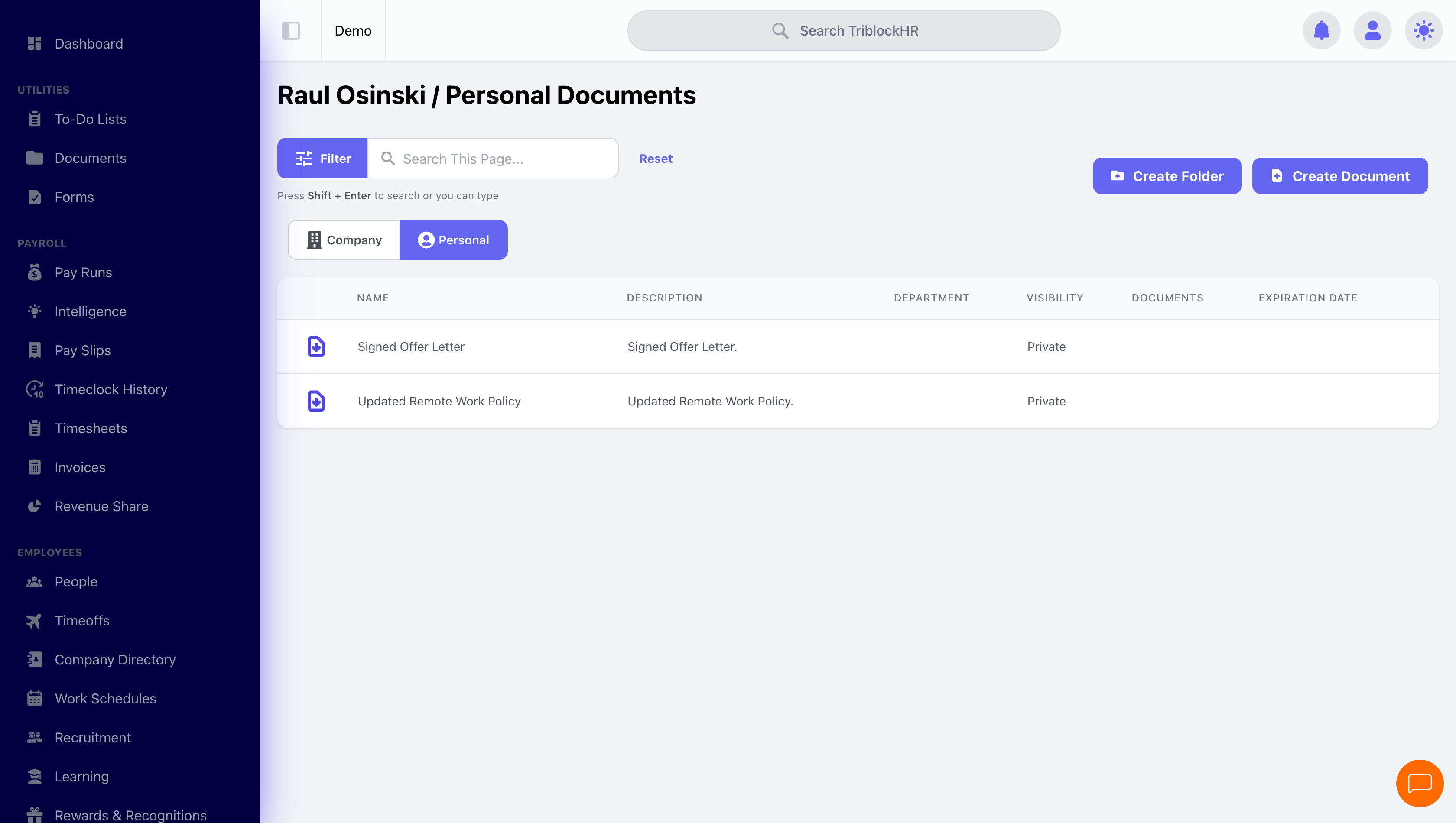
Each employee's Documents tab toggles between the company library and their Personal Documents — files attached to them specifically. Uploads work like company documents (name, description, type, optional folder and expiry) with two employee-specific trackers: User Status flips from Unread to Read when the employee opens the file, and the optional sign-off flow below. Whether employees can upload to their own file is your account's Allow Employees to upload their own documents? setting; HR/Payroll admins and the person's manager always can.
Requiring sign-off
Toggle Require User To Sign Off? on an upload and the document becomes an acknowledgment: the employee is notified ("Please Sign Off On This Document!"), they cannot download or view it until they sign off, and when they do you're notified and the status flips to Signed. Contract amendments, policy acknowledgments, disciplinary letters — anywhere "I never saw it" must not be possible.
Bulk upload
Migrating a filing cabinet? Bulk Upload Documents (in Settings) takes a whole folder from your computer and matches files to employees automatically — by employee number, ID, or name in the filename, or by per-employee subfolders if you organize it that way. Pick the document type, optionally a target folder (or have it create a private folder per employee), and upload. The results screen splits cleanly: matched documents with how each was matched, and unmatched files with the reason — fix the filenames and re-run the stragglers.
Sign-off and bulk upload (4–5 min)
Save as: admin-guide__documents__employee-documents__vid1.mp4