Documents & Forms
Your document file, the sign-offs that need your action, and how to fill the forms HR sends you.
Your documents
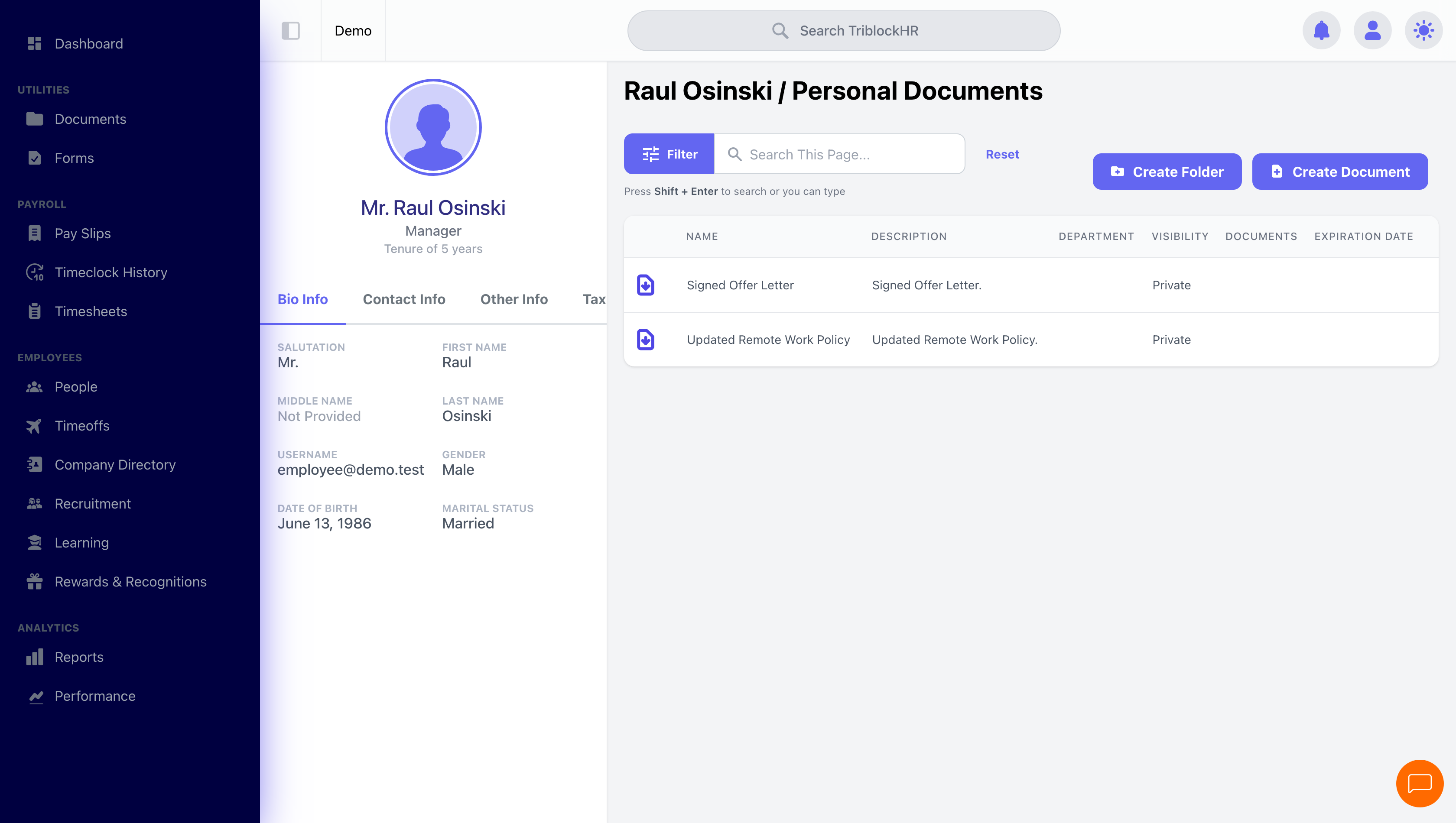
Your profile's Documents tab toggles between Company Documents (policies and handbooks shared with everyone) and your Personal Documents — contracts, certificates, and anything attached to your file. Depending on your company's setup you may be able to upload your own (certificates, IDs); otherwise HR handles uploads.
When a document needs your sign-off
Some documents arrive locked behind an acknowledgment: you'll get a "Please Sign Off On This Document!" notification, and the file can't be opened until you click Sign Off. Signing off records that you've acknowledged it — read it once it opens, because the record says you did.
Filling a form
- You'll be notified when a form is assigned. Open it from Form Submissions on your profile.
- The form is a fillable PDF in your browser — some fields arrive pre-filled from your profile. A panel tracks which required fields are still empty.
- Attach supporting documents if asked, use Save for Now to keep a draft, and Submit Form when done.
- Submitted forms route to approvers (your manager, HR). If it's Rejected, you'll see why — fix and resubmit. Approved forms may be filed to your personal documents automatically.
Answering a questionnaire
Surveys and quizzes work like any web form: sections of questions, required ones marked with an asterisk, Next Section to move through, submit at the end. Your earlier answers are kept if you navigate back a section.
Sign-offs and forms (2–3 min)
Save as: employee-guide__documents-forms__index__vid1.mp4