Workflow Automations
The programmable layer: build a flow of steps visually, then wire it to a trigger — an event, a schedule, or another workflow's outcome.
Two pieces: the workflow and the automation
This module splits "what happens" from "when it happens". A workflow is the visual flow of steps; an automation is the trigger pointing at it. One workflow can be fired by several automations — or run manually with Run Now.
What a workflow can do
The visual builder composes steps from these node types:
| Node | Does |
|---|---|
| Approval | Waits for a named person or role to approve or deny. |
| Minimum required | Waits until N of the assigned approvers have approved — quorum approvals. |
| Condition | Branches the flow on field values — if/else. |
| Timeout / delay | Pauses for a set time before the next step. |
| Update field | Changes a value on the record the workflow is running against. |
| Send email | Sends a templated email with the record's data. |
| Run report | Generates a report as part of the flow. |
| Cancel | Stops the run. |
What can trigger it
| Trigger | Fires when |
|---|---|
| Activity | A record is created, updated, or deleted — optionally filtered by field conditions ("when a time off is created and the type is X…"). |
| Repeating | On a recurring schedule (e.g., daily at 9 AM). |
| One-time | At an exact date and time, or a weekday/time combination. |
| Workflow Outcome | When another workflow's run completes, fails, or is cancelled — chaining flows together. |
Each automation has an enabled switch, so you can build and test before turning it loose.
Runs: watching it work
Every firing creates a run under the workflow's Runs view: Running, Completed, Failed, or Cancelled, with the subject record, timestamps, and the workflow version it executed. Open a run to see exactly where it is in the flow; running ones can be cancelled (Request Cancel), failed ones retried (Retry). Versioning means editing a workflow never corrupts in-flight runs — they finish on the version they started with.
This is also the machinery behind pay run approval tasks: when an automation puts an approval task on a pay run, the Approve button records each approver's decision against the task until the chain completes — which is why an approver sometimes sees "Your approval has been recorded, but the approval process is not yet complete."
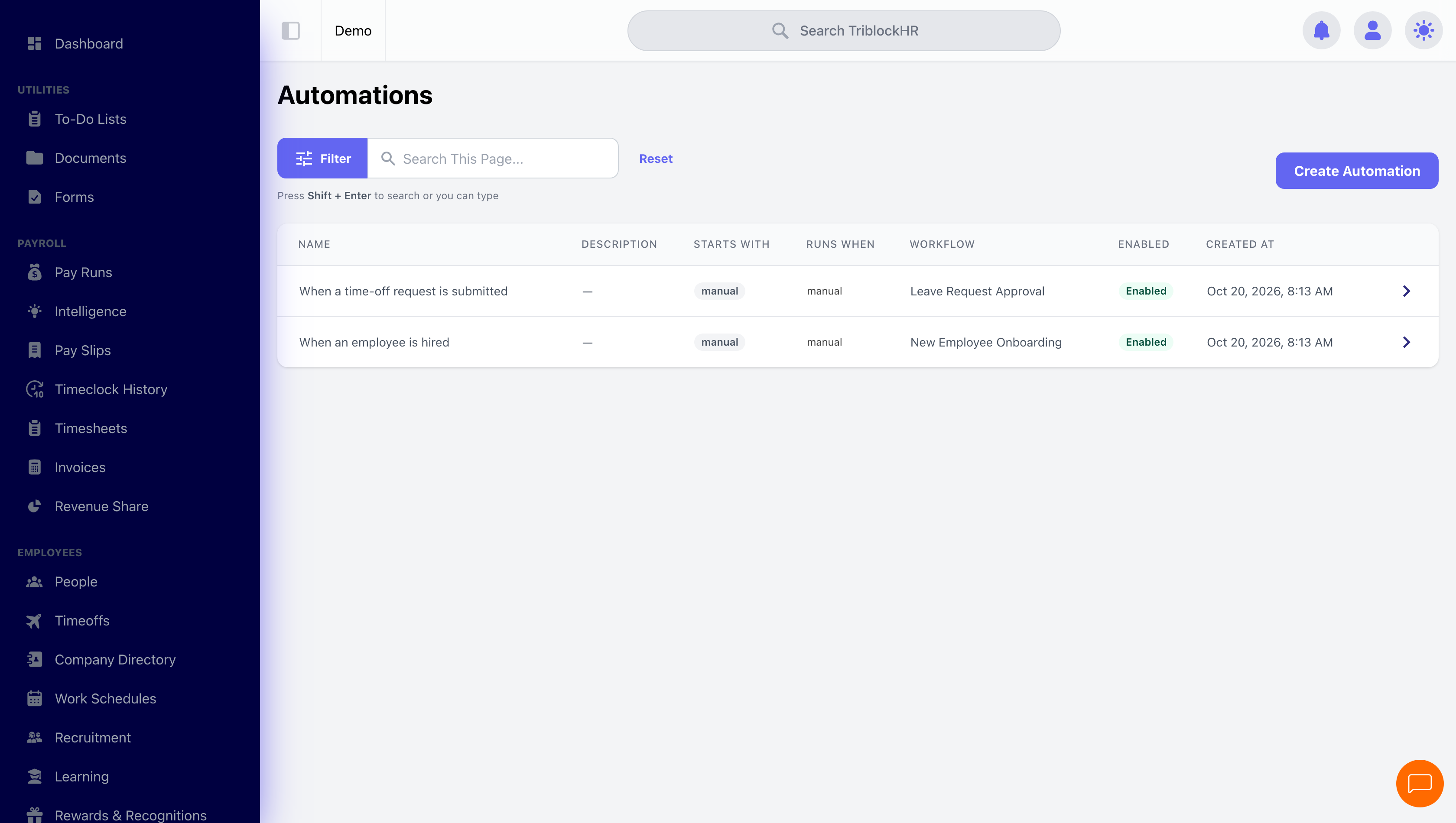
Your first automation (5–6 min)
Save as: admin-guide__workflows__automations__vid1.mp4